PowerBuilder Runtime Packager
The PowerBuilder Runtime Packager is a tool that packages the
PowerBuilder files an application needs at runtime into a Microsoft
Windows Installer (MSI) package file or a Microsoft merge module (MSM).
Windows Installer is an installation and configuration service that is
installed with recent Microsoft Windows operating systems. The MSM file
must be incorporated into an application MSI file using a merge tool
before the components it contains can be installed on a client
computer.
You can use the MSM or MSI file generated by the Runtime Packager as
part of an installation package that includes the other files that your
application needs.
You must have Microsoft Windows Installer on your system in order to
run the Runtime Packager successfully.
To get more information about Windows Installer, see the Microsoft
documentation at http://msdn.microsoft.com/en-us/library/cc185688(VS.85).aspx.
Note
You must have Microsoft Visual C++ 2010 Redistributable Package
(32-bit or 64-bit) installed, if you use the EXE file generated by the
Runtime Packager. You must also have Microsoft .NET Framework 4.0
installed, if the Runtime Packager will install components such as
ADO.NET, MS Excel12 Support, and OData which rely on .NET Framework to
install and run.
The Runtime Packager can be used with client applications installed
on Windows systems and applications deployed to the .NET Framework. It
does not install most third-party components. See Third-party components and deployment for
more information.
Make sure that you read the sections referenced in Table: PowerBuilder files required for
deployment that apply to your application for more information
about where files that are not installed by the Runtime Packager should be
installed.
To use the PowerBuilder Runtime Packager:
-
Select Programs>Appeon PowerBuilder 2019 R3>PowerBuilder
Runtime Packager 2019 R3 from the Windows Start menu or launch the
pbpack190.exe file in your %AppeonInstallPath%PowerBuilder
[version]IDE directory.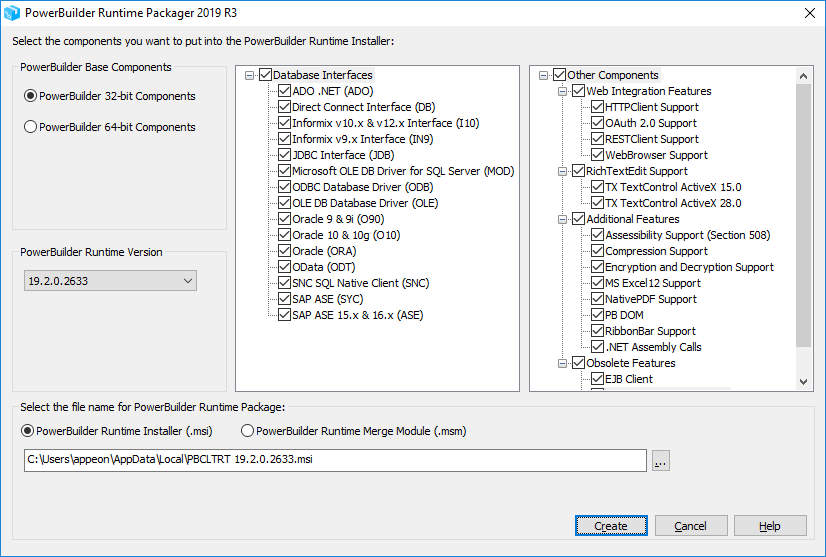
-
Select the PowerBuilder Base Components.
-
Select the PowerBuilder Runtime Version.
-
Select whether to generate the PowerBuilder runtime files in a
standalone MSI file or in an MSM merge module. -
Select a location for the generated MSI or MSM file.
-
Select the database interfaces your application requires.
The DLLs for the database interfaces you select are added to the
package. For ODBC and OLE DB, the pbodb.ini file is also added. For
JDBC, the pbjdbc12.jar and pbjvm.dll files are also added. The Java
Runtime Environment (JRE) is not added. See Third-party components and
deployment.Other ODBC or OLE DB files your application may require are not
added. For information about deploying these files, see ODBC database drivers and supporting
files and OLE DB database
providers. -
If your application uses the the following Web integration
features, such as HTTPClient object, RESTClient object, OAuth 2.0, and
WebBrowser control, select the corresponding check box.The Runtime Packager adds the files listed for HTTPClient
object, RESTClient object, OAuth 2.0, and WebBrowser control in Table: Additional PowerBuilder runtime
files. -
If your application uses the rich text control for the
RichTextEdit control or RichText DataWindow, select the corresponding
check box.For 32-bit, you can select from
-
TX TextControl ActiveX 15.0
-
TX TextControl ActiveX 28.0
-
Rich Edit Control (TE Edit Control) (in the Obsolete
Features section)
For 64-bit, you can select from
-
TX TextControl ActiveX 28.0
-
Microsoft RichEdit Control (in the Obsolete Features
section)
The Runtime Packager adds the files listed for the rich text
support in Table: Additional PowerBuilder
runtime files.Rich Edit Control and Microsoft RichEdit Control are
obsoleteRich Edit Control and Microsoft RichEdit Control are obsolete
features. Obsolete features are still available to use, but are no
longer eligible for technical support and will no longer be
enhanced.If your application uses the old editor (TX Text Control ActiveX
24.0 Professional/Enterprise) for a RichTextEdit control or RichText
DataWindow, you should follow the vendor’s documentation to package
the files required for running this editor.To know more about the built-in editor and the old editor, see
Rich text editors. -
-
If your application uses the following features such as
NativePDF, RibbonBar control, UI accessibility and automation, data
compression, data encryption and decryption, and .NET assembly calls,
select the corresponding check boxes.The Runtime Packager adds the files listed for these feature
supports in Table: Additional PowerBuilder
runtime files. -
If your application saves DataWindow or graph data in Microsoft
Excel format, select the MS Excel12 Support check box.The Runtime Packager adds the PBDWExcel12Interop.dll and
Sybase.PowerBuilder.DataWindow.Excel12.dll files to the MSM or MSI
package that you generate. It does not add the .NET Framework that is
also required for Microsoft Excel support.The Sybase.PowerBuilder.DataWindow.Excel12.dll file will be
automatically installed to the Windows GAC folder, for example,
C:WindowsMicrosoft.NETassemblyGAC_MSILSybase.PowerBuilder.DataWindow.Excel12,
if you run the MSM or MSI package. However, if you manually copy
runtime DLLs to the client (instead of using the MSM or MSI package),
make sure to copy the Sybase.PowerBuilder.DataWindow.Excel12.dll file
to the same directory as the application executable, as this file is a
C# assembly DLL and cannot be loaded through the environment
variable. -
If your application uses the XML services provided by the
PowerBuilder Document Object Model or if it is an EJB client
(obsolete), select the EJB client or PB DOM check boxes.The Runtime Packager adds the DLLs, PBXs, and JAR files required
by the selected component.EJB client is obsolete
EJB client is obsolete features. Obsolete features are still
available to use, but are no longer eligible for technical support
and will no longer be enhanced. -
If your application is a SOAP Web services client or if your
application uses Web service DataWindows, select the SOAP Client for
Web Service or Web Service DataWindow Support check boxes.The Runtime Packager adds required files for both the EasySoap
and .NET Web service engines when you select the SOAP Client for Web
Service check box. For more information about required files for these
services, see PowerBuilder
extensions.Web service DataWindows and SOAP client are obsolete
Web service DataWindows (OData and SOAP) and SOAP client are
obsolete features. Obsolete features are still available to use, but
are no longer eligible for technical support and will no longer be
enhanced. -
Click Create.
The Runtime Packager creates an MSI or MSM file that includes
the files required by the components you selected, as well as the
runtime DLLs for standard PowerBuilder applications listed in the
following table.Base components selected
Files
PowerBuilder components (Default file name for
runtime package is PBCLTRT.msi)libjcc.dll
libjutils.dll
libjtml.dll
libsybunic.dll
nlwnsck.dll
pbacc.dll
pbcomrt.dll
pbcrypt.dll
pbcsi.dll
pbdpl.dll
pbdwe.dll
pbdwr.pbd
pbhttpclient.dll
pbjag.dll
pbjson.dll
pbjvm.dll
pboauth.dll
pbpdf.dll
pbrestclient.dll
pbshr.dll
pbsysfunc.dll
pbtra.dll
pbtrs.dll
pbuis.dll
pbvm.dll
The MSI file is a compressed file that can be executed directly on
any Windows platform. It registers any self-registering DLLs, adds the
installation destination path to the Windows Registry, sets the system
PATH environment variable, and adds information to the Registry for the
Install/Uninstall page in the Windows Control Panel. It can also be used
in some third-party installation software packages.
The MSI file generated by the PowerBuilder Runtime Packager 2019 R3
tool has been enhanced, so that runtime files of different builds at the
same major version (starting from 2019 R3 GA) can be installed and
coexisting on the same computer, for example, 2019 R3 and 2019 R2 can
coexist, multiple 2019 R3 MRs can coexist. And the MSI file no longer sets
the runtime file path in the system PATH environment variable; therefore,
the user will need to decide which build of runtime files will be loaded
by the application executable file and place the application executable
and the runtime files in the same folder.
The MSM file is similar to an MSI file, but the MSM file must first
be merged into an installation package before its components can be
installed on a client computer. A merge tool is required to merge the MSM
file into an MSI installation package.