PictureListBox
A PictureListBox, like a ListBox, displays available choices in
both text and images. You can specify that PictureListBoxes have
scroll bars if more choices exist than can be displayed in the
PictureListBox at one time.
Adding images to a
PictureListBox
You can choose from a group of stock images provided by
PowerBuilder, or use any bitmap (BMP), icon (ICO), GIF, JPEG, or PNG
file when you add images to a PictureListBox.
Keep in mind, however, that the images should add meaning to the
list of choices. If you use a large number of images in a list, they
become meaningless.
You could, for example, use images in a long list of employees
to show the department to which each employee belongs, so you might
have a list with 20 or 30 employees, each associated with one of five
images.
To add an image to a PictureListBox
-
Select the PictureListBox control to display its properties
in the Properties view, and then select the Pictures tab.The Pictures property page displays.
-
Use the PictureName drop-down ListBox to select stock
pictures to add to the PictureListBoxor
Use the Browse button to select a bitmap (BMP), icon (ICO),
GIF, JPEG, or PNG file to include in the PictureListBox.About cursor files
To use a cursor file, you must type the file name. You
cannot select it. -
Specify a picture mask color (the color that will be
transparent for the picture). -
Specify the height and width for the image in pixels or
accept the defaults.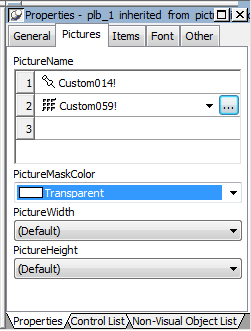
-
Repeat the procedure for the number of images you plan to
use in your PictureListBox. -
Select the Items tab and change the Picture Index for each
item to the appropriate number.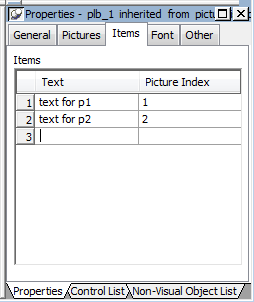
-
Click OK.
On the Items tab page, you can work with rows in this
way:To
Do this
Select a row
Click the row button on the left, or with the
cursor in the edit box, press Shift+SpaceDelete a row
Select the row and press
DeleteMove a row
Click the row button and drag the row where
you want it or press Shift+Space to select the row and
then press Ctrl+Up Arrow or Ctrl+Down Arrow to move the
rowDelete text
Click the text and select Delete from the
pop-up menuOn the Pictures tab page, you can work with rows in the same
way, and also:To
Do this
Browse for a picture
Select the row and click the Browse button or
press F2For information about other properties, right-click in any
tab page in the Properties view and select Help from the pop-up
menu.