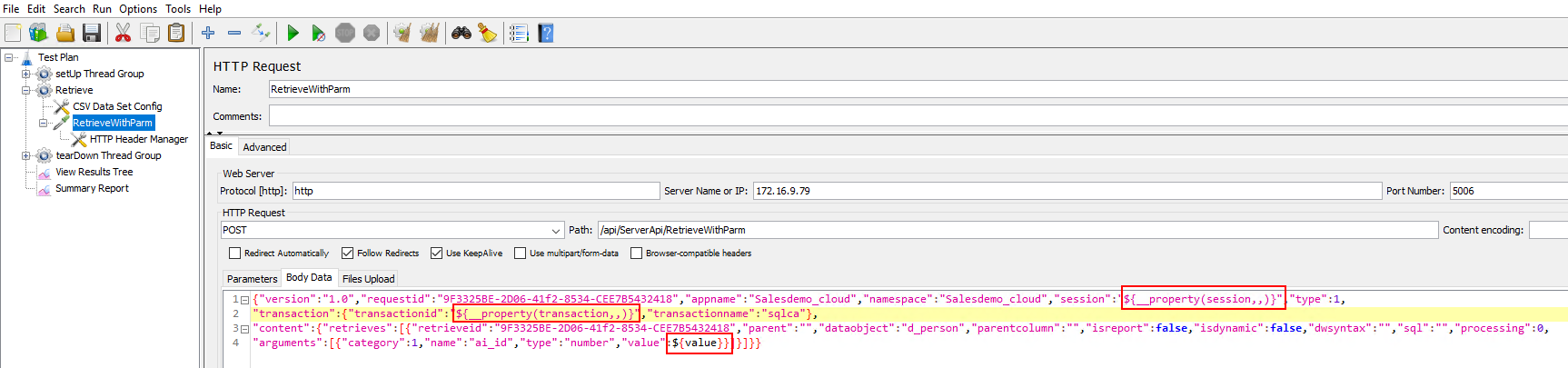
Parameterizing the retrieval argument
There are many ways for JMeter to parameterize the script. In
this section, you will learn how to parameterize the retrieval
argument using a CSV file.
In this section, you will first need to prepare a CSV file that
contains test data for the retrieval argument. Suppose there is only
one retrieval argument (so there will be only one column in the CSV
file).
Then, you will need to add a CSV Data Set Config element to read
the data value from the CSV file:
To add a CSV Data Set Config element, right click on Thread
Group, and then select Add >
Config Element > CSV Data Set
Config.
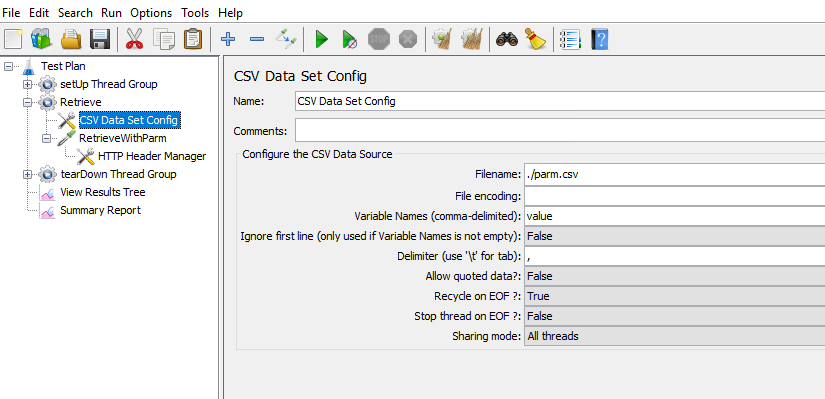
Specify the CSV Data Set Config like this:
-
Filename: File name and
path of the CSV file (if the file is in the bin folder, then enter
the filename, or use the full path of the file). -
Variable name: “value” or
input any name you prefer (if there are multiple columns in the
CSV file, define multiple variables and separate them with commas
“,”)
Now, you can replace the initial value by typing
${value} in the request.