Other techniques
PowerBuilder allows you to implement a wide variety of
object-oriented techniques. This section discusses selected techniques and
relates them to PowerBuilder.
Using function overloading
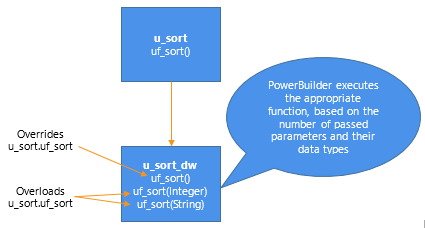
In function overloading, the descendant function (or an identically
named function in the same object) has different arguments or argument
datatypes. PowerBuilder determines which version of a function to execute,
based on the arguments and argument datatypes specified in the function
call:
Figure: Function overloading
Global functions
Global functions cannot be overloaded.
Dynamic versus static lookup
Dynamic lookup
In certain situations, such as when insulating your application from
cross-platform dependencies, you create separate descendant objects, each
intended for a particular situation. Your application calls the
platform-dependent functions dynamically:
Figure: Dynamic lookup
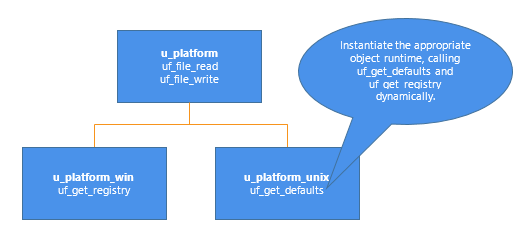
Instantiate the appropriate object at runtime, as shown in the
following code example:
|
1 2 3 4 5 6 7 8 9 10 11 12 13 14 15 |
// This code works with both dynamic and // static lookup. // Assume these instance variables u_platform iuo_platform Environment ienv_env ... GetEnvironment(ienv_env) choose case ienv_env.ostype case windows! iuo_platform = CREATE u_platform_win case windowsnt! iuo_platform = CREATE u_platform_win case else iuo_platform = CREATE u_platform_unix end choose |
Although dynamic lookup provides flexibility, it also slows
performance.
Static lookup
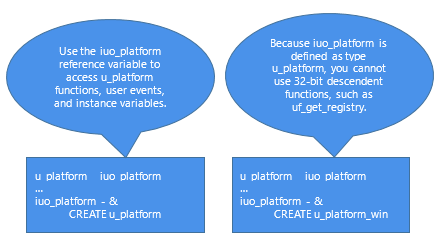
To ensure fast performance, static lookup is a better option.
However, PowerBuilder enables object access using the reference variable’s
datatype (not the datatype specified in a CREATE statement).
Figure: Static lookup
When using static lookup, you must define default implementations
for functions in the ancestor. These ancestor functions return an error
value (for example, -1) and are overridden in at least one of the
descendant objects.
Figure: Ancestor functions overridden in descendant functions
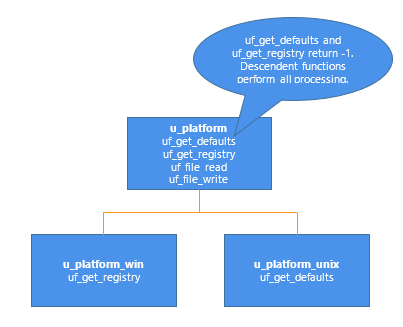
By defining default implementations for functions in the ancestor
object, you get platform independence as well as the performance benefit
of static lookup.
Using delegation
Delegation occurs when objects offload processing to other
objects.
Aggregate relationship
In an aggregate relationship (sometimes called a whole-part
relationship), an object (called an owner object) associates itself with a
service object designed specifically for that object type.
For example, you might create a service object that handles extended
row selection in DataWindow objects. In this case, your DataWindow objects
contain code in the Clicked event to call the row selection object.
To use objects in an aggregate relationship:
-
Create a service object (u_sort_dw in this example).
-
Create an instance variable (also called a reference variable)
in the owner (a DataWindow control in this example):1u_sort_dw iuo_sort -
Add code in the owner object to create the service
object:1iuo_sort = CREATE u_sort_dw -
Add code to the owner’s system events or user events to call
service object events or functions. This example contains the code you
might place in a ue_sort user event in the DataWindow control:12345IF IsValid(iuo_sort) THENReturn iuo_sort.uf_sort()ELSEReturn -1END IF -
Add code to call the owner object’s user events. For example,
you might create a CommandButton or Edit>Sort menu item that calls
the ue_sort user event on the DataWindow control. -
Add code to the owner object’s Destructor event to destroy the
service object:123IF IsValid(iuo_sort) THENDESTROY iuo_sortEND IF
Associative relationship
In an associative relationship, an object associates itself with a
service to perform a specific type of processing.
For example, you might create a string-handling service that can be
enabled by any of your application’s objects.
The steps you use to implement objects in an associative
relationship are the same as for aggregate relationships.
Using user objects as structures
When you enable a user object’s AutoInstantiate property,
PowerBuilder instantiates the user object along with the object, event, or
function in which it is declared. You can also declare instance variables
for a user object. By combining these two capabilities, you create user
objects that function as structures. The advantages of creating this type
of user object are that you can:
-
Create descendant objects and extend them.
-
Create functions to access the structure all at once.
-
Use access modifiers to limit access to certain instance
variables.
To create a user object to be used as a structure:
-
Create the user object, defining instance variables only.
-
Enable the user object’s AutoInstantiate property by checking
AutoInstantiate on the General property page. -
Declare the user object as a variable in objects, functions, or
events as appropriate.PowerBuilder creates the user object when the object, event, or
function is created and destroys it when the object is destroyed or
the event or function ends.
Subclassing DataStores
Many applications use a DataWindow visual user object instead of the
standard DataWindow window control. This allows you to standardize error
checking and other, application-specific DataWindow behavior. The
u_dwstandard DataWindow visual user object found in the tutorial library
TUTOR_PB.PBL provides an example of such an object.
Since DataStores function as nonvisual DataWindow controls, many of
the same application and consistency requirements apply to DataStores as
to DataWindow controls. Consider creating a DataStore standard class user
object to implement error checking and application-specific behavior for
DataStores.