Opening and saving
storages
PowerBuilder provides several functions for managing storages. The
most important are Open, Save, and SaveAs.
Using the Open function
When you want to access OLE data in a file, call the
Open function. Depending on the structure of the storage file, you might
need to call Open more than once.
This code opens the root storage in the file into the control. For
this syntax of Open, the root storage must be an OLE object, rather than
a container that only holds other storages. (Always check the return
code to see if an OLE function succeeded.)
|
1 |
result = ole_1.Open("MYFILE.OLE") |
If you want to open a substorage in the file into the control, you
have to call Open twice: once to open the file into an OLEStorage
variable, and a second time to open the substorage into the control.
stg_data is an OLEStorage variable that has been declared and
instantiated using CREATE:
|
1 2 |
result = stg_data.Open("MYFILE.OLE") result = ole_1.Open(stg_data, "mysubstorage") |
Using the Save function
If the user activates the object in the control and edits it, then
the server saves changes to the data in memory and sends a DataChange
event to your PowerBuilder application. Then your application needs to
call Save to make the changes in the storage file:
|
1 2 |
result = ole_1.Save() IF result = 0 THEN result = stg_data.Save() |
Using the SaveAs function
You can save an object in a control to another storage variable or
file with the SaveAs function. The following code opens a storage file
into a control, then opens another storage file, opens a substorage
within that file, and saves the original object in the control as a
substorage nested at a third level:
|
1 2 3 4 5 6 7 8 |
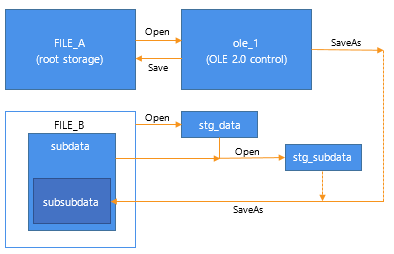
OLEStorage stg_data, stg_subdata stg_data = CREATE OLEStorage stg_subdata = CREATE OLEStorage ole_1.Open("FILE_A.OLE") stg_data.Open("FILE_B.OLE") stg_subdata.Open("subdata", stgReadWrite!, & stgExclusive!, stg_data) ole_1.SaveAs(stg_subdata, "subsubdata") |
The diagram illustrates how to open the nested storages so that
you can perform the SaveAs. If any of the files or storages do not
exist, Open and SaveAs create them. Note that if you call Save for the
control before you call SaveAs, the control’s object is saved in FILE_A.
After calling SaveAs, subsequent calls to Save save the object in
subsubdata in FILE_B.
Figure: Nested OLE storages
The following example shows a simpler way to create a sublevel
without creating a storage at the third level. You do not need to nest
storages at the third level, nor do you need to open the substorage to
save to it:
|
1 2 3 4 5 6 |
OLEStorage stg_data, stg_subdata stg_data = CREATE OLEStorage stg_subdata = CREATE OLEStorage ole_1.Open("FILE_A.OLE") stg_data.Open("FILE_B.OLE") ole_1.SaveAs(stg_data, "subdata") |