Moving and resizing panes and views
You can move a pane or a view to any location in the painter
window. You might find it takes a while to get used to moving panes
and views around, but if you do not like a layout, you can always
revert to the default layout and start again. To restore the default
layout, select View>Layouts>Default.
To move a pane, select and drag the title bar of the view that
is at the top of the stack. If the pane contains stacked views, all
views in the stack move together. To move one of the views out of
the stack, drag the tab for the view you want to move.
To move a pane
-
Place the pointer anywhere on the title bar of the view at
the top of the stack, hold down the left mouse button, and start
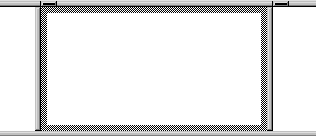
moving the pane.A gray outline appears around the pane:
-
Drag the outline to the new location.
The outline changes size as you drag it. When the pointer
is over the middle of a pane, the outline fills the pane. As you
drag the pointer toward any border, the outline becomes a narrow
rectangle adjacent to that border. When the pointer is over a
splitter bar between two panes, rows, or columns, the outline
straddles the splitter bar: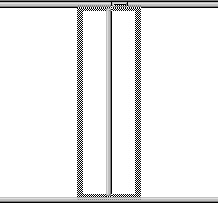
When you move the pointer to a corner
When you move the pointer to a corner, you will find
that you have many places where you can drop the outline. To
see your options, move the pointer around in all directions in
the corner and see where the outline displays as you move
it. -
Release the mouse button to drop the outline in the new
location:To move a pane here
Drop the outline here
Between two panes
On the splitter bar between the
panesBetween a border and a pane
At the side of the pane nearest the
borderInto a new row
On the splitter bar between two rows or at
the top or bottom of the painter windowInto a new column
On the splitter bar between two columns or
at the left or right edge of the painter
windowOnto a stack of panes
On the middle of the pane (if the pane was
not already tabbed, tabs are created)
To move a view in a stacked pane
-
Place the pointer anywhere on the view’s tab, hold down
the left mouse button, and start moving the view.You can now move the view as in the previous procedure. If
you want to rearrange the views in a pane, you can drag the view
to the left or right within the same pane.
To resize a pane
-
Drag the splitter bars between panes.