Modifying properties conditionally at runtime
Contents
Modifying properties at runtime
described how you can use conditional expressions that are evaluated at
runtime to highlight information in a DataWindow object.This section
presents a procedure for modifying properties at runtime and some
examples.
To modify properties conditionally at runtime:
-
Position the pointer on the control, band, or DataWindow
object background whose properties you want to modify at
runtime. -
Select Properties from the pop-up menu, then select the page
that contains the property you want to modify at runtime. -
Click the button next to the property you want to
change. -
Scroll the list of functions in the Functions box until you
see the IF function, and then select it: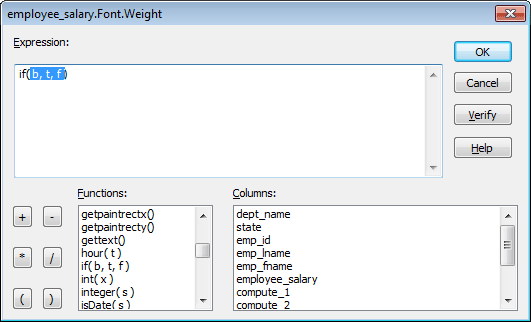
-
Replace the b (boolean) with your condition (for example,
salary>40000).You can select columns and functions and use the buttons to
add the symbols shown on them. -
Replace the t (true) with the value to use for the property if
the condition is true.Values to use for properties are usually numbers. They are
different for each property. For more information about property
values that can be set on the Expressions page, see Supplying property values.Set Font.Weight property to 700 for bold
Font properties such as Italic, Strikethrough, and Underline
take a boolean value, but to specify a value for bold, you use the
Font.Weight property, which takes a range of values. For values
and an example, see Font.Weight.For complete information about what the valid values are for
all properties of controls in the DataWindow object, see the
discussion of DataWindow object properties in DataWindow Object Properties in DataWindow Reference. -
Replace the f (false) with the value to use for the property
if the condition is false. -
Click OK.
For examples, see Example 1: creating
a gray bar effect, Example 2:
rotating controls, Example 3:
highlighting rows of data, and Example 4: changing the size and location of
controls.