Modify
the frame window Open event
Now you modify the frame window Open event script to open the
login window.
Wizard-generated script
The frame window Open event already has a script associated with
it that was generated by the Template Application wizard. The script
creates an instance of a wizard-generated user object that serves as a
sheet (window) manager. The Open script then calls the ue_postopen
event.
The ue_postopen event registers sheet windows with the sheet
manager. The event is posted to the end of the messaging queue for the
window and is not processed until the remainder of the Open script (that
you add in this lesson) is executed.
-
Select File>Open from the menu bar.
Make or verify the following selections in the Open dialog
box:Open dialog box item
Selection to make (or verify)
Target
pbtutor — currently your only
targetLibraries
pbtutor.pbl — currently your only library; if
you cannot see the full library name, you can drag the edge
of the dialog box to increase its sizeObject Name
w_pbtutor_frame
Objects of Type
Windows — you must make sure this is selected
before you can select a named object of this
typeUsing
Painter
The w_pbtutor_frame object is the main application window
created by the Template Application wizard. -
Click OK.
The Window painter opens and displays views of the main
application window in the painter workspace.If the Script view is not open, you can open it by selecting
View>Script in the workspace menu bar or by double-clicking
inside the Layout view. -
Move the cursor to the top of the Script view.
The view title bar rolls down. It contains a pushpin button on
the left and a maximize/minimize button and a close button on the
right. -
Click the pushpin in the title bar of the Script view.
The title bar of the Script view reads:
1Script - open for w_pbtutor_frame returns long -
Make sure the Open event displays in the Script view.
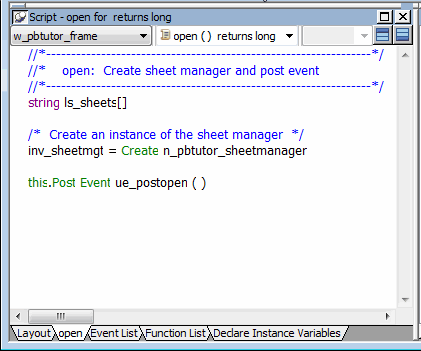
The PowerScript code in the Script view is preceded by
comments.Using comments
A comment in PowerScript is indicated by either two forward
slashes (//) at the start of a single-line comment, or a slash and
an asterisk (/*) at the start and an asterisk and a slash (*/) at
the end of a single-line or multiline comment. Comments are not
parsed by the script compiler.You now modify the Open event script to cause the login window
to display. -
Click after the parentheses in the line that reads:
1this.Post Event ue_postopen ( )The ue_postopen event does not take any arguments.
-
Press Enter twice.
This adds a blank line in the Script view for legibility. The
cursor moves to a new line following the blank line. -
Type Open the login window on the new line in the Script
view. -
Click the Comment button (
 ) in PainterBar2.
 Two slashes appear in front of the line you typed — it is
changed into a comment. -
Move the cursor to the end of the comment.
Press Enter to add a new line.
Type open (w_welcome) on the new line.
This calls the Open function to display the login window you
created.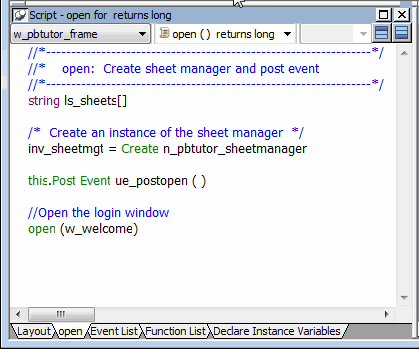
Accessing context-sensitive Help
To access context-sensitive Help for a function or reserved word
(such as Open), select the function or reserved word in the Script
view and press Shift+F1. You can always open the main Help screen by
pressing F1.