Modify
the File menu
Now you modify the File cascading menu of the m_pbtutor_frame
menu.
-
Double-click m_pbtutor_frame in the System Tree.
The Menu painter displays the menu associated with the MDI
frame window in the application. Because m_pbtutor_sheet inherits
from m_pbtutor_frame, changes you make to the frame menu are
propagated to the sheet menu.In the WYSIWIG view, the menu items appear across the top of
the view. If a WYSIWYG view is not open, you can select it from the
View menu in the Menu painter menu bar. -
Click the File menu in the WYSIWYG view of
m_pbtutor_frame.When you click a menu item in the WYSIWYG view, its menu items
appear just as they would at runtime.If the File menu does not display its menu items
The File menu is selected when you display the WYSIWYG view.
You might need to click one of the other menus (Edit, Window, or
Help) and then click again on the File menu to display its menu
items. -
Right-click New under the File menu.
Select Edit Menu Item Text in the pop-up menu.
Click in the New field and replace &New with &Report.
Press Enter.You change the display name of the New menu item to Report.
The menu name remains m_new and its purpose (to open new sheet
windows) remains the same.Define accelerator keys with the ampersand
characterThe character following the ampersand is used as an
accelerator key (mnemonic) and appears with an underscore in the
WYSIWYG display. In the runtime application, the user can access
the File>Report menu by pressing Alt+F+R. -
Make sure that &Report appears in the Text text box in the
Properties view.Click the Toolbar tab in the Properties view.
The toolbar item text is New, Open New Sheet. There is no
selection in the ToolbarItemName box, so no toolbar button appears
at runtime for the Report menu item. You do not add a toolbar button
here, because you use the Report menu item to access cascading menu
items rather than as a command to open a new sheet. -
Click the Open menu item under the File menu in the WYSIWYG
view.Click the General tab in the Properties view.
Clear the Visible and Enabled check boxes on the General page
of the Properties view.You hide the Open menu item in all runtime menus. When you
clear the Visible property, the WYSIWYG view displays the menu item
with a dithered (broken) appearance. It is not visible at runtime.
When you clear the Enabled property, the WYSIWIG view displays the
menu item with a very faint and inverted relief appearance. If it is
visible at runtime, the menu item will still be grayed out.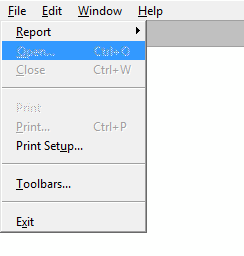
-
Click the Toolbar tab of the Properties view.
Clear the ToolbarItemVisible check box.
This prevents the toolbar button for this menu item from
appearing in the frame menu toolbar (a button can be included in a
toolbar even if its corresponding menu item is not visible or
enabled). -
Click Exit under the File menu in the WYSIWYG view.
The Toolbar page of the Properties view remains open. The
ToolbarItemText and ToolbarItemName values change to show the values
for the m_exit menu item.