Manually
Create a file named Dockerfile in the same
directory as the C# Solution with the following contents (You might
need to create them somewhere else and then copy them over due to
permissions):
|
1 2 3 4 5 6 7 8 9 10 11 12 13 14 15 16 17 18 19 20 |
FROM mcr.microsoft.com/dotnet/aspnet:6.0 AS base WORKDIR /app EXPOSE 80 FROM mcr.microsoft.com/dotnet/sdk:6.0 AS build WORKDIR /src COPY ["ServerAPIs/ServerAPIs.csproj", "ServerAPIs/"] COPY ["AppModels/AppModels.csproj", "AppModels/"] RUN dotnet restore "ServerAPIs/ServerAPIs.csproj" COPY . . WORKDIR "/src/ServerAPIs" RUN dotnet build "ServerAPIs.csproj" -c Release -o /app/build FROM build AS publish RUN dotnet publish "ServerAPIs.csproj" -c Release -o /app/publish FROM base AS final WORKDIR /app COPY --from=publish /app/publish . ENTRYPOINT ["dotnet", "ServerAPIs.dll"] |
and a file named .dockerignore containing the
following:
|
1 2 3 4 5 6 7 8 9 10 11 12 13 14 15 16 17 18 19 20 21 22 23 24 25 26 27 |
**/.classpath **/.dockerignore **/.env **/.git **/.gitignore **/.project **/.sd **/.settings **/.svn **/.toolstarget **/.vs **/.vscode **/*.*proj.user **/*.dbmdl **/*.jfm **/azds.yaml **/bin **/charts **/docker-compose* **/Dockerfile* **/node_modules **/npm-debug.log **/obj **/secrets.dev.yaml **/values.dev.yaml LICENSE README.md |
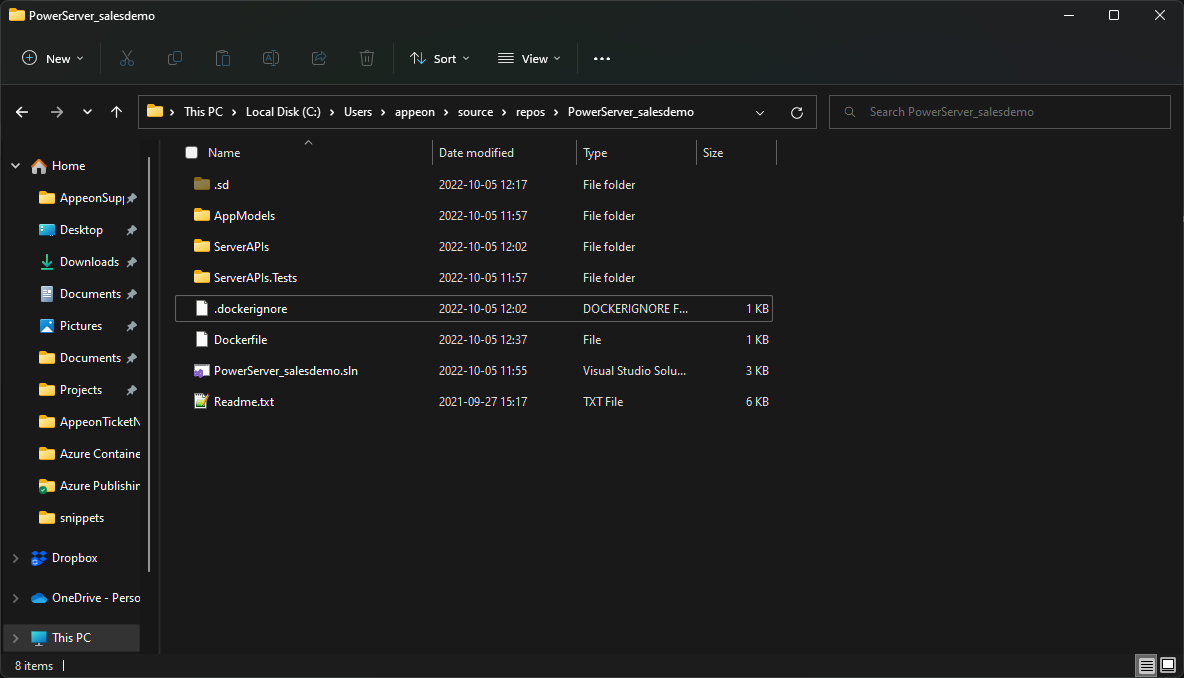
The location should look like this:
Open a PowerShell window in this directory and run the following
command:
|
1 2 |
docker build -t pscitutorial-webapi:0.1 . docker image tag pscitutorial-webapi:0.1 <Container Registry URL>/pscitutorial-webapi:0.1 |
Where <Container Registry URL> is the
Container Registry’s URL from the Creating an Azure
Container Registry section.
In this case, <Container Registry is the image’s tag.
URL>/pscitutorial-webapi:0.1
Now you need to log in into azure from PowerShell. Run the
following commands:
|
1 |
az login |
This will open a browser tab in which you should login with the
Microsoft Account you’ve been using so far.
Once you log in, run the following command:
|
1 |
az acr login --name <Container Registry name> |
Where <Container Registry name> is
the Container Registry’s URL from the Creating an Azure
Container Registry section.
With this process finished, we can now push the image to the
Container Registry:
|
1 |
docker image push <Image tag> |
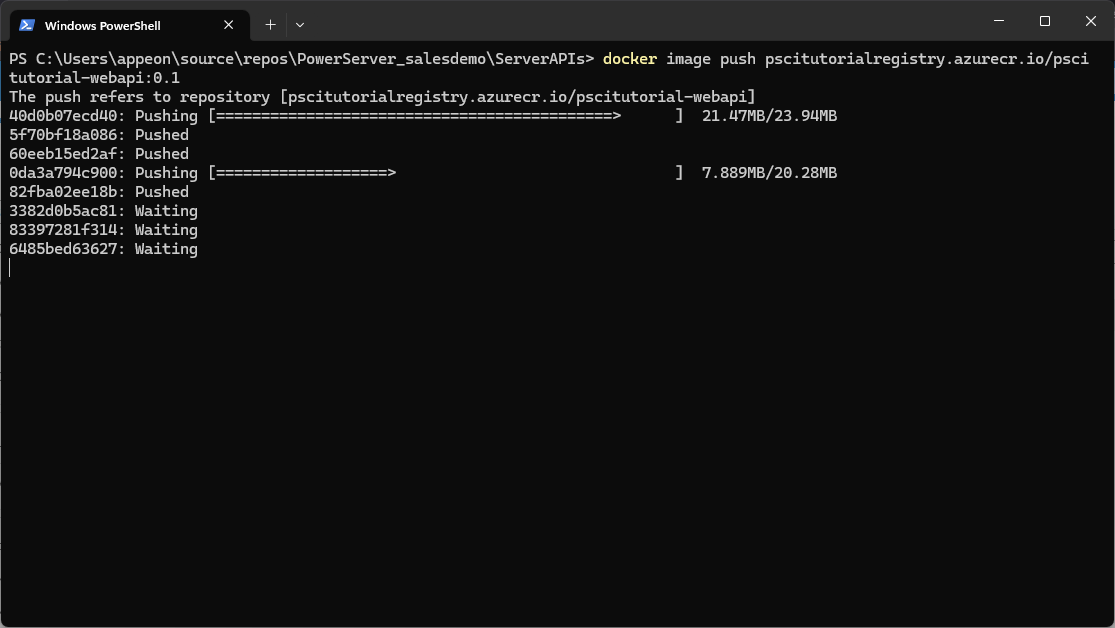
You should see something like this:
With this, the container is now available in the Container
Repository for us to use.