Look at the
database profile for the Demo Database
If you installed PowerBuilder with standard options, you already
have a data source and a database profile defined for the Demo Database.
You use the Demo Database in this tutorial.
Demo Database is an SQL Anywhere database that is accessed through
ODBC. In this lesson you look at the database profile for the Demo
Database. PowerBuilder stores database profile parameters in the
registry.
-
Click the Database Profile button (
 ) in the PowerBar
or
Select Tools>Database Profile from the menu bar.
PowerBuilder displays the Database Profiles dialog box, which
includes a tree view of the installed database interfaces and
defined database profiles for each interface. You can click the
+ signs or double-click the icons next to items in the tree view to
expand or contract tree view nodes. -
Expand the ODB ODBC node by clicking on the plus sign, and
select PB Demo DB V2019R3.PowerBuilder created this profile during installation.
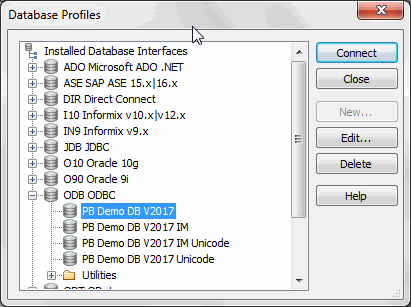
If you do not see the PB Demo DB V2019R3 database
profileIf there is no profile for the PB Demo DB V2019R3 database,
you may not have installed the database. You can install it now
from the product installation package.If you did install the database and it is defined as a data
source in the ODBC Administrator, select ODBC in the tree view of
the Database Profile painter and click New. In the Database Profile
Setup dialog box, select the data source from the Data Source
drop-down list and type PB Demo DB V2019R3 in the Profile Name text
box. Type dba for the user ID and sql for the password, then click
OK to return to the painter. -
Click Edit.
PowerBuilder displays the Connection page of the Database
Profile Setup dialog box. -
Select the Preview tab.
The PowerScript connection syntax for the selected profile is
shown on the Preview tab. If you change the profile connection
options, the syntax changes accordingly.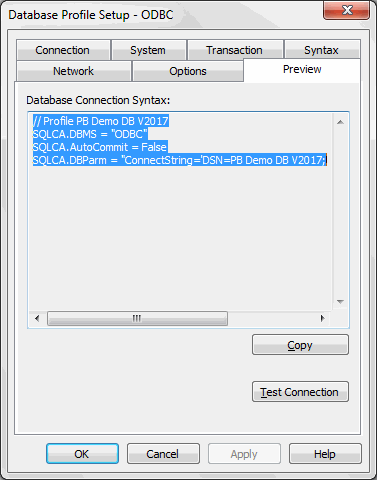
-
Click the Test Connection button.
A message box tells you that the connection is
successful.If the message box tells you the connection is not
successfulClose the message box and verify that the information on the
Connection page of the Database Profile Setup dialog box is
correct. Then check the configuration of the data source in the
ODBC Administrator. You can run the ODBC Administrator by
expanding the Utilities folder under the ODB ODBC node of the
Database Profile painter and double-clicking the ODBC
Administrator item. -
Click OK to close the message box.
Click Cancel to close the Database Profile Setup dialog
box.Click Close to close the Database Profiles dialog box.