Learning what can go in the package
No matter which compiler format you pick, an application that you
create in PowerBuilder can consist of one or more of the following
pieces:
-
An executable file
-
Dynamic libraries
-
Resources
To decide which of these pieces are required for your particular
project, you need to know something about them.
About the executable file
If you are building a single- or two-tier application that you
will distribute to users as an executable file, rather than as a Web
application, you always create an executable (EXE) file.
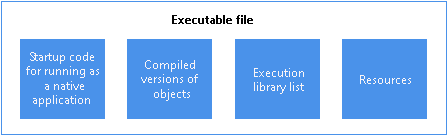
At minimum, the executable file contains code that enables your
application to run as a native application on its target platform. That
means, for example, that when users want to start your application, they
can double-click the executable file’s icon on their desktop.
What else can go in the executable
file
Depending on the packaging model you choose for your application,
the executable file also contains one or more of the following:
-
Compiled versions of objects from your application’s
librariesYou can choose to put all of your objects in the executable
file so that you have only one file to deliver, or you can choose to
split your application into one executable file and one or more
dynamic libraries. For more information, see About dynamic libraries. -
An execution library list that the PowerBuilder execution
system uses to find objects and resources in any dynamic libraries
you have packaged for the application -
Resources that your application uses (such as bitmaps)
Figure: Executable file contents
About dynamic libraries
As an alternative to putting your entire application in one large
executable file, you can deliver some (or even all) of its objects in
one or more dynamic libraries. The way PowerBuilder implements dynamic
libraries depends on the compiler format you choose.
|
If you are generating |
Your dynamic libraries will be |
|---|---|
|
Machine code |
DLL files (dynamic link Machine-code dynamic libraries are given |
|
Pcode |
PBD files (PowerBuilder dynamic These dynamic libraries are similar to You cannot mix the |
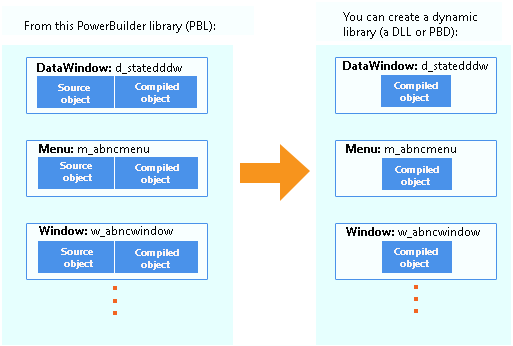
As with an executable file, only compiled versions of objects (and
not their sources) go into dynamic libraries.
Figure: Compiled objects in dynamic libraries
What else can go in dynamic libraries
Unlike your executable file, dynamic libraries do not include any
start-up code. They cannot be executed independently. Instead, they are
accessed as an application executes when it cannot find the objects it
requires in the executable file.
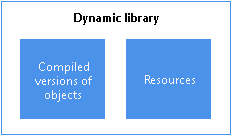
Dynamic libraries can include resources such as bitmaps. You might
want to put any resources needed by a dynamic library’s objects in its
DLL or PBD file. This makes the dynamic library a self-contained unit
that can easily be reused. If performance is your main concern, however,
be aware that resources are loaded faster at runtime when they are in
the executable file.
Figure: Resources in dynamic libraries
Why use them
The following table lists several reasons why you might want to
use dynamic libraries.
|
Reason |
Details |
|---|---|
|
Modularity |
They let you break up your application into |
|
Maintainability |
They enable you to deliver application components |
|
Reusability |
They make it possible for multiple applications to |
|
Flexibility |
They enable you to provide your application with You cannot put such objects in your |
|
Efficiency |
They can help a large application use memory
|
Organizing them
Once you decide to use a dynamic library, you need to tell
PowerBuilder which library (PBL file) to create it from. PowerBuilder
then places compiled versions of all objects from that PBL file into the
DLL or PBD file.
If your application uses only some of those objects, you might not
want the dynamic library to include the superfluous ones, which only
make the file larger. The solution is to:
-
Create a new PBL file and copy only the objects you want into
it. -
Use this new PBL file as the source of your dynamic
library.
About resources
In addition to PowerBuilder objects such as windows and menus,
applications also use various resources. Examples of resources
include:
-
Bitmaps that you might display in Picture or PictureButton
controls -
Custom pointers that you might assign to windows
-
The UI theme files that you apply to your application
When you use resources, you need to deliver them as part of the
application along with your PowerBuilder objects.
What kinds there are
A PowerBuilder application can employ several different kinds of
resources. The following table lists resources according to the specific
objects in which they might be needed.
|
These objects |
Can use these kinds of resources |
|---|---|
|
Application |
“theme” folder* |
|
Window objects and user objects |
Icons (ICO files) Pictures (BMP, GIF, Pointers (CUR |
|
DataWindow objects |
Pictures (BMP, GIF, JPEG, PNG, RLE, and WMF |
|
Menu objects (when in an MDI |
Pictures (BMP, GIF, JPEG, PNG, RLE, and WMF |
Note
“theme” folder is unsupported to be referenced by a resource
(PBR) file. You can only manually copy it from the
“%AppeonInstallPath%PowerBuilder [version]IDE” directory to the root of the
application installation directory, when creating the application
installation package.
Delivering them
When deciding how to package the resources that need to accompany
your application, you can choose from the following approaches:
-
Include them in the executable file.
Whenever you create an executable file, PowerBuilder
automatically examines the objects it places in that file to see if
they explicitly reference any resources (icons, pictures, pointers).
It then copies all such resources right into the executable
file.PowerBuilder does not automatically copy in resources that are
dynamically referenced (through string variables). To get such
resources into the executable file, you must use a resource (PBR)
file. This is simply a text file in which you list existing ICO,
BMP, GIF, JPEG, PNG, RLE, WMF, and CUR files.Once you have a PBR file, you can tell PowerBuilder to read
from it when creating the executable file to determine which
additional resources to copy in. (This might even include resources
used by the objects in your dynamic libraries, if you decide to put
most or all resources in the executable file for performance
reasons.) -
Include them in dynamic libraries.
You might often need to include resources directly in one or
more dynamic libraries, but PowerBuilder does not automatically copy
any resources into a dynamic library that you create even if they
are explicitly referenced by objects in that file. You need to
produce a PBR file that tells PowerBuilder which resources you want
in this particular DLL or PBD file.Use a different PBR file for each dynamic library in which you
want to include resources. (When appropriate, you can even use this
approach to generate a dynamic library that contains only resources
and no objects. Simply start with an empty PBL file as the
source.) -
Deliver them as separate files.
This means that when you deploy the application, you give
users various image files in addition to the application’s
executable file and any dynamic libraries. As long as you do not
mind delivering a lot of files, this can be useful if you expect to
revise some of them in the future.Keep in mind that this is not the fastest approach at runtime,
because it requires more searching. Whenever your application needs
a resource, it searches the executable file and then the dynamic
libraries. If the resource is not found, the application searches
for a separate file.Make sure that your application can find where these separate
files are stored, otherwise it cannot display the corresponding
resources.
You can use one of these approaches or any combination of them
when packaging a particular application.
Using a PBR file to include a dynamically referenced DataWindow
object
You might occasionally want to include a dynamically referenced
DataWindow object (one that your application knows about only through
a string variable) in the executable file you are creating. To do
that, you must list its name in a PBR file along with the names of the
resources you want PowerBuilder to copy into that executable
file.
You do not need to do this when creating a dynamic library,
because PowerBuilder automatically includes every DataWindow object
from the source library (PBL file) in your new DLL or PBD file.