Importing with a template
Contents
If the XML document or string from which you want to import data
does not correspond to the DataWindow column definition, or if you
want to import attribute values, you must use a template.
If a schema is associated with the XML to be imported, you must
create a template that reflects the schema.
For complex, nested XML with row data in an iterative structure,
you may need to design a structure that uses several linked DataWindow
definitions to import the data. Each DataWindow must define the
structure of a block of iterative data with respect to the root
element. Importing the data into the DataWindow objects would require
multiple import passes using different import templates.
For data that does not conform to an iterative row data
structure or has additional complexities, you can use the PBDOM parser
to handle the data on a node-by-node basis. For more information, see
the section called “Using PowerBuilder XML Services” in Application Techniques and PowerBuilder Document Object Model in PowerBuilder Extension Reference.
Defining import
templates
The XML import template can be defined in the Export/Import
Template view for XML. If you are defining a template for use only as
an import template, do not include DataWindow expressions, text,
comments, and processing instructions. These items are ignored when
data is imported.
Only mappings from DataWindow columns to XML elements and
attributes that follow the Starts Detail marker in the template are
used for import. Element and attribute contents in the header section
are also ignored. If the Starts Detail marker does not exist, all
element and attribute to column mappings within the template are used
for import. For more information about the Starts Detail marker, see
The Detail Start element.
Matching template structure to
XML
An XML import template must map the XML element and attribute
names in the XML document to DataWindow column names, and it must
reflect the nesting of elements and attributes in the XML.
The order of elements and attributes with column reference
content in the template does not have to match the order of columns
within the DataWindow, because import values are located by name match
and nesting depth within the XML. However, the order of elements and
attributes in the template must match the order in which elements and
attributes occur in the XML. Each element or attribute that has column
reference content in the template must occur in each row in the XML
document or string. The required elements and attributes in the XML
can be empty.
If an element or attribute does not occur in the XML document,
the DataWindow import column remains empty.
The data for the DataWindow is held in the columns of the data
table. Some data columns, such as those used for computed fields, may
not have an associated control. To import data into a column that has
no control reference, add a child DataWindow expression that contains
the column name.
Remove tab characters
When you select a column name in the DataWindow expression
dialog box, tab characters are added before and after the name. You
should remove these characters before saving the expression.
Importing data with group
headers
For XML import using a template, element and attribute contents
in the header section are ignored. However, if the Starts Detail
marker does not exist, all element and attribute to column mappings
within the template are used for import. This has the following
implications for DataWindow objects with group headers:
-
If data is imported to a Group DataWindow using a template
that has a Starts Detail marker, the group header data is not
imported because import starts importing from the Starts Detail
location. -
If the Group DataWindow has one group and the import
template has no Starts Detail marker, all the data is imported
successfully.
Nested groups cannot be imported
If the Group DataWindow has nested groups, the data cannot be
imported successfully even if the Starts Detail marker in the import
template is turned off.
Restrictions
DataWindow columns cannot be referenced twice for import. A
second column reference to a DataWindow column within an XML import
template is ignored.
An XML element or attribute name whose content references a
DataWindow column for import must be unique within the level of
nesting. It cannot occur twice in the template at the same nesting
level.
Setting the import
template
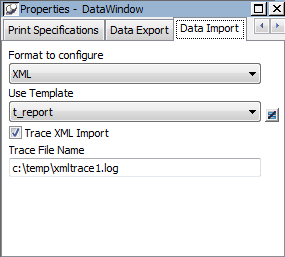
The names of all templates for the current DataWindow object
display in the Use Template drop-down list on the Data Import page in
the Properties view.
Using export templates for import
If you have already defined an export template for a
DataWindow object, you can use it as an import template, but only
the mapping of column names to element attribute names is used for
import. All other information in the template is ignored.
The template you select in the list box is used to conform the
XML imported to the specifications defined in the named template.
Selecting a template from the list sets the DataWindow object’s
Import.XML.UseTemplate property. You can also modify the value of the
Import.XML.UseTemplate property dynamically in a script.
The Data Import page also contains a property that enables you
to create a trace log of the import. See Tracing import.