Importing the adapter
Although you can write scripts to load a .NET DLL, create the
DotNetObject object, and then call the .NET class functions through the
DotNetObject object, it is difficult to ensure the
functions/parameters/return values are called correctly. Therefore, we
recommend that you use the .NET DLL Importer tool to import the .NET
class to PowerBuilder first, and then call the imported object and
function to execute the corresponding .NET code.
.NET DLL Importer can import the names and data types of the .NET
classes, functions, properties, and parameters from the .NET assembly to
the application PBL. It creates the DotNetObject object as an NVO for
each .NET class and then imports the .NET functions to the NVO. After
that you can write scripts to call the NVO and functions to execute the
corresponding .NET code. It can also create the DotNetAssembly object
for each DotNetObject object and add try-catch scripts to catch and
handle the errors, which can greatly simplify the scripts that you need
to write.
Note that PowerBuilder does not check the syntax of the
DotNetObject NVO (such as mismatched data type etc.) when compiling this
NVO; and PowerBuilder calls the .NET function in this order: it searches
and calls the function in the NVO first; if no function is found in the
NVO, it searches and calls the function in the corresponding .NET
class.
Compared to calling the .NET function in DotNetObject, calling the
NVO function has the following advantages and disadvantages:
Advantages:
-
Simple to call, as it uses the same way as PB calls the NVO
function. -
No need to explicitly load DLL or create the class
instance. -
No need to have a clear understanding of the control, class or
function in the DLL.
Disadvantages:
-
Calls the parameterless constructor by default. If you want to
call the parameterized constructor, you need to manually modify the
scripts. -
Requires more work of debugging, as no syntax is checked
during compiling. -
Needs to follow PB’s rule when matching the function
parameter. If the function parameter requires exact matching of data
types, exceptions would occur. For example,-
If the function parameter is a ref one-dimensional array,
and if you want to use the PowerBuilder fixed-length array to
map with it, you will need to first change this function
parameter in the NVO object from one-dimensional array to
one-dimensional fixed-length array. -
After the .NET class and functions are imported as an NVO,
you can only use PowerBuilder DateTime type to map with the .NET
DateTime type (although PowerBuilder Date, time, and DateTime
can be used to map with the .NET DateTime if the .NET function
is not imported to NVO.) -
At 64-bit runtime environment, PowerBuilder longptr type
is unable to map with the ref longlong type in NVO, and
PowerBuilder does not check the mismatched mapping between ref
longlong and longptr in NVO.
-
Step 1: Select Tools | .NET DLL Importer menu in the PowerBuilder
IDE.
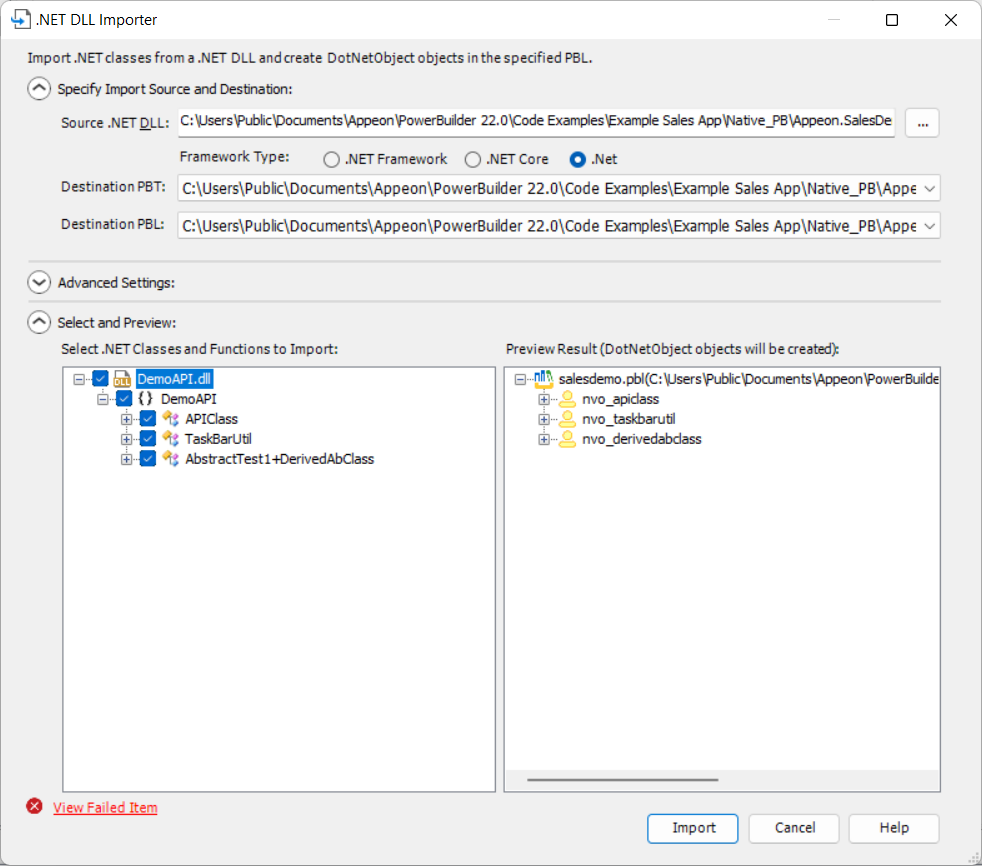
Step 2: In the .NET DLL Importer
window, select the .NET DLL file, the framework type, and the
destination PBT and PBL files in the upper part.
The framework type specifies the framework for the assembly; in
PowerBuilder 2022 and earlier, it can be .NET
Framework, .NET Core, or
.NET (and different functions and
runtime files will be used to load the DLL); in PowerBuilder 2022 R2 and
later, it can only be .NET (.NET Framework and .NET
Core have been removed starting from Version 2022 R2).
-
For .NET, the LoadWithDotNet function and
the pbdotnetinvoker.dll file need to be used together. -
For .NET Framework (available in PowerBuilder 2022 and
earlier), the LoadWithDotNetFramework
function and the pbdotnetframeworkinvoker.dll runtime file need to
be used together. -
For .NET Core (available in PowerBuilder 2022 and earlier),
the LoadWithDotNetCore function
and the pbdotnetcoreinvoker.dll runtime file need to be used
together.
The runtime DLL file is located in the PowerBuilder Runtime
directory (by default %systemdrive%Program Files
(x86)AppeonCommonPowerBuilderRuntime [version]) and will be deployed
automatically.
You can edit the Source .NET DLL
field to specify the relative path for the .NET DLL file. The DLL file
will be loaded when the cursor is moved away from this field.
Once you select a DLL, the DLL file as well as all the
classes/functions/properties it contains will be automatically listed in
the lower left corner of the window.
The first level will be the DLL name
– The second level will be the namespace
— The third level will be the class name
— The fourth level will be the function and property name
—- The fifth level will be the function name that accesses the
property value
Step 3: Select the classes and functions that you want to
import.
Once you select an item to import, the corresponding PowerBuilder
object and function that will be created can be previewed on the
right.
Each .NET class will be imported as a DotNetObject object which is
an NVO; and the functions contained in the .NET class will be imported
as functions of the NVO.
The names are case insensitive in both .NET and PowerBuilder. The
naming conventions for the PowerBuilder objects/functions can be
configured by clicking the Advanced
Settings button.
If any function(s) cannot be imported, you can click the View Failed Item link to view all of the failed
items and the reasons (most of them are unsupported features).
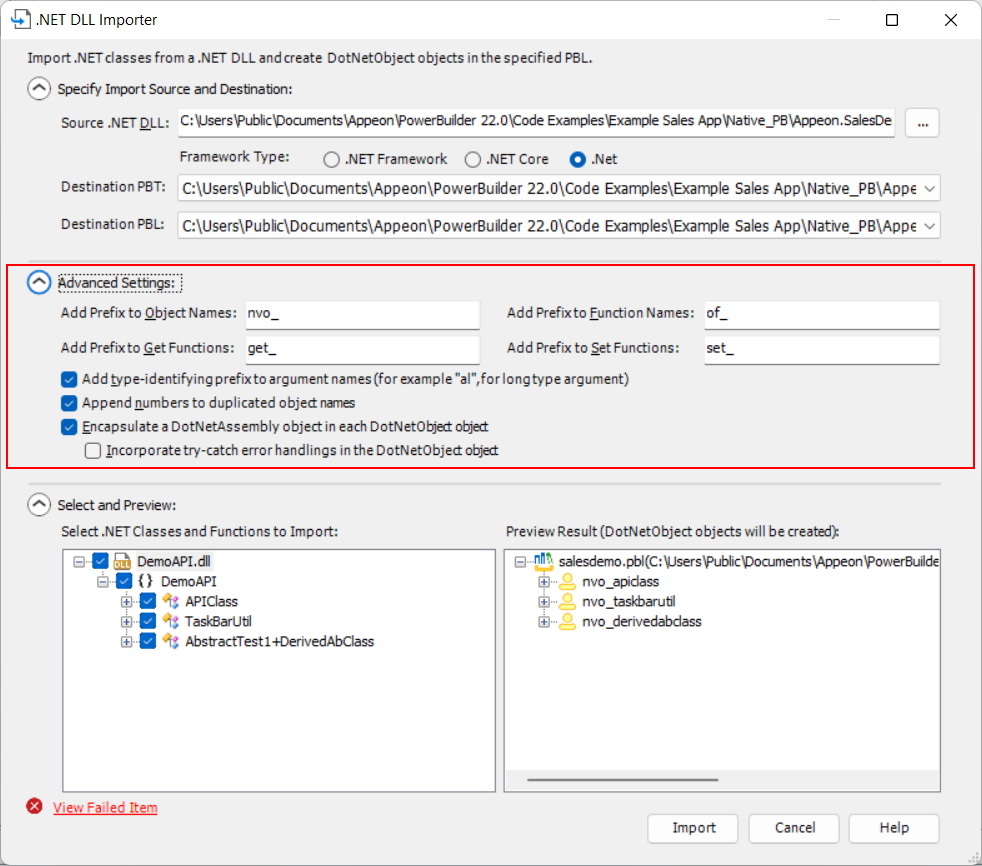
You can also click the Advanced
Settings button to specify more detailed settings for the
import:
-
Whether to add prefix to the imported object name or the
function name.For example, the following default prefix will be
added:-
nvo_ for object, where the .NET class will be
imported -
of_ for function, where the .NET function will be
imported -
get_ for function which gets the property value and set_
for function which sets the property value.
-
-
Whether to add prefix to the argument name to identify the
data type.For example, ai_ for integer, al_ for long, abyt_ for byte,
abln_ for boolean, adb_ for double, aado_ for SQLCA.GetAdoConnection
etc. -
Whether to add number suffix to the object name if object
names are duplicated.The second and subsequent duplicate objects will have number
suffix 1, 2, 3 etc.If this option is not selected, only the first one of the
duplicate objects will be imported. -
Whether to encapsulate a DotNetAssembly object in each
DotNetObject object.When a DotNetAssembly object is encapsulated, it will
automatically-
load the .NET DLL;
Different functions will be used to load the DLL. For .NET
Framework type, the LoadWithDotNetFramework function will be
used, for .NET Core, the LoadWithDotNetCore function will be
used.The .NET DLL and its absolute path is stored in the
is_assemblypathinstance variable by default.
You will need to modify the absolute path first. -
and then call the parameterless constructor in the .NET
class to create the instance of the class.If there is no parameterless constructor, the instance
will fail to create. In such case, you can manually modify the
PowerScripts to call the parameterized constructor.
-
-
Whether to incorporate the try-catch error handling in the
DotNetObject object.If this option is selected, scripts will be automatically
added to catch the errors caused by failing to load the .NET DLL or
create the instance etc. And the following instance variables will
be used for the error type and message:-
The
il_ErrorTypeinstance variable
indicates the error types:0 — succeed
-1 — failed to load the DLL
-2 — failed to create the instance
-3 — failed to call the .NET function
-
The
is_ErrorTextinstance variable
stores the detailed error message.
-
Step 4: Click Import in the
.NET DLL Importer window.
After the .NET classes and functions are imported to the PBL
successfully, you can call the corresponding NVO and function directly
to execute the corresponding .NET code.
Here is a sample of the C# assembly source code:
|
1 2 3 4 5 6 7 8 9 10 11 12 13 14 15 16 17 18 19 20 21 22 23 24 25 26 27 28 29 30 31 32 33 34 35 36 37 38 39 40 41 42 |
namespace Appeon.PowerBuilder.DotNet.Test { public class TestCLR1 { public int m_iTest { set; get; } public string m_strTest { set; get; } //int argument public int Add(int iFirst, int iSecond) { return iFirst + iSecond; } //string argument public string StringCat(string strFirst, string strSecond) { return strFirst + strSecond; } //array argument public void TestByteArray(byte[] bArray) { for(int i = 0; i < bArray.Length; i++) { } } //reference argument public void TestReference(ref int iTest) { iTest = 1; } } } |
Here is a sample of the automatically imported scripts with
DotNetAssembly object and try-catch error handling incorporated in the
DotNetObject object:
|
1 2 3 4 5 6 7 8 9 10 11 12 13 14 15 16 17 18 19 20 21 22 23 24 25 26 27 28 29 30 31 32 33 34 35 36 37 38 |
//public function long of_add (string as_parm1, string as_parm2); //*-----------------------------------------------------------------*/ //* .NET function : Add //* Argument: //* String as_parm1 //* String as_parm2 //* Return : Long //*-----------------------------------------------------------------*/ /* .NET function name */ String ls_function Long ll_result /* Set the dotnet function name */ ls_function = "Add" Try /* Create .NET object */ If Not This.of_createOnDemand( ) Then SetNull(ll_result) Return ll_result End If /* Trigger the dotnet function */ ll_result = This.add(as_parm1,as_parm2) Return ll_result Catch(runtimeerror re_error) If This.ib_CrashOnException Then Throw re_error /* Handle .NET error */ This.of_SetDotNETError(ls_function, re_error.text) This.of_SignalError( ) /* Indicate error occurred */ SetNull(ll_result) Return ll_result End Try //end function |
Here is a sample of the PowerScript code that calls the C#
assembly after the import, when the DotNetAssembly object is
encapsulated and the try-catch error handling is incorporated in the
DotNetObject object.
|
1 2 3 4 5 6 7 8 9 10 11 12 13 14 15 16 |
//When the DotNetAssembly object is encapsulated //and try-catch error handling is incorporated nvo_TestCLR1 lnv_TestCLR1 long ll_return //Instantiates the object lnv_TestCLR1 = create nvo_TestCLR1 //Calls the NVO function ll_return = lnv_TestCLR1.of_Add(1, 2) //Accesses the property lnv_TestCLR1.set_m_iTest(1) //Checks the result if lnv_TestCLR1.il_ErrorType < 0 then messagebox("Failed", lnv_TestCLR1.is_ErrorText) end if |
Here is a sample of the PowerScript code that calls the C#
assembly after the import, without encapsulating the DotNetAssembly
object or incorporating the try-catch error handling in the DotNetObject
object.
|
1 2 3 4 5 6 7 8 9 10 11 12 13 14 15 16 17 18 19 20 21 22 23 24 25 26 27 28 29 30 31 32 33 34 35 36 37 38 |
//Instantiates PB objects nvo_TestCLR1 lnv_TestCLR1 DotNetAssembly lnv_Assembly long ll_return lnv_Assembly = create DotNetAssembly lnv_TestCLR1 = create nvo_TestCLR1 //Loads assembly ll_return = lnv_Assembly.LoadWithDotNetFramework ("Appeon.PowerBuilder.DotNet.Test.dll") //ll_return = lnv_Assembly.LoadWithDotNetCore ("Appeon.PowerBuilder.DotNet.Test.dll") if ll_return < 0 then MessageBox("Error", "Failed to load assembly: " + lnv_Assembly.errortext) return end if //Creates the instance and binds it to DotNetObject ll_return = lnv_Assembly.CreateInstance ("Appeon.PowerBuilder.DotNet.Test.TestCLR1", lnv_TestCLR1) if ll_return = 1 then try //tests long argument by calling the nvo function ll_return = lnv_TestCLR1.of_Add(1, 2) //or by calling the C# function ll_return = lnv_TestCLR1.Add(1, 2) //tests property by calling the nvo function lnv_TestCLR1.set_m_iTest(1) //or by accessing the C# property lnv_TestCLR1.m_iTest=1 catch(Runtimeerror re) messagebox("Failed to call C# function", re.text) end try else MessageBox("Error", "Failed to create instance: " + lnv_Assembly.errortext) return end if |
Here is a sample of PowerScript code that uses the variable-length
array to receive the double-type data from C#. C# uses list to process
the data from a PowerBuilder variable-length array, and then assign the
data to the PowerBuilder ref variable-length array or return the data
directly.
|
1 2 3 4 5 6 7 8 9 10 11 12 13 14 15 16 17 18 19 20 21 22 23 24 25 26 |
public void GetBigvalue(ref double[] darr, ref string[] sarr, bool max) { //Uses list to process data IList<double> dvalues = new List<double>(); IList<string> svalues = new List<string>(); if (max) { //Process the largest value for (var d = double.MaxValue; d >= 8.72501618486925E+307; d /= 1.00001) { dvalues.Add(d); svalues.Add(d.ToString()); } } else { //Process the smallest value for (var d = double.MinValue; d <= -8.72501618486925E+307; d /=1.00001) { dvalues.Add(d); svalues.Add(d.ToString()); } } darr = dvalues.ToArray(); sarr = svalues.ToArray(); } |
If the .NET process uses IAdoConnectionProxy connection proxy, use
the SQLCA.GetAdoConnection method in PowerBuilder. Note that
IAdoConnectionProxy is supported in .NET Framework, but not in .NET
Core. PowerBuilder ref oleObject maps to .NET [ref,out]
IAdoConnectionProxy, and reference array is unsupported.
Here is a sample that PowerScript code shares its connection to a
SQL Server database with C# code via ADO.NET, and C# code retrieves data
successfully using the shared connection.
Sample C# function that makes SQL queries:
|
1 2 3 4 5 6 7 8 9 10 11 12 13 14 15 16 17 18 19 20 21 22 23 24 25 26 27 28 29 30 |
public string GetDatabyDS(IAdoConnectionProxy ado, string sql,Boolean native=false) { if (native) { //Returns data via dataset SqlConnection con = ado.Connection as SqlConnection; SqlTransaction tran = ado.Transaction as SqlTransaction; SqlDataAdapter adp = new SqlDataAdapter(); //Populates the SQL statements adp.SelectCommand = new SqlCommand(); adp.SelectCommand.CommandText = sql; adp.SelectCommand.CommandType = CommandType.Text; adp.SelectCommand.Connection = con; adp.SelectCommand.Transaction = tran; //Populates data DataSet dataSet = new DataSet(); adp.Fill(dataSet); return JsonConvert.SerializeObject(dataSet); } else { SqlConnection tmp = ado.Connection as SqlConnection; tmp.Close(); SqlServerDataContext context = new SqlServerDataContext(tmp); //Makes SQL query var ds = context.SqlExecutor.SelectToStore<DynamicModel>(sql); return ds.ExportPlainJson(); } } |
Sample PowerScript code that makes the database connection:
|
1 2 3 4 5 6 |
SQLCA.DBMS = "ADO.Net" SQLCA.LogPass = "admin" SQLCA.LogId = "sa" SQLCA.AutoCommit = False SQLCA.DBParm = "Namespace='System.Data.SqlClient',DataSource='localhost',Database='adventureworks'" Connect; |
Sample PowerScript code that calls the C# function:
|
1 2 3 4 5 6 7 8 9 10 11 12 13 14 15 16 17 18 19 20 21 22 23 24 25 26 27 28 29 30 31 32 33 34 35 |
string ls_result,ls_sql dotnetobject lcs_obj dotnetassembly lcs_ass long ll_return lcs_obj = create dotnetobject lcs_ass = create dotnetassembly //Loads DLL ll_return = lcs_ass.LoadWithDotNetFramework("resourceAppeonAssembly.dll") if ll_return < 0 then messagebox("Load Failed",lcs_ass.errortext) return end if //Creates instances of dotnetobject and dotnetassembly ll_return = lcs_ass.createinstance("AppeonAssembly.PBCsharpTrans",lcs_obj,false) if ll_return < 0 then messagebox("createinstance failed",lcs_ass.errortext) return end if ls_sql = "Select * from esq_dept" //Calls C# function ls_result = lcs_obj.GetDatabyDS(sqlca.getadoconnection(),ls_sql) //Below are samples for calling NVO (instead of dotnetobject) //public function string of_getdatabyds(OleObject aado_ado,string as_sql,boolean abln_native) //eon_pbcsharp leon_pbcsharp //leon_pbcsharp = create eon_pbcsharp //ls_result = leon_pbcsharp.of_getdatabyds(sqlca.getadoconnection(),ls_sql,false) //Creates datawindow wf_createdw(ls_sql) //Shows result dw_1.importjsonbykey( ls_result) destroy lcs_obj destroy lcs_ass |
Here is a sample that C# code shares its connection to a SQL
Server database with PowerScript code, and PowerScript code retrieves
data successfully using the shared connection.
Sample C# function that returns the connection:
|
1 2 3 4 5 6 7 8 9 10 |
public IAdoConnectionProxy GetpostgreConnection() { string connection = ""; connection = "Data Source=Localhost;Initial Catalog=adventureworks;User ID=sa;Password=admin;"; SqlConnection sqlcon = new SqlConnection(connection); sqlcon.Open(); IAdoConnectionProxy adosql = new AdoConnectionProxy(); adosql.Connection = sqlcon; return adosql; } |
Sample PowerScript code that calls the connection returned by C#
code, connects with the database, and executes the static SQL
queries.
|
1 2 3 4 5 6 7 8 9 10 11 12 13 14 15 16 17 18 19 20 21 22 23 24 25 26 27 28 29 30 31 32 33 34 35 36 37 38 39 40 41 42 43 44 45 46 47 48 |
//Gets SQL Server connection from C# oleobject leon_sql boolean lbn_result string ls_sql dotnetobject lcs_obj dotnetassembly lcs_ass long ll_return,ll_count lcs_obj = create dotnetobject lcs_ass = create dotnetassembly //Loads DLL ll_return = lcs_ass.LoadWithDotNetFramework("resourceAppeonAssembly.dll") if ll_return < 0 then messagebox("Load Failed",lcs_ass.errortext) return end if //Creates instances of dotnetobject and dotnetassembly ll_return = lcs_ass.createinstance("AppeonAssembly.PBCsharpTrans",lcs_obj,false) if ll_return < 0 then messagebox("createinstance failed",lcs_ass.errortext) return end if leon_sql = create oleobject //Specifies transaction object to ADO SQLCA.DBMS = "ADO.Net" SQLCA.DBParm = "Namespace='test123'" //Gets ADO connection info from C# leon_sql = lcs_obj.GetpostgreConnection() //Below are samples for calling NVO (instead of dotnetobject) //public function OleObject of_getsqlserverconnection() //eon_pbcsharp leon_pbcsharp //leon_pbcsharp = create eon_pbcsharp //leon_sql = leon_pbcsharp.of_getsqlserverconnection () //Connects with the database lbn_result = sqlca.setadoconnection( leon_sql ) if lbn_result then connect; if sqlca.sqlcode <> 0 then messagebox("Error",sqlca.sqlerrtext) return end if end if //Checks result select count(*) into :ll_count from customer; messagebox("customer count ",string(ll_count)) |