“HTTP Error 500.32 – Failed to load .NET Core host”
error
After deploying PowerServer Web APIs to IIS, you access the
Web APIs and receive the following error:
|
1 |
HTTP Error 500.32 - Failed to load .NET Core host |
Cause
The most common cause for this error is that the Web API is
published for an incompatible processor architecture. For
example,
The IIS worker process is running as a 64-bit app while the
Web API was published to target 32-bit; or
The IIS worker process is running as a 32-bit app while the
Web API was published to target 64-bit.
Solution
To resolve this error, you can select one of the following
solutions:
-
Solution 1: Change the setting of “Enable 32-Bit Applications” in
IIS.Detailed steps: in IIS Manager, select Application Pools in the Connections panel. Select the app’s
application pool. In the Actions panel, select Advanced Settings. Change the setting of
Enable 32-Bit
Applications.If Web APIs is 32-bit, set Enable
32-Bit Applications to True so IIS runs as 32-bit; if Web APIs
is 64-bit, set Enable 32-Bit
Applications to False so IIS runs as 64-bit.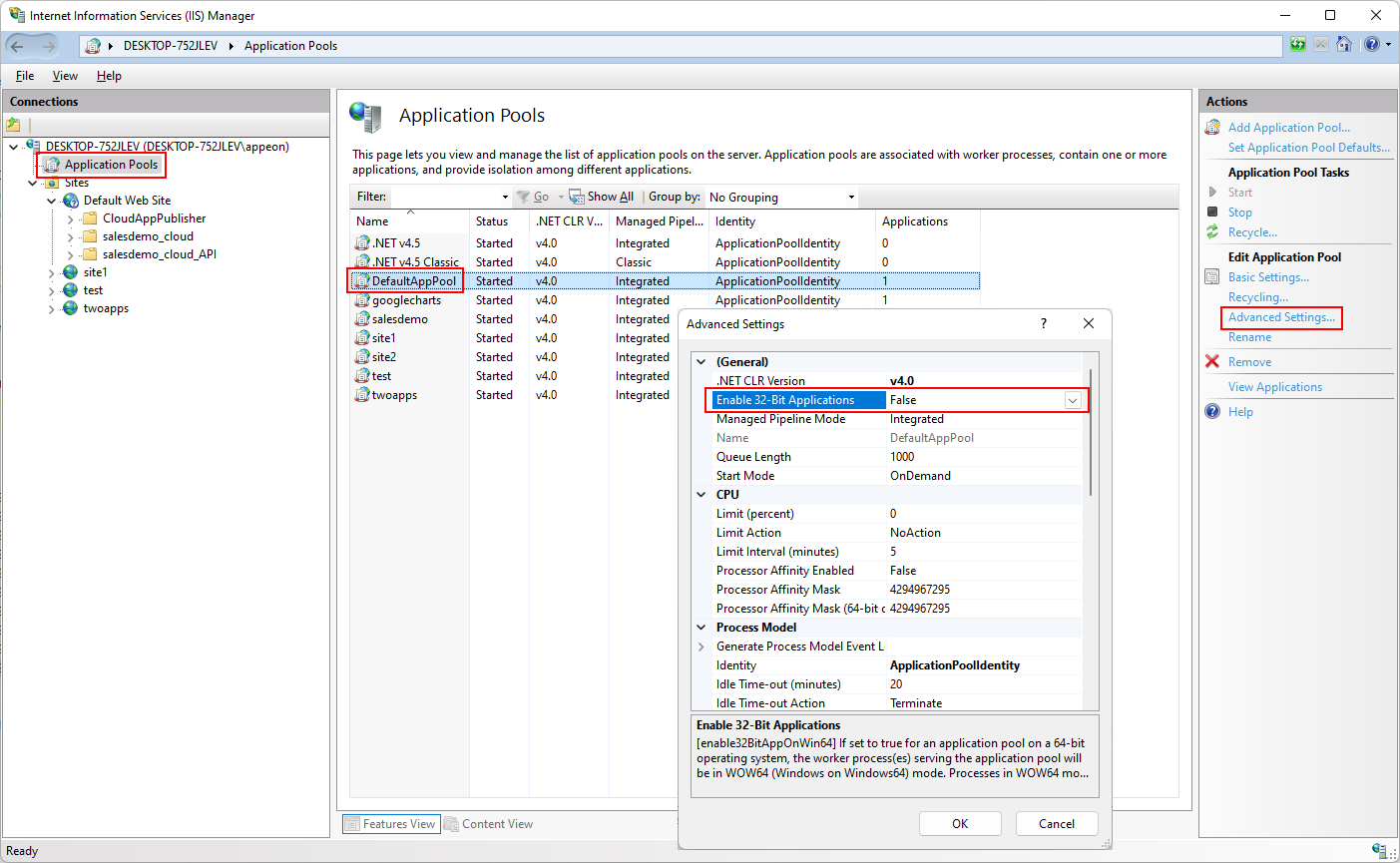
-
Solution 2: Republish the Web API for the same processor
architecture as the worker process.Detailed steps: Go to the PowerServer project painter >
Deploy page > Basic tab. If the Framework mode is set to Self-contained, make sure the Target runtime is set to the same
processor architecture as the worker process. And then build and
deploy the project again.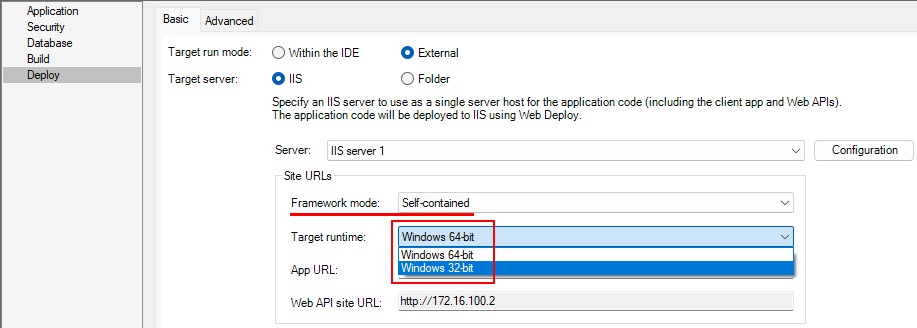
-
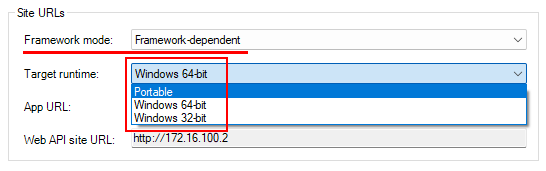
Solution 3: Publish the Web API as a framework-dependent
deployment.Detailed steps: Go to the PowerServer project painter >
Deploy page > Basic tab. Set the Framework mode to Framework-dependent, make sure the
Target runtime is set to
Portable or the same processor
architecture as the worker process. And then build and deploy
the project.