How a DataWindow control manages data
As users add or change data, the data is first handled as text in
an edit control. If the data is accepted, it is then stored as an item
in a buffer.
About the DataWindow
buffers
A DataWindow uses three buffers to store data:
|
Buffer |
Contents |
|---|---|
|
Primary |
Data that has not been deleted or filtered out |
|
Filter |
Data that was filtered out |
|
Delete |
Data that was deleted by the user or through |
About the edit control
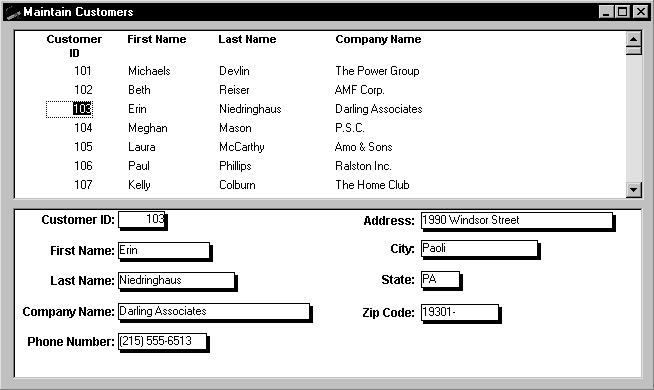
As the user moves around the DataWindow control, the DataWindow
places an edit control over the current cell (row and column):
About text
The contents of the edit control are called text. Text is data
that has not yet been accepted by the DataWindow control. Data entered
in the edit control is not in a DataWindow buffer yet; it is simply text
in the edit control.
About items
When the user changes the contents of the edit control and presses
Enter or leaves the cell (by tabbing, using the mouse, or pressing up
arrow or down arrow), the DataWindow processes the data and either
accepts or rejects it, depending on whether it meets the requirements
specified for the column. If the data is accepted, the text is moved to
the current row and column in the DataWindow Primary buffer. The data in
the Primary buffer for a particular column is referred to as an
item.
Events for changing text and
items
When data is changed in the edit control, several events
occur.
|
Event |
Description |
|---|---|
|
EditChanged (not available on client |
Occurs for each keystroke the user types in the |
|
ItemChanged |
Occurs when a cell has been modified and loses |
|
ItemError |
Occurs when new data fails the validation rules for |
|
ItemFocusChanged |
Occurs when the current item in the control |
How text is processed in the edit
control
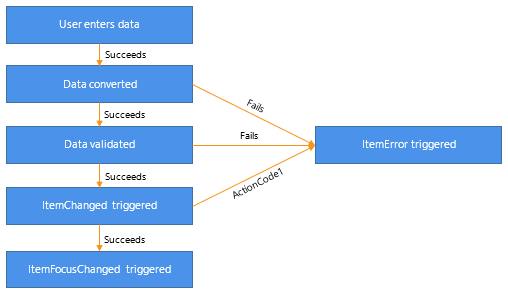
When the data in a column in a DataWindow has been changed and the
column loses focus (for example, because the user tabs to the next
column), the following sequence of events occurs:
-
The DataWindow control converts the text into the correct
datatype for the column. For example, if the user is in a numeric
column, the DataWindow control converts the string that was entered
into a number. If the data cannot be converted, the ItemError event
is triggered. -
If the data converts successfully to the correct type, the
DataWindow control applies any validation rule used by the column.
If the data fails validation, the ItemError event is
triggered. -
If the data passes validation, then the ItemChanged event is
triggered. If you set an action/return code of 1 in the ItemChanged
event, the DataWindow control rejects the data and does not allow
the focus to change. In this case, the ItemError event is
triggered. -
If the ItemChanged event accepts the data, the
ItemFocusChanged event is triggered next and the data is stored as
an item in a buffer.
Figure 2-2: How text is processed in edit controls
Action/return codes for
events
You can affect the outcome of events by specifying numeric values
in the event’s program code. For example, step 3 above describes how you
can force data to be rejected with a code of 1 in the ItemChanged
event.
To specify action/return codes:
-
PowerBuilder
Use a RETURN statement
For information about codes for individual events, see DataWindow Reference.