Get a workspace from Git
When PowerBuilder IDE opens without loading any workspace, you
can get a PowerBuilder workspace from the source control system and
open the workspace in the PowerBuilder IDE directly.
To get a PowerBuilder workspace from the Git source control
system:
-
Right-click “No Workspace” in the System Tree and select
Connect to Workspace from the pop-up menuor
Select Connect to Workspace from the File menu.
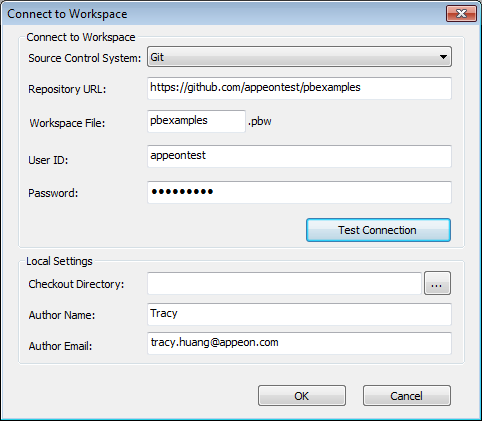
The Connect to Workspace dialog box displays. If the login
information has been input before, they will be filled in
automatically. -
Select Git from the Source Control System list.
Input the URL of the Git source control server and the name
of an existing repository on the server.Type in your user name and password for the Git source
control system.Type or select a path for the local root directory. All the
files that you add to or get from source control must reside in
this path or in a subdirectory of this path.Input the author name and author email.
If using proxy server
If using the proxy server, configure the proxy server IP
address and port number in the PB.ini file (by default, the INI
file is located in
C:Users<username>appdatalocalappeonpowerbuilder
17.0 in Windows 7 or later). Copy the following section to the
INI file and set the appropriate value for the proxy
server:[SourceControlProxy]
Url=192.0.0.88
Port=80
Username=
Password=
Timeout=10
-
Click Test Connection, and click OK when connection is
successful.PowerBuilder starts downloading the workspace from the Git
source control system, and after the workspace is successfully
downloaded, it will be loaded in the PowerBuilder IDE
automatically.When Refresh is needed
If you are not sure whether the PBL file on the source
control server is the latest or not, it is recommended you do a
Refresh manually (by right clicking the workspace and selecting
Refresh from the popup menu).