Generating HTML
You can use the data in a DataWindow object to create HyperText
Markup Language (HTML) syntax. Once the HTML has been created, you can
display it in a Web browser.
Techniques you can use
You can use any of several techniques to generate HTML from a
DataWindow object.
In a painter
In both the DataWindow painter and the Output view in the Database
painter, you can save retrieved data in HTML format. To do this in the
DataWindow painter, select File>Save Rows As from the menu. In the
Database painter, open the Output view, then select Rows>Save Rows As
from the menu. In both painters, specify HTML Table as the format for the
file.
In your application code
You can obtain an HTML string of the DataWindow presentation and
data from the Data.HTMLTable property. You can save the string in a
variable and modify the HTML with string manipulation operations. In
PowerBuilder, you can also use the FileOpen and FileWrite functions to
save the HTML to a file.
The HTMLTable property has its own properties which you can set to
control the HTML attributes and style sheet associated with the Table HTML
element.
PowerBuilder only
In PowerBuilder, there are two more techniques available to you. You
can:
-
Call the SaveAs method to save the contents of a DataWindow
directly to a file on disk. To save the data in HTML format, you need
to specify HTMLTable as the file type when you call SaveAs. -
Call the GenerateHTMLForm method to create an HTML form from
data contained in a DataWindow control or DataStore whose DataWindow
object uses the Freeform or Tabular presentation style.
Choosing presentation styles
Some DataWindow presentation styles translate better into HTML than
others. The following presentation styles produce good results:
| Tabular |
| Group |
| TreeView |
| Freeform |
| Crosstab |
| Grid |
The Composite, Graph, RichText, and OLE 2.0 presentation styles
produce HTML output that is based on the result only, and not on the
presentation style. DataWindows that have overlapping controls might not
produce the expected results. Nested reports are ignored; they are not
included in the generated HTML.
Example
This example illustrates how you might use DataWindow-generated HTML
in an application.
The key line of code gets the HTML from the DataWindow by referring
to its HTMLTable property. In PowerBuilder, you can use the Describe
method or a property expression.
PowerBuilder
|
1 |
ls_htmlstring = dw_1.Object.DataWindow.Data.HTMLTable |
The complete example that follows is implemented in
PowerBuilder.
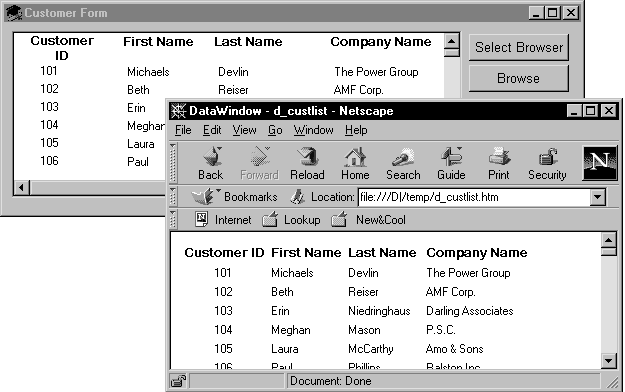
The window below displays customer data in a tabular DataWindow
object. By pressing the Browse button, the user can translate the contents
of the DataWindow object into HTML format and invoke a Web browser to view
the HTML output. By pressing the Select Browser button, the user can tell
the application which Web browser to use:
Script for the Select Browser
button
The script for the Select Browser button displays a dialog box where
the user can select an executable file for a Web browser. The path to the
executable is stored in is_Browser, which is an instance variable defined
on the window:
|
1 2 3 4 5 6 7 8 9 10 11 |
String ls_BrowserName Integer li_Result // Open the dialog to select a browser. li_Result = GetFileOpenName("Select Browser", & is_Browser, ls_BrowserName, & "exe", "Executable Files (*.EXE),*.EXE") IF li_Result = -1 THEN MessageBox("No Browser", "No Browser selected") END IF |
Script for the Browse button
The script for the Browse button creates an HTML string from the
data in the DataWindow by assigning the Data.HTMLTable property to a
string variable. After constructing the HTML string, the script adds a
header to the HTML string. Then the script saves the HTML to a file and
runs the Web browser to display the output.
|
1 2 3 4 5 6 7 8 9 10 11 12 13 14 15 16 17 18 19 20 21 22 23 24 25 26 27 28 29 30 31 32 33 34 35 36 37 38 39 40 41 42 43 44 |
String ls_HTML, ls_FileName, ls_BrowserPath Integer li_FileNumber, li_Bytes, Integer li_RunResult, li_Result // Generate the HTML. ls_HTML = dw_1.Object.DataWindow.Data.HTMLTable IF IsNull(ls_HTML) Or Len(ls_HTML) <= 1 THEN MessageBox ("Error", "Error generating HTML!") Return ELSE ls_HTML ="<H1>HTML Generated From a DataWindow"& + "</H1><P>" + ls_HTML END IF //Create the file. ls_FileName = "custlist.htm" li_FileNumber = FileOpen(ls_FileName, StreamMode!, & Write!, LockReadWrite!, Replace! ) IF (li_FileNumber >= 0) THEN li_Bytes = FileWrite(li_FileNumber, ls_HTML) FileClose(li_FileNumber) IF li_Bytes = Len(ls_HTML) THEN // Run Browser with the HTML file. IF Not FileExists(is_Browser) THEN cb_selbrowser.Trigger Event Clicked() IF NOT FileExists(is_Browser) THEN MessageBox("Select Browser", "Could & not find the browser.") RETURN END IF END IF li_RunResult = Run(is_Browser + " file:///"+& ls_FileName) IF li_RunResult = -1 THEN MessageBox("Error", "Error running browser!") END IF ELSE MessageBox ("Write Error", & "File Write Unsuccessful") END IF ELSE MessageBox ("File Error", "Could not open file") END IF |