Font.Escapement (for rotating controls)
Description
The angle of rotation from the baseline of the text.
In the painter
Escapement on the Font page in the Properties view.
Value
An integer in tenths of degrees. For example, 450 means 45
degrees. 0 is horizontal.
The alignment of the text affects the point of rotation.
Left—Rotates on the bottom left of the control
Right—Rotates on the top right of the control
Center—Rotates on the center of the control
Example
To enter rotation for a control, select the control in the
Design view and click the button next to the Escapement property in
the Properties view. In the dialog box that displays, enter the number
of tenths of degrees.
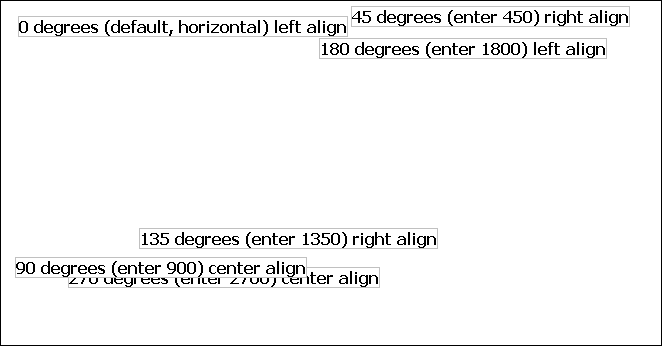
The following picture shows the Design view with a number of
text controls. Each text control shows the Font.Escapement value
entered and the number of degrees of rotation. In the Design view, you
do not see rotation; it looks as if the controls are all mixed up.
Some controls seem to overlie each other:
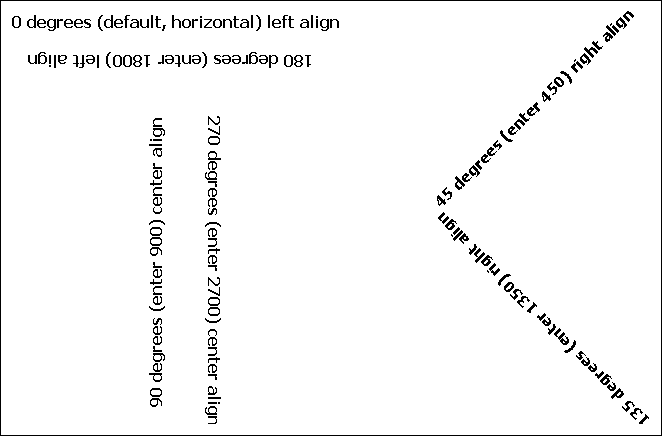
The next picture shows the same controls at runtime. Each
control is rotated appropriately, based on the Font.Escapement and
Alignment values:
How to position controls that are rotated
Make the controls movable. To do so, display each control and
select the Moveable check box in the Position page. Then in the
Preview view, click the rotated text control until a gray box
displays (try the center of the text). Drag the rotated control
where you want it. In the Design view, the controls will be wherever
you dragged them. They may look incorrectly positioned in the Design
view, but they will be correctly positioned when you run the
DataWindow object. When you are satisfied with the positioning, you
can clear the Moveable check box for the controls to ensure that
they stay where you want them.