Failed to send the request
Error 1:
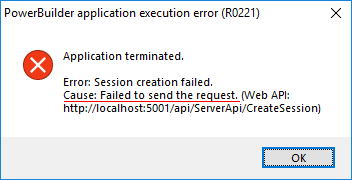
Cause:
-
The Web APIs has not been deployed to specified website
or the Web APIs has not started.Solution: Make sure the
Web APIs has been deployed and started.Take the URL in the above error as an example, you can
input http://localhost:5001 to verify the Web APIs has been
deployed and started. If you see a welcome page saying “Your
ASP.NET Core application has been successfully started”, then
the Web APIs has been deployed and started, otherwise, you
will have to deploy and start the Web APIs. -
The Web APIs is not on the same server as the client
app.Solution: If the Web
APIs is not on the same server as the client app, then you
cannot use “localhost”; you should use the IP address or host
name of the server hosting Web APIs.
Error 2:
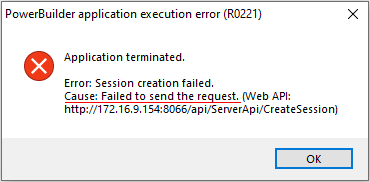
Cause:
If the host server connects to Internet via a proxy server,
then PowerServer Web APIs has to be configured with the proxy
server as well.
Solution:
Open the PowerServer Web APIs > UserConfig.json file, and configure the
proxy server settings in the “ProxyOptions” block. The password for the
proxy server (if any) must be an encrypted value (encrypted by the
CustomizeDeploy.dll
tool).
|
1 2 3 4 5 6 7 |
... "ProxyOptions": { "Server": "", "Username": "", "Password": "" }, ... |
Publish the PowerServer Web APIs to the server.