Failed to download the PowerBuilder Installer
Phenomenon:
When you run PowerBuilder Installer from the Web browser or when
you run the downloaded PowerBuilderInstaller_bootstrapper.exe from the
local computer, you may get the following error: “Failed to download the updated PowerBuilder Installer.
Please check your network connection“.

Cause 1:
The current machine has no Internet connections, or the current
machine connects to Internet through a proxy that requires login
credentials (which is unsupported by PowerBuilder Installer
currently).
Solution:
Make sure the current machine has access to the Internet without
using a proxy or requiring any login credentials.
If the machine is not allowed to access Internet at all, you can
run the PowerBuilder offline installer to install the product on this
machine. For how to get the PowerBuilder offline installer, refer to
the section called “Downloading the Offline Installer”.
Cause 2:
The firewall or anti-virus software on the current machine
allows access to PowerBuilderInstaller_bootstrapper.exe only, but not
the other files that are required by
PowerBuilderInstaller_bootstrapper.exe.
Solution:
Step 1: Try to access https://file.appeon.com/download/Installer/PowerBuilder/PowerBuilderInstaller.zip
in your Web browser.
If you get a “404 File or directory not found” error, then take
Step 2 to resolve this error.
Step 2: Configure the firewall and/or the anti-virus software to
allow access to https://file.appeon.com/download/Installer/*.
This will allow access to all files that are necessary for
running PowerBuilder Installer.
Cause 3:
The firewall or anti-virus software does not allow the
PowerBuilder Installer files (mainly PowerBuilderInstaller_setup.exe and PowerBuilderInstaller.exe) to access Internet
and download files.
Solution:
The PowerBuilderInstaller_setup.exe and PowerBuilderInstaller.exe files will be first
downloaded to the local computer, and then they will need to access
Internet to download and install more files. Therefore, you need to
make sure the following three files have proper rights to access
Internet.
-
%USERPROFILE%AppDataLocalTemp\%RarSFX#%PowerBuilderInstaller_setup.exe
%USERPROFILE%: the current Windows user profile folder, for
example, C:Usersappeon.%RarSFX#%: If there are more than one RarSFX folder, use the
one with the largest number at the end of the folder name. For
example, C:UsersappeonAppDataLocalTempRarSFX4. -
%AppeonInstallPath%PowerBuilder InstallerupdatePowerBuilderInstaller_setup.exe
-
%AppeonInstallPath%PowerBuilder InstallerPowerBuilderInstaller.exe
%AppeonInstallPath%: normally “C:Program FilesAppeon” in
32-bit Windows and “C:Program Files (x86)Appeon” in 64-bit
Windows.These two files may not exist until after PowerBuilder
Installer is successfully downloaded. But you can still specify
them in the firewall or anti-virus software before they are
downloaded.
Step 1: Configure the firewall and/or anti-virus software to
allow the above three files to connect to Internet and download
files.
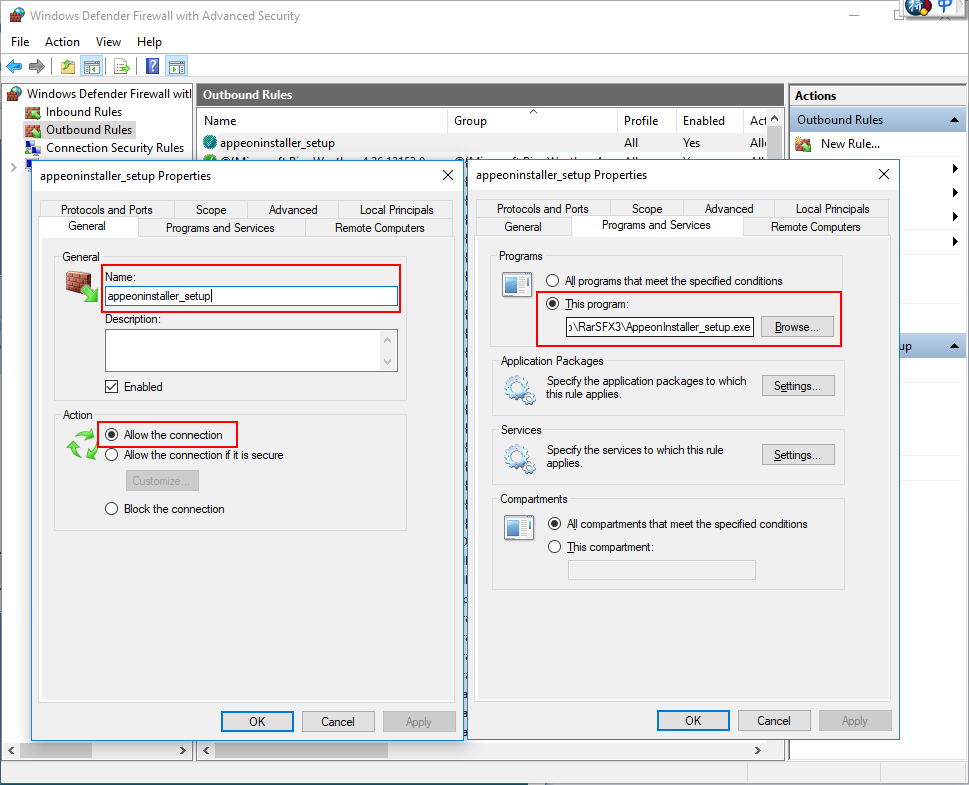
The following takes “Windows Defender Firewall with Advanced
Security” as an example to show you how to do that.
In Outbound Rules of Windows
Defender Firewall with Advanced Security, create new rules with the
following settings:
-
In the Name text box on the
General tab, specify a name (for
example PowerBuilderInstaller_setup) for the rule. -
In the Action section on
the General tab, select Allow the connection. -
In the Programs section on
the Programs and Services tab,
select This program and specify
the absolute path of the file, for example,
C:UsersappeonAppDataLocalTempRarSFX4PowerBuilderInstaller_setup.exe. -
Repeat the above three steps to add the second and third
rules which point to the absolute path of the following two files
respectively:-
C:Program FilesAppeonPowerBuilder
InstallerupdatePowerBuilderInstaller_setup.exe (in 32-bit
Windows), orC:Program Files (x86)AppeonPowerBuilder
InstallerupdatePowerBuilderInstaller_setup.exe (in 64-bit
Windows) -
C:Program FilesAppeonPowerBuilder
InstallerPowerBuilderInstaller.exe (in 32-bit Windows),
orC:Program Files (x86)AppeonPowerBuilder
InstallerPowerBuilderInstaller.exe (in 64-bit Windows)
-
Step 2: Run PowerBuilder Installer again to verify that the
error is resolved.