Example: building a
storage
Suppose you have several drawings of products and you want to
display the appropriate image for each product record in a DataWindow
object. The database record has an identifier for its drawing. In an
application, you could call InsertFile using the identifier as the
file name. However, calling the server application to display the
picture is relatively slow.
Instead you could create a storage file that holds all the
drawings, as shown in the diagram. Your application could open the
appropriate substorage when you want to display an image.
Figure: OLE storage file
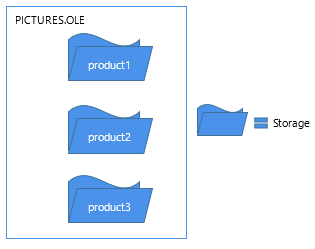
The advantage of using a storage file like this one (as opposed
to inserting files from the server application into the control) is
both speed and the convenience of having all the pictures in a single
file. Opening the pictures from a storage file is fast, because a
single file is open and the server application does not need to start
up to display each picture.
OLE objects in the storage
Although this example illustrates a storage file that holds
drawings only, the storages in a file do not have to belong to the
same server application. Your storage file can include objects from
any OLE server application, according to your application’s
needs.
This example is a utility application for building the storage
file. The utility application is a single window that includes a
DataWindow object and an OLE control.
The DataWindow object, called dw_prodid, has a single column of
product identifiers. You should set up the database table so that the
identifiers correspond to the file names of the product drawings. The
OLE control, called ole_product, displays the drawings.
List of scripts for the
example
The example has three main scripts:
-
The window’s Open event script instantiates the storage
variable, opens the storage file, and retrieves data for the
DataWindow object. (Note that the application’s Open event
connects to the database.) -
The RowFocusChanged event of the DataWindow object opens the
drawing and saves it in the storage file. -
The window’s Close event script saves the storage file and
destroys the variable.
Add controls to the
window
First, add the dw_prodid and ole_product controls to the
window.
Application Open event
script
In the application’s Open event, connect to the database and
open the window.
Instance variable
Declare an OLEStorage variable as an instance variable of the
window:
|
1 |
OLEStorage stg_prod_pic |
Window Open event script
The following code in the window’s Open event instantiates an
OLEStorage variable and opens the file PICTURES.OLE in that
variable:
|
1 2 3 4 5 |
integer result stg_prod_pic = CREATE OLEStorage result = stg_prod_pic.Open("PICTURES.OLE") dw_prod.SetTransObject(SQLCA) dw_prod.Retrieve() |
Retrieve triggers the RowFocusChanged event
It is important that the code for creating the storage
variable and opening the storage file comes before Retrieve.
Retrieve triggers the RowFocusChanged event, and the RowFocusChanged
event refers to the OLEStorage variable, so the storage must be open
before you call Retrieve.
RowFocusChanged event
script
The InsertFile function displays the drawing in the OLE control.
This code in the RowFocusChanged event gets an identifier from the
prod_id column in a DataWindow object and uses that to build the
drawing’s file name before calling InsertFile. The code then saves the
displayed drawing in the storage:
|
1 2 3 4 5 6 7 8 9 10 11 12 13 |
integer result string prodid //Get the product identifier from the DataWindow. prodid = this.Object.prod_id[currentrow] // Use the id to build the file name. Insert the // file's object in the control. result = ole_product.InsertFile( & GetCurrentDirectory() + "" + prodid + ".gif") // Save the OLE object to the storage. Use the // same identifier to name the storage. result = ole_product.SaveAs( stg_prod_pic, prodid) |
Close event script
This code in the window’s Close event saves the storage,
releases the OLE storage from the server, and releases the memory used
by the OLEStorage variable:
|
1 2 3 |
integer result result = stg_prod_pic.Save() DESTROY stg_prod_pic |
Check the return values
Be sure to check the return values when calling OLE functions.
Otherwise, your application will not know if the operation
succeeded. The sample code returns if a function fails, but you can
display a diagnostic message instead.
Running the utility
application
After you have set up the database table with the identifiers of
the product pictures and created a drawing for each product
identifier, run the application. As you scroll through the DataWindow
object, the application opens each file and saves the OLE object in
the storage.
Using the storage file
To use the images in an application, you can include the
prod_id column in a DataWindow object and use the identifier to open
the storage within the PICTURES.OLE file. The following code displays
the drawing for the current row in the OLE control
ole_product (typically, this code would be divided between several
events, as it was in the sample utility application above):
|
1 2 3 4 5 6 7 8 9 10 11 12 13 |
OLEStorage stg_prod_pic //Instantiate the storage variable and open the file stg_prod_pic = CREATE OLEStorage result = stg_prod_pic.Open("PICTURES.OLE") // Get the storage name from the DataWindow // This assumes it has been added to the DataWindow's // rowfocuschanging event prodid = this.Object.prod_id[newrow] //Open the picture into the control result = ole_product.Open( stg_prod_pic, prodid ) |
The application would also include code to close the open
storages and destroy the storage variable.