Example 2: Opening the “2D BarStacked” report
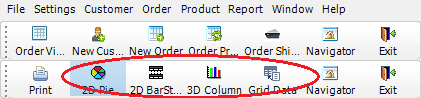
In the original application, the “2D BarStacked” report is
opened from the “2D BarStacked” toolbar item.
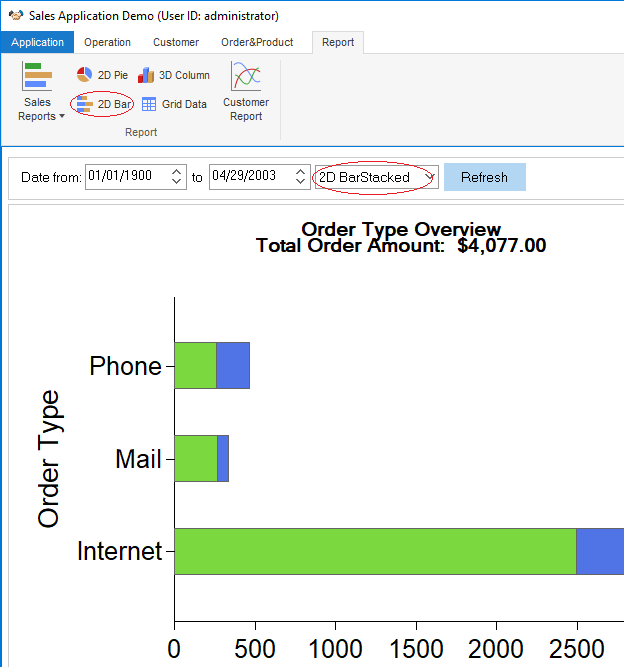
The new application uses the Report > 2D Bar RibbonBar item
to open the “2D Bar” report, and then provides the 2D BarStacked
option in the report for users to view the 2D Bar Stacked
report.
PowerScript in the previous toolbar item
m_report.m_settings.m_defaultsettings.m_reportstyle.m_item1:
|
1 2 3 4 5 6 7 |
ParentWindow.Dynamic Event ue_Settings(This.Tag) If This.Checked Then Return This.Checked = True m_item2.Checked = False m_item3.Checked = False m_item4.Checked = False m_item5.Checked = False |
PowerScript in the event ue_report_style
of the RibbonBar:
|
1 2 3 4 5 6 7 |
ribbonsmallbuttonitem lrs_item this.getsmallbutton (al_handle, lrs_item) string ls_tag ls_tag = lrs_item.tag if isvalid (iw_tmp) then iw_tmp.dynamic event ue_Settings(lrs_item.tag) end if |
Key points covered in the PowerScript
change:
-
The Checked status for the toolbar item is no longer
applicable for RibbonBar item. -
1234ribbonsmallbuttonitem lrs_itemthis.getsmallbutton (al_handle, lrs_item)string ls_tagls_tag = lrs_item.tag
The Tag property is used as the
identifier for some business logic of toolbar items. The
Tag value needs to be migrated into the
RibbonBar item. In this example, we use handle to obtain the
Tag value from a RibbonBar item. The report
style will be switched based on the Tag
value. -
123if isvalid (iw_tmp) theniw_tmp.dynamic event ue_Settings(lrs_item.tag)end if
The ParentWindow is not
applicable for RibbonBar items. And the parent object is not
applicable for RibbonBar either, because the parent window is an
MDI window instead of a sheet window. The actual parent object
will be the tracked sheet window in the buffer. The buffer is
maintained in theiw_tmpobject.