Example 1: Opening the “By Order Type” report
In the original application, the “By Order Type” report is
opened from Report > Sales Reports > By Order Type menu
item.
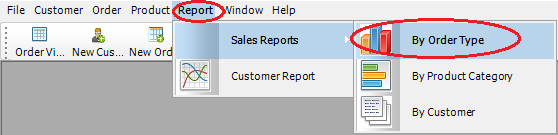
The new application uses the Report > Sales Reports > By
Order Type RibbonBar item to open the report.
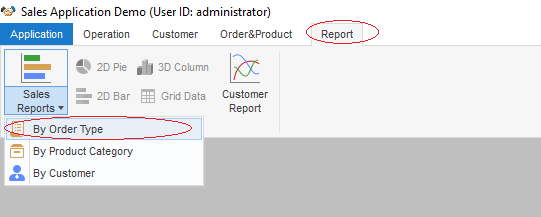
PowerScript in the previous menu item
m_report1.m_salesreports.m_byordertype:
|
1 2 3 4 5 |
str_rptparm lstr_parm lstr_parm.ftitle = 'Sales Report by Order Type' lstr_parm.fdataobject = "" opensheetWithParm (w_rpt_order_type, lstr_parm, parentwindow, 0, Original!) |
PowerScript in the event
ue_rep_ordertype of the RibbonBar:
|
1 2 3 4 5 6 7 8 |
str_rptparm lstr_parm lstr_parm.ftitle = 'Sales Report by Order Type' lstr_parm.fdataobject = "" opensheetWithParm (w_rpt_order_type, lstr_parm, parent, 0, Original!) iw_tmp = w_rpt_order_type wf_setstyle("2D BarStacked") |
Key points covered in the PowerScript
change:
-
1opensheetWithParm (w_rpt_order_type, lstr_parm, parent, 0, Original!)
As the report item is placed in the RibbonBar panel, the
parent object for this item is changed; therefore, the
mdiframeargument of
OpenSheetWithParmmust be changed from
parentwindow to
parent. The Tag
value is migrated into this RibbonBar item. You can find more
information for Tag migration in the next
example. -
1iw_tmp = w_rpt_order_type
The original toolbar items are migrated as RibbonBar items
(small buttons), e.g. 2D Pie, 3D Column, 2D BarStacked/Line and
Grid Data items. The items may be enabled or disabled depending
on the activation of the sheet window. Here we add each opened
window into a buffer to track the activation status, so that it
can control the status for the RibbonBar items. -
1wf_setstyle("2D BarStacked")
Identify if the report supports 2D BarStacked or 2D Line
style. In this example, the small button “2D Bar” is displayed
when this report is actively opened.