Editing the PBG file for a source-controlled target
PowerBuilder creates and uses PBG files to determine if any
objects present on a source control server are missing from local
PowerScript or .NET targets. Up-to-date PBG files insure that the
latest objects in source control are available to all developers on
a project, and that the objects are associated with a named PBL
file.
Ideally, PBG files are not necessary. If the source control
system exposes the latest additions of objects in a project through
its SCC interface, PowerBuilder can obtain the list of all objects
added to a project since the last status refresh. However, many
source control systems do not support this, so PowerBuilder uses the
PBG files to make sure it has an up-to-date list of objects under
source control.
PBG files are registered and checked in to source control
separately from all other objects in PowerBuilder. They are
automatically updated to include new objects that are added to
source control, but they can easily get out of sync when multiple
users simultaneously register objects to (or delete objects from)
the same source control project. For example, it is possible to add
an object to source control successfully yet have the check-in of
the PBG file fail because it is locked by another user.
You cannot see the PBG files in the System Tree or Library
painter unless you set the root for these views to the file system.
To edit PBG files manually, you should check them out of source
control using the source control manager and open them in a text
editor. (If you are using PBNative, you can edit PBG files directly
in the server storage location, without checking them out of source
control.)
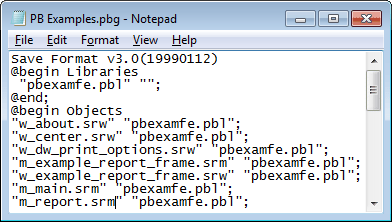
You can manually add objects to the PBG file for a
PowerBuilder library by including a new line for each object after
the @begin Objects line. The following is an example of the contents
of a PBG file for a PBL that is saved to a subdirectory (target1) of
the workspace associated with the source control project: