Distributing WebView2 Runtime
The underlying engine of the WebBrowesr control is Microsoft
Edge WebView2. When the WebBrowser control is used in your
PowerBuilder application, you need to distribute the WebView2 Runtime
with your application. WebView2 Runtime supports two distribution modes:
Evergreen Runtime and Fixed Version.
Which distribution mode to
use
For the detailed information about the pros and cons of the
WebView2 Evergreen Runtime and Fixed Version distribution modes, refer
to Microsoft documentation Distribute
your app and the WebView2 Runtime. This section highlights the
main factors that shall be considered.
-
Evergreen Runtime
-
The Evergreen Runtime distribution mode ensures that
WebView2 Runtime is taking advantage of the latest features
and security updates. -
The Evergreen Runtime requires persistent Internet
connection for automatic installation and updates. -
In Windows 11 or later, the Evergreen Runtime is
included as part of the Windows operating system; and it is
updated automatically (when Internet connection is
available). In Windows 10 or earlier, the Evergreen Runtime
should be first installed using an online bootstrapper or an
offline installer and then it will get updated automatically
when Internet connection is available.
-
-
Fixed Version Runtime
-
The Fixed Version Runtime will not be automatically
updated. It requires you to manage the update: either keep
using the existing version or periodically update the
version that is packaged and installed with the PowerBuilder
application -
To distribute a fixed version of the runtime, because
the Fixed Version runtime cannot be installed by using an
installer, you will need to download and install the latest
available version of the Fixed Version to the specified
location so that it can be automatically packaged with the
PowerBuilder application
-
How to configure the distribution
mode
To configure how to distribute the WebView2 Runtime with the
application, use one of the following ways:
-
Method #1: Configure the distribution mode in the application
script. -
Method #2: Configure the distribution mode in the PowerBuilder
IDE.
The runtime mode specified in the application script has
precedence over the runtime mode selected in the PowerBuilder IDE
Method #1: Configure the WebView2 Runtime
distribution mode in the application script
In the application Open event, call the WebBrowserSet function to set the
distribution mode:
|
1 2 |
long ll_Ret ll_Ret = WebBrowserSet ("RuntimeMode", 0) //0: Evergreen Runtime, 1: Fixed Version, 2: Fixed Version only if Evergreen runtime is not available |
Method #2: Configure the WebView2 Runtime
distribution mode in the PowerBuilder IDE
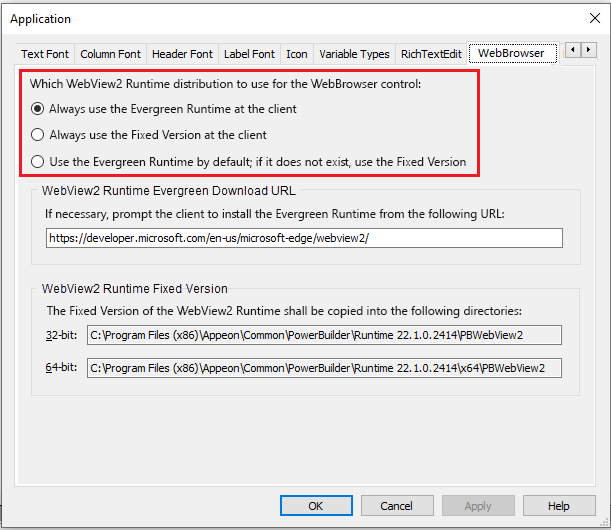
In the Application painter, click Additional Properties on the
General tab page in the Properties view; and then in the Application
properties dialog box that displays, select the WebBrowser tab.
-
Always use the Evergreen Runtime at the
clientThis option is selected by default. When this option is
selected, the Evergreen Runtime that is installed and updated on
Windows will be used. If the client has no Evergreen Runtime
installed, the client will be prompted to install the Evergreen
Runtime from the URL which is specified in the “WebView2 Runtime Download URL” field. -
Always use the Fixed Version at the
clientWhen this option is selected, the Fixed Version must be
packaged with your PowerBuilder application and then installed to
the client.You will need to download and install a version of the
WebView2 Runtime (from this
website) to the location specified in the “WebView2 Runtime Fixed Version” group, so
that it will be automatically packaged and installed with the
PowerBuilder application. -
Use the Evergreen Runtime by default; if
it does not exist, use the Fixed VersionThe Evergreen WebView2 Runtime will be used by default, but if
it does not exist, the Fixed Version Runtime will be used.
Packaging and distributing WebView2
Runtime
For how to package and distribute WebView2 Runtime in PowerBuilder
WebBrowser control, refer to the section called Packaging WebBrowser.
Where to get the WebView2 Runtime Fixed
Version at the client
Applications that use the WebView2 Runtime Fixed Version will
search for the WebView2 runtime files in the following precedence
order.
-
The precedence order in the development environment
-
The path specified in FixedVersionRuntimePath of the
WebBrowserSet function. -
The directory where the application executable file is
located. -
The PowerBuilder Runtime directory under the build number
selected in the PowerBuilder IDE > Tools menu > System
Options dialog.
-
-
The precedence order in the production environment
-
The path specified in FixedVersionRuntimePath of the
WebBrowserSet function. -
The directory where the application executable file is
located. -
The PowerBuilder Runtime directory specified in the
configuration file
(executable-name.xml). -
The PowerBuilder Runtime directory stored in the system
registry. -
The PowerBuilder Runtime directory specified in the PATH
environment variable (if any)
-
How to write PowerScripts to check if
Evergreen Runtime is installed
You can add the following scripts to the Application Open event to
check if the WebView2 Evergreen Runtime has been installed on the
client.
If Evergreen Runtime is not installed, the end user will be
prompted and the Web browser will be open to display the download
page.
|
1 2 3 4 5 6 7 8 9 10 11 12 13 14 15 16 17 18 19 20 21 22 23 24 25 26 27 28 29 30 |
Integer ll_Return string ls_location, ls_path_64bit, ls_path_user, ls_path_32bit, ls_Url ls_path_64bit = "HKEY_LOCAL_MACHINESOFTWAREWOW6432NodeMicrosoftEdgeUpdateClients{F3017226-FE2A-4295-8BDF-00C3A9A7E4C5}" ls_path_user = "HKEY_CURRENT_USERSoftwareMicrosoftEdgeUpdateClients{F3017226-FE2A-4295-8BDF-00C3A9A7E4C5}" ls_path_32bit = "HKEY_LOCAL_MACHINESOFTWAREMicrosoftEdgeUpdateClients{F3017226-FE2A-4295-8BDF-00C3A9A7E4C5}" ls_Url = "https://developer.microsoft.com/en-us/microsoft-edge/webview2/" //64 OS ll_Return = RegistryGet( ls_path_64bit, "location", RegString!, ls_location) //user(64 & 32) If ll_Return <> 1 Then ll_Return = RegistryGet( ls_path_user, "location", RegString!, ls_location) End If //32 OS If ll_Return <> 1 Then ll_Return = RegistryGet( ls_path_32bit, "location", RegString!, ls_location) End If //ls_location = C:Program Files (x86)MicrosoftEdgeWebViewApplication If Pos(ls_location, "EdgeWebView" ) <= 0 Then If MessageBox("WebView2 Runtime not installed", & "Install the WebView2 Runtime from the following URL:~r~n" + ls_Url + "~r~nInstall now?", Question!, YesNo!, 2) = 1 Then //Open the URL in the defautlt browser OpenUrl(ls_Url) End If Return End If |