Displaying sheets in tabbed view
Tabbed view displays sheets opened in the MDI frame window as tabs;
it can be automatically implemented without needing to write or change any
code.
Enabling the tabbed view
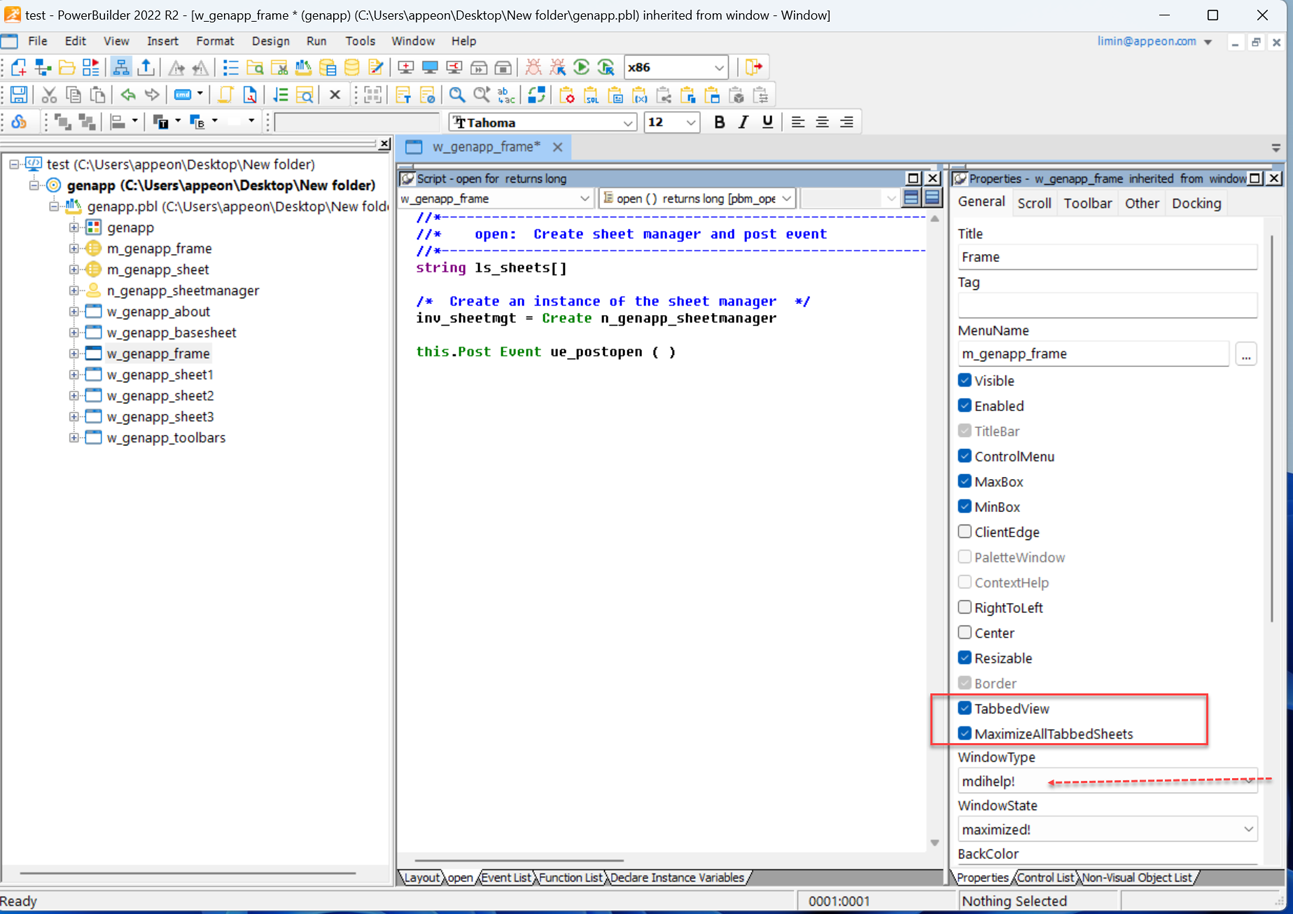
When the window type is MDI or MDIHelp, you can directly take
advantage of the IDE options to implement the tabbed view.
-
TabbedView option — Adds an
internal tabbed view control on the top of the MDI client area and
displays the sheets opened in the MDI window as tab pages
automatically. The height of the main window is automatically adjusted
to show the tabbed view. -
MaximizeAllTabbedSheets option
— Displays all tabbed sheets (opened via OpenSheet or OpenSheetWithParm) at the maximum size.
The TabbedView and MaximizeAllTabbedSheets options can only be set
(enabled or disabled) in the IDE; they cannot be set via scripts.
What a tabbed view looks
like
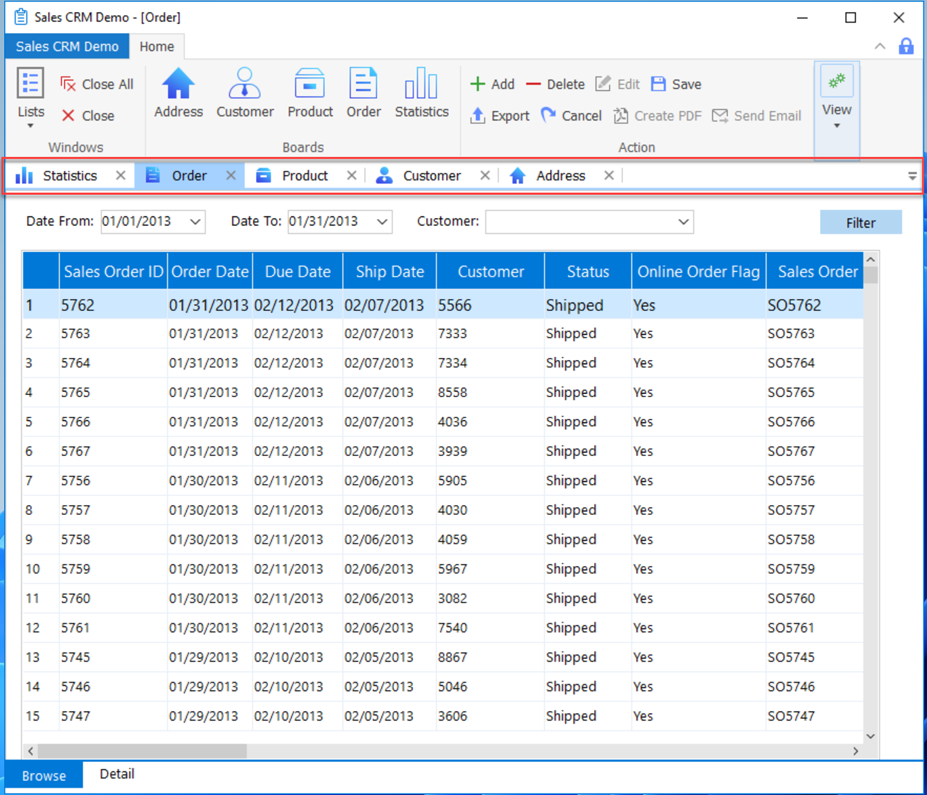
Like other tab pages, the tabbed view contains the tab header (each
has an icon, title text, separator, and close button) and the menu.
An end-user can navigate through tabs by clicking their headers, or
by selecting the menu.

Following is a tabbed view example in the Example Sales App.
Maximizing sheet windows
When the MaximizeAllTabbedSheets
option is selected, all tabbed sheets (opened via OpenSheet or OpenSheetWithParm) will be opened and displayed at
the maximum size, ignoring the arrangeopen argument
of the OpenSheet/OpenSheetWithParm method. But after that
-
If the user has arranged the opened sheets manually in a
different way, for example, cascade the sheets, then the newly opened
sheets will be displayed as cascaded (instead of maximized). -
If the user switches the sheet windows by selecting the tab
header or the tabbed view menu, and if the MaxBox option is not
selected, the sheet window will not display as maximized. To have the
sheet windows display as maximized all the time, you can select the
MaxBox option in the IDE painter, or enable the MaxBox property in the
window Open event via scripts.
Manipulating the tabbed view
When the TabbedView option is
selected, an internal tabbed view control is added on the top of the MDI
client area, and it is named mditbb_1
automatically. It has no functions or events. But you can get and set the
following properties via scripts:
-
ShowIcon — Whether to show the window icon in the tab header.
Default is True.If no icon is set for the sheet windows, then the icon of the
MDI/MDIHelp window will be displayed; if no icon is set for the
MDI/MDIHelp window and the sheet windows, then the default icon for
window will be displayed.1mditbb_1.ShowIcon = true -
ShowCloseButton — Whether to show the close button in the tab
header. Default is True.1mditbb_1.ShowCloseButton = true -
ShowSeparator — Whether to show the separator symbol between
the tab headers. Default is True.1mditbb_1.ShowSeparator = true -
ShowText — Whether to show the window title in the tab header.
Default is True.If no title is set for the sheet windows, then “Untitled” will
be displayed as the title.1mditbb_1.ShowText = true -
ShowPowerTips — Whether to show a PowerTip when the user moves
a cursor over the tab header. Default is True.When this property is true, the value of the PowerTipText property of the
sheet window will be displayed as the PowerTip.If the Window PowerTipText property has no value, then the
window title will be displayed as the tool tips; if the window title
has no value, then “Untitled” will be displayed as the tool
tips.1mditbb_1.ShowPowerTips = true -
ShowContextMenu — Whether to display the popup menu when the
right mouse button is clicked on the tab header. Default is
True.The following menus may be available in the popup menu: Close
Current Tab, Close Tabs to the Left, Close Tabs to the Right, Close
All But This, and Close All Tabs.1mditbb_1.ShowContextMenu = true -
TextSize — The font size of the text in the tab header, in
points. For backward compatibility, the size is stored as a negative
number; for example, 15-point text size is stored as -15.When the font size is changed, the height of the tab header is
automatically adjusted to the best size, therefore, you can adjust the
font size to adjust the header height. The Code Example App included
in the product contains code examples for this.1mditbb_1.TextSize = -15 -
FaceName — The font name for the text shown in the tab header.
Default is Tahoma.1mditbb_1.FaceName = "Tahoma"
Refreshing the main window
In case of a need to refresh the main window when switching the
sheet windows, you will need to write scripts in the Activate event of the
sheet window.
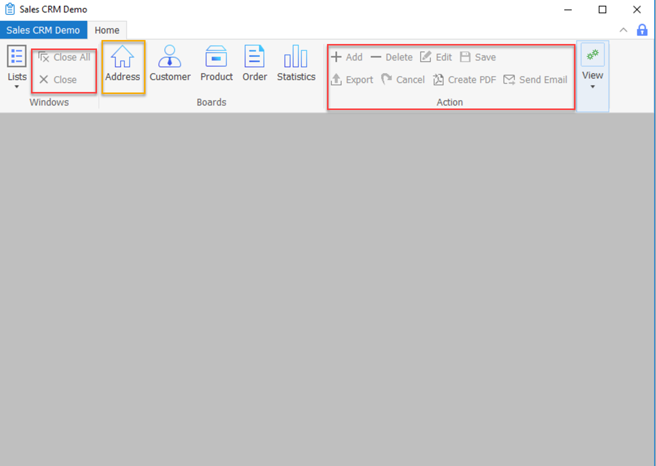
Take the Example Sales App > Address sheet window (w_address) for
example.
Before the Address sheet window (w_address) is opened, the Action
category is disabled (unavailable for use) in the main window.
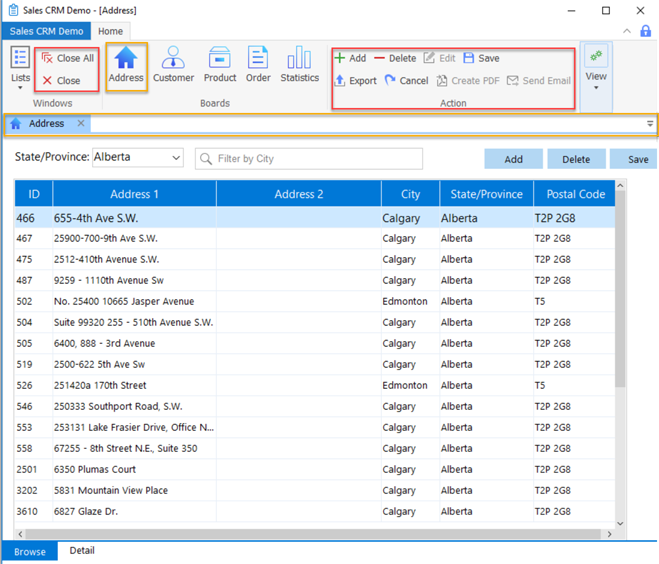
After clicking the Address icon to open the Address sheet window
(w_address), the Action category is enabled in the main window.
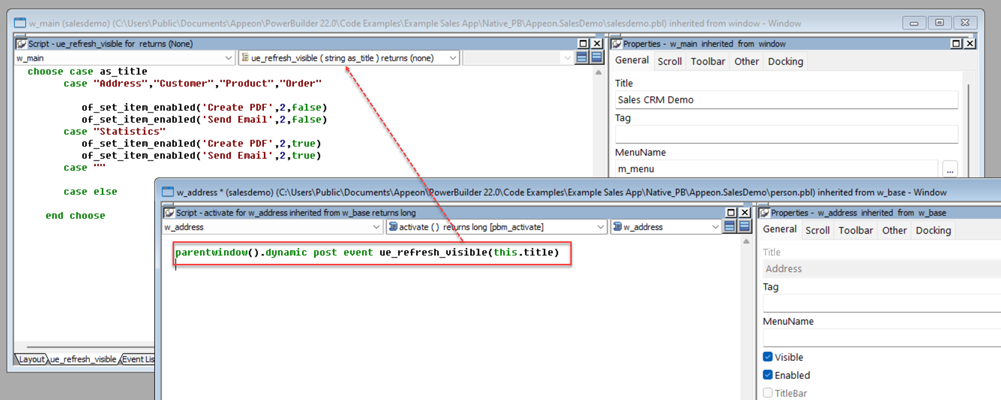
Below is how to write scripts to achieve this result.
To refresh the Action category in the main window, you will need to
write the following script in the Activate event of the Address sheet
window (w_address):
|
1 |
parentwindow().dynamic post event ue_refresh_visible(this.title) |
Using themes
There is nothing different between the tabbed view control and the
other controls, regarding the usage of UI theme.
For more information, refer to the section called “Specifying a theme for the application UI” in Users Guide.
Packaging runtime files
If you use the Runtime Packager to package the application runtime
files, you need to select the “TabbedView
Support” option to automatically package the runtime file
required for tabbed view.
If you manually package the PowerBuilder runtime files, please go to
the PowerBuilder Runtime location and get the following runtime file
required for tabbed view to work: pbtabbedbar.dll.