Defining summary statistics
Contents
When you generate a crosstab, the columns and rows are
automatically totaled for you. You can include other statistical
summaries in crosstabs as well. To do that, you place computed fields
in the workspace.
To define a column summary
-
Enlarge the summary band to make room for the
summaries. -
Select Insert>Control > Computed Field from the menu
bar. -
Click the cell in the summary band where you want the
summary to display.The Modify Expression dialog box displays.
-
Define the computed field.
For example, if you want the average value for a column,
specify avg(units for all), where units is the column providing
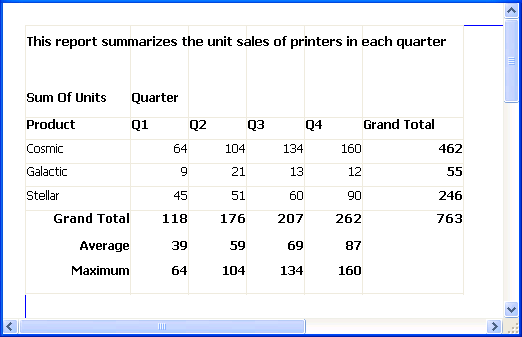
the values in the crosstab.For example, this is a crosstab that has been enhanced to
show averages and maximum values for each column. This is the
Design view: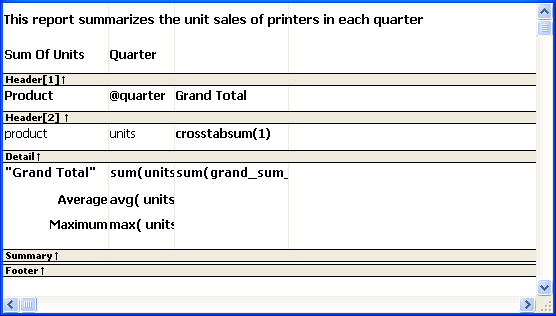
This is the crosstab at runtime:
To define a row summary
-
Select Insert>Control > Computed Field from the menu
bar. -
Click the empty cell to the right of the last column in the
detail band.The Modify Expression dialog box displays.
-
Define the computed field. You should use one of the
crosstab functions, described next.