Defining a validation rule in the DataWindow painter
Contents
Validation rules you assign to a column in the Database painter
are used by default when you place the column in a DataWindow object.
You can override the validation rule in the DataWindow painter by
defining an ad hoc rule for one specific column.
To specify a validation rule for a column in the DataWindow
painter
-
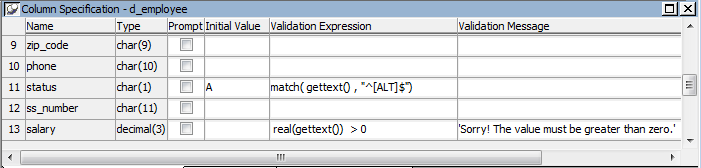
In the DataWindow painter, select View>Column
Specifications from the menu bar.The Column Specification view displays.
-
Create or modify the validation expression. To display the
Modify Expression dialog box, display the pop-up menu for the box
in which you want to enter a Validation Expression and select
Expression. Follow the directions in Specifying the expression. -
(Optional) Enter a string or string expression to customize
the validation error message.For more information, see Customizing the error message.
-
(Optional) Enter an initial value.
Used for current column only
If you create a validation rule here, it is used only for the
current column and is not saved in the extended attribute system
tables.