Data Linker sample
When you first run the Data Linker, no data displays on the
right side of the window.
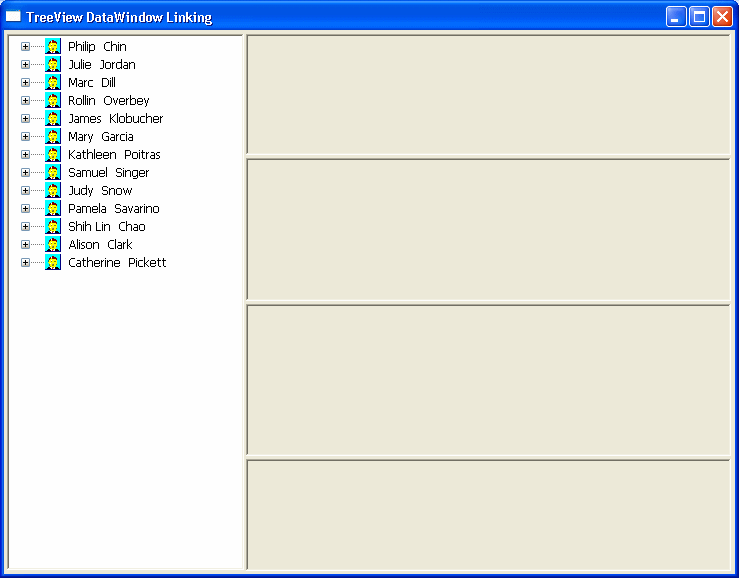
To use the Data Linker, you first expand an employee name and a
company’s data in the TreeView DataWindow.
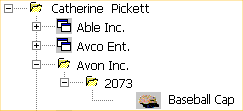
Expanding the TreeView displays the company names, the orders
for the company you select, and in the detail band, the icon and name
for each item in the order.
You can click on each of the TreeView levels in order, and then
click in the detail band to display the details in the four
DataWindows on the right.
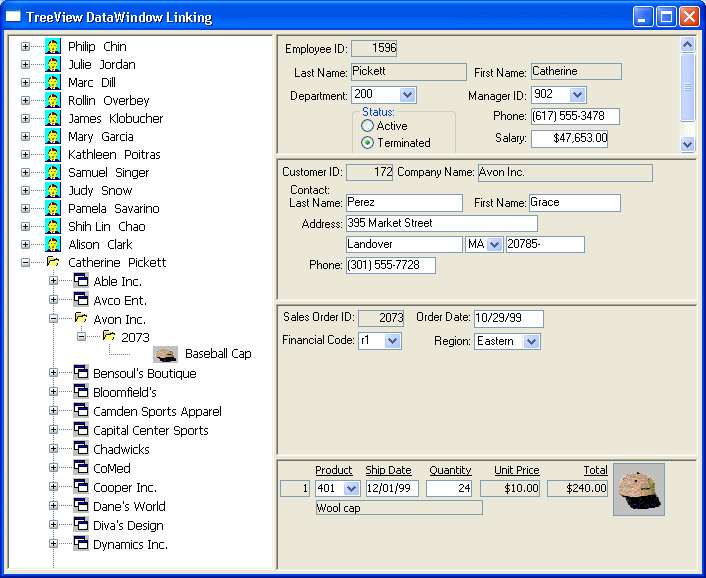
For example, if you click first on Catherine Pickett, then on
Avon Inc., then on 2073, and last on Baseball Cap, the data in each of
the related DataWindows displays on the right. You can also update the
data in each of the DataWindows.
Data Linker TreeView
DataWindow
Here is the TreeView DataWindow used in the Data Linker
sample.
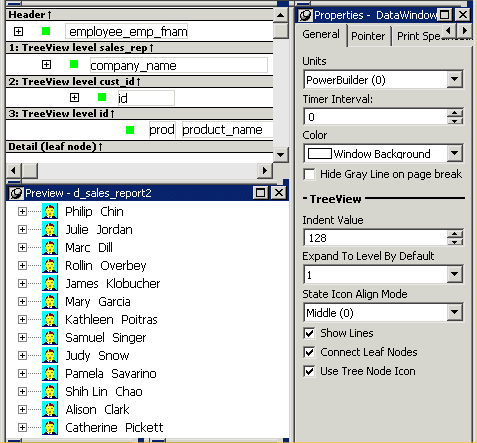
One TreeView DataWindow
The Data Linker uses one TreeView DataWindow, but other
DataWindows that are not TreeView DataWindows also support the Data
Linker’s functionality.
Data Linker code
The code in the Clicked event uses GetBandAtPointer to determine
which DataWindow to display.