Customizing keyboard shortcuts
You can associate your own keyboard shortcuts with PowerBuilder
menu items. For example, if you have used another debugger, you may be
accustomed to using specific function keys or key combinations to step
into and over functions. You can change the default keyboard shortcuts
to associate actions in PowerBuilder’s Debugger with the keystrokes you
are used to.
Tip
Creating keyboard shortcuts means you can use the keyboard
instead of the mouse in many common situations, including changing
workspaces, objects, or connections. To do this, create shortcuts for
the File>Recent menu items.
To associate a keyboard shortcut with a menu item:
-
Select Tools>Keyboard Shortcuts from the menu bar.
The keyboard shortcuts for the current menu bar
display. -
Select a menu item with no shortcut or a menu item with a
default shortcut that you want to change and then put the cursor in
the Press Keys For Shortcut box. -
Press the keys you want to use for the shortcut.
The new shortcut displays in the text box. If you type a
shortcut that is already being used, a message notifies you so you
can type a different shortcut or change the existing
shortcut.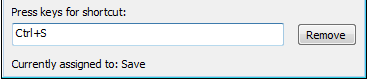
To remove a keyboard shortcut associated with a menu
item:
-
Select Tools>Keyboard Shortcuts from the menu bar.
-
Select the menu item with the shortcut you want to
remove. -
Click Remove.
You can reset keyboard shortcuts to the default shortcuts
globally or for the current painter only.
To reset keyboard shortcuts to the default:
-
Click the Reset button and respond to the prompt.