Creating templates
To create a template, select the New menu item or the New
Default menu item from the pop-up menu in the Export/Import Template
view.
Creating new base
templates
The New menu item creates a template that is empty except for
the XML declaration, the root element, and the first element of the
row data section, referred to as the Detail Start element. The name of
the root element is the same as the name of the DataWindow object, and
the default name for the Detail Start element is the name of the root
element with _row appended.
For example, if the DataWindow object is named d_name, the
default template has this structure:
|
1 2 3 4 5 |
<?xml version="1.0"?> <d_name> <d_name_row> </d_name_row> </d_name> |
Creating new default
templates
The New Default menu item creates a template with the same
contents as the New menu item, as well as a flat structure of child
elements of the Detail Start element. A child element is created for
each DataWindow column name, in the order in which the columns appear
in the SELECT statement, with the exception of blob and computed
columns. The default tag for the element is the column’s name.
If the names of the column and the control are the same, the
content of the child element displays with a control reference icon.
If there is no control name that matches the column name, the content
of the child element displays using the DataWindow expression icon.
For example, consider a DataWindow object in which the dept_id column
is used as a retrieval argument and does not display:
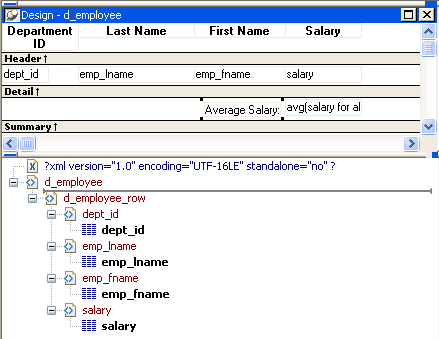
The SQL syntax is:
|
1 2 3 4 5 6 7 |
SELECT "employee"."dept_id", "employee"."emp_lname", "employee"."emp_fname", "employee"."salary" FROM "employee" WHERE employee.dept_id = :deptnum ORDER BY "employee"."emp_lname" ASC |
In the default template, dept_id uses the DataWindow expression
icon. All the other columns used the column control reference
icon.