Creating static crosstabs
By default, crosstabs are dynamic: when you run them,
PowerBuilder retrieves the data and dynamically builds the columns and
rows based on the retrieved data. For example, if you define a
crosstab that computes sales of printers and a new printer type is
entered in the database after you define the crosstab, you want the
new printer to be in the crosstab. That is, you want PowerBuilder to
build the rows and columns dynamically based on current data, not the
data that existed when the crosstab was defined.
Occasionally, however, you might want a crosstab to be static.
That is, you want its columns to be established when you define the
crosstab. You do not want additional columns to display in the
crosstab at runtime; no matter what the data looks like, you do not
want the number of columns to change. You want only the updated
statistics for the predefined columns. The following procedure shows
how to do that.
To create a static crosstab
-
In the wizard page or in the Crosstab Definition dialog box,
clear the Rebuild columns at runtime check box. -
Define the data for the crosstab as usual, and click
OK.
What happens
With the check box cleared, instead of immediately building the
crosstab’s structure, PowerBuilder first retrieves the data from the
database. Using the retrieved data, PowerBuilder then builds the
crosstab structure and displays the workspace. It places all the
values for the column specified in the Columns box in the workspace.
These values become part of the crosstab’s definition.
For example, in the following screenshot, the four values for
Quarter (Q1, Q2, Q3, and Q4) are displayed in the Design view:
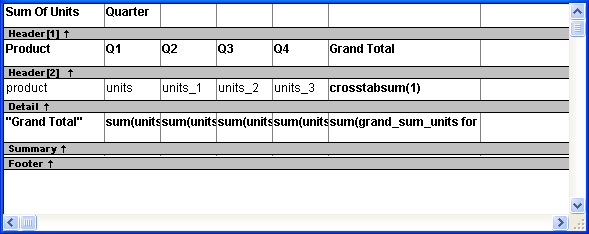
At runtime, no matter what values are in the database for the
column, the crosstab shows only the values that were specified when
the crosstab was defined. In the printer example, the crosstab always
has the four columns it had when it was first defined.
Making changes
You can modify the properties of any of the columns in a static
crosstab. You can modify the properties of each column individually,
since each column is displayed in the workspace as part of the
crosstab’s definition. For example, in the printer crosstab you can
directly modify the way values are presented in each individual
quarter, since each quarter is represented in the Design view. (The
values are shown as units, units_1, units_2, and units_3.)