Creating library entry reports
Library entry reports provide information about selected entries
in the current target. You can use these reports to get printed
documentation about the objects you have created in your
target.
To create library entry reports
-
Select the library entries you want information about in the
List view. -
Select Entry>Library Item>Print from the menu bar, or
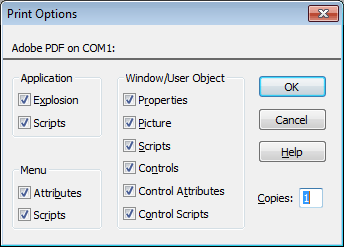
select Print from the pop-up menu.The Print Options dialog box displays.
-
If you have selected the Application object or one or more
menus, windows, or user objects to report on, select the
information you want printed for each of these object
types.For example, if you want all properties for selected windows
to appear in the report, make sure the Properties box is checked
in the Window/User Object group box.The settings are saved
PowerBuilder records these settings in the Library section
of the PowerBuilder initialization file. -
Click OK.
PowerBuilder generates the selected reports and sends them
to the printer specified in Printer Setup in the File menu.