Creating a TreeView DataWindow
To create a TreeView DataWindow
-
Select File>New from the menu bar and select the
DataWindow tab. -
If there is more than one target in the workspace, select
the target where you want to create the DataWindow from the
drop-down list at the bottom of the dialog box. -
Choose the TreeView presentation style for the DataWindow
and click OK.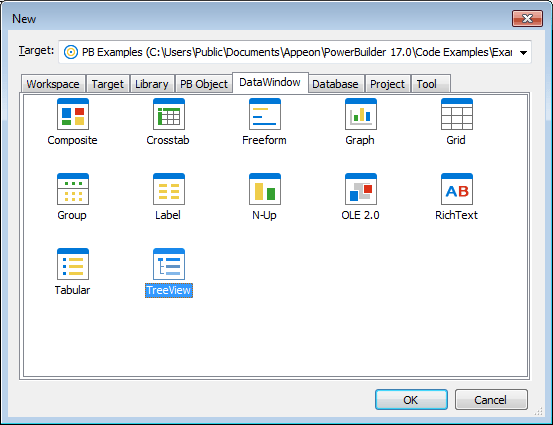
-
Select the data source you want to use.
You are prompted to specify the data.
-
Define the tables and columns you want to use.
You are prompted to specify the TreeView grouping
columns.Multiple columns and multiple TreeView levels
You can specify more than one column, but all columns
apply to TreeView level one. At this point, you can define only
one TreeView level. You define additional levels later.In the following example, TreeView grouping will be by
department, as specified by the dept_id column: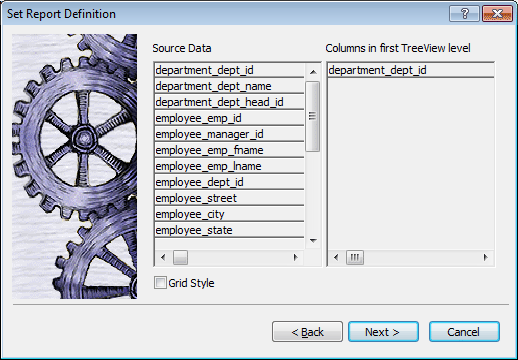
If you want to use an expression, you can define it when you
have completed the wizard. See Using an
expression for a column name.The sample DataWindow shown in Example uses the department and employee
tables in the PB Demo DB database. -
Specify the column or columns that will be at the top level
(level 1) of the TreeView DataWindow.The sample DataWindow uses the department name as the top
level. If you want to display both the department ID and
department name, you specify that both columns are at the top
level. -
If you want the TreeView DataWindow to display grid lines,
select the Grid Style check box.When you select the Grid Style check box, the TreeView
DataWindow displays grid lines for rows and columns. You can drag
the grid lines to resize rows and columns. -
Click Next.
-
Modify the default color and border settings if needed, and
then click Next. -
Review the TreeView DataWindow characteristics.
-
Click Finish.
The DataWindow painter Design view displays. For information
about the Design view, see TreeView
DataWindow Design view. For information about adding
additional levels, see Adding and deleting
TreeView levels.
What PowerBuilder does
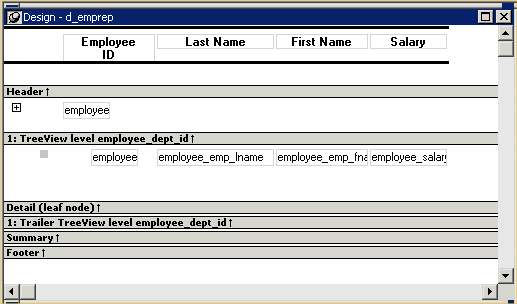
As a result of your specifications, PowerBuilder generates a
TreeView DataWindow object and creates:
-
A TreeView header band with controls that include the
heading text of the detail band columns -
The first TreeView level band with the TreeView level
columns you chose in the wizard -
The detail (leaf node) band that includes all the column
controls except for first-level columns you selected in the
wizard -
A level 1 trailer band.
-
A summary band, and a footer band.
Here is the sample TreeView DataWindow object in the Design
view:
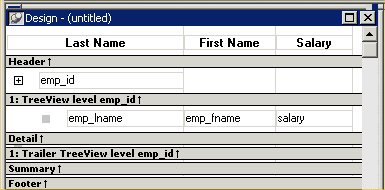
If you selected the Grid Style check box, vertical and
horizontal grid lines display:
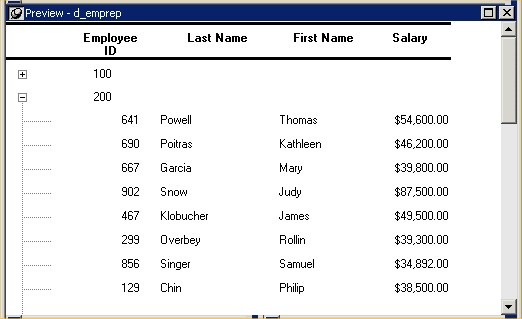
Here is the sample TreeView DataWindow object in the Preview
view:
Using an expression for a
column name
If you want to use an expression for one or more column names in
a TreeView, you can enter it as the TreeView definition on the General
page in the Properties view after you finish using the TreeView
wizard.
To use an expression for a TreeView column name
-
Open the Properties view and click the TreeView level band
in the Design view. -
Click the ellipsis button next to the TreeView Level
Definition box on the General page in the Properties view to open
the Specify Group Columns dialog box. -
In the Columns box, double-click the column you want to use
in an expression.The Modify Expression dialog box opens. You can specify more
than one grouping item expression for a group. A break occurs
whenever the value concatenated from each column/expression
changes.
What you can do
All of the techniques available in a tabular DataWindow object,
such as moving controls and specifying display formats, are available
for modifying and enhancing TreeView DataWindow objects. See Adding and deleting
TreeView levels to read more about the bands in a TreeView
DataWindow object and see how to add features especially suited for
TreeView DataWindow objects, such as additional TreeView levels or
summary statistics.
DataWindow Object is not updatable by default
When you generate a DataWindow object using the TreeView
presentation style, PowerBuilder makes it not updatable by default.
If you want to be able to update the database through the TreeView
DataWindow object, you must modify its update characteristics. For
more information, see Controlling
Updates in DataWindow objects.