Create the executable file
Where you are
Now you create the executable file for your application. The
executable file you generate contains definitions for all the objects in
the application. For the tutorial application, this includes the bitmap
file used in the login window, since you did not include a separate
resource file with your project.
You can create the executable in the Project painter, but usually,
once you have defined the project, you do not need to open the painter
again.
Workspaces and targets in the System Tree have Incremental Build,
Full Build, and Deploy items on their pop-up menus that enable you to
build and deploy some or all of the projects in a target or in the whole
workspace. Incremental Build and Full Build compile your code. Deploy
compiles the code and, for applications like the one you built in this
tutorial, creates an executable file and optional dynamic
libraries.
In this lesson you look at the property sheets where build and
deploy options are specified and then create the executable from the
PowerBar.
-
Close the Project painter.
Click Yes if prompted to save changes.
-
Right-click the pbtutor target in the System Tree.
Select Properties and then select the Deploy tab.
This page shows all the projects in this target (currently only
one).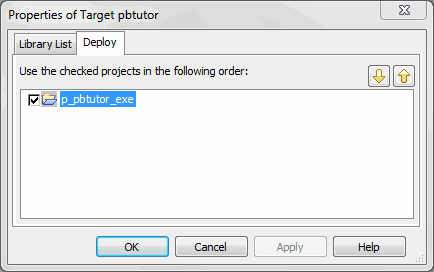
If you have more than one project in the target, you can change
the order in which they are executed and select which projects you
want to build. -
Leaving p_pbtutor_exe checked, click the Cancel button.
-
Right-click MyWorkspace in the System Tree.
-
Select Properties and select the Deploy Preview tab.
The Deploy Preview page shows all the targets in your workspace
and the projects in each that have been selected for deployment, in
the order in which they are to be deployed. You cannot change anything
on this page — you use it to check that you have set up deployment
options for your workspace the way you want to. All the projects shown
on this page are deployed when you click the Deploy button in the
PowerBar.This workspace has only one target and only one project, so you
can use the Deploy button to create the executable. -
Click the Cancel button to close the property sheet.
-
Click the Deploy button (
 ) in the PowerBar.
The process of creating the executable file might take a few
moments. While PowerBuilder is working, you can look at the Output
window at the bottom of the screen to see what PowerBuilder is
doing.If you wanted to stop the deployment process, you could click
the Stop button in the PowerBar. When deployment is complete, the
Output window displays the following text: Finished Deploy of
workspace MyWorkspace.