Create
and preview a new DataWindow object
Where you are
> Create and
preview a new DataWindow object
Make cosmetic changes to
the first DataWindow object
Create a second
DataWindow object
Make cosmetic changes to
the second DataWindow object
Now you create a new DataWindow object and display it in the
DataWindow painter. Like other painters, the DataWindow painter has an
assortment of views that you can open simultaneously.
About the Design view of the DataWindow painter
The Design view in the DataWindow painter is similar to the Layout
view in other painters. You can open only one Design view at a
time.
The Design view is divided into four areas called bands: header,
detail, summary, and footer. You can modify the contents of these bands.
For example, you can change their sizes, add objects (controls, text,
lines, boxes, or ovals), and change colors and fonts.
In the Preview view of the DataWindow painter, you can see how the
object looks in an application at runtime, complete with table
data.
-
Click the New button (
 ) in the PowerBar.
 The New dialog box displays.
-
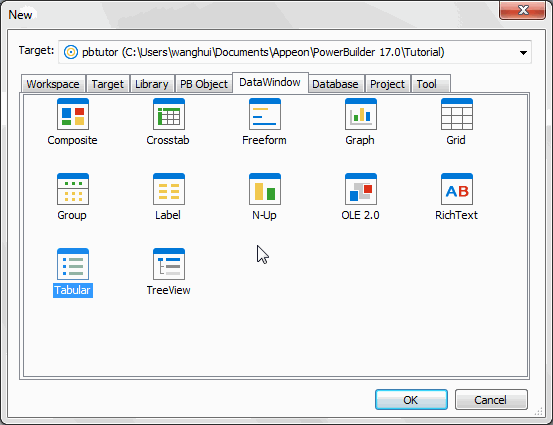
Click the DataWindow tab.
-
Select Tabular from the list of presentation styles.
-
Click OK.
The Choose Data Source for Tabular DataWindow page of the
DataWindow wizard displays.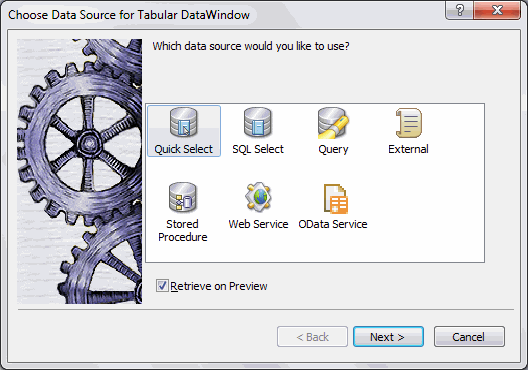
-
Select Quick Select as the data source and select the Retrieve
On Preview check box if it is not already selected.Click Next.
PowerBuilder connects to the Demo Database, and the Quick Select
dialog box displays. -
Click the customer table in the Tables list box.
This opens the table and lists its columns. For this DataWindow,
you will select four columns. -
Click id, fname, and lname in the Columns list box in the order
listed.Scroll down the list and click company_name.
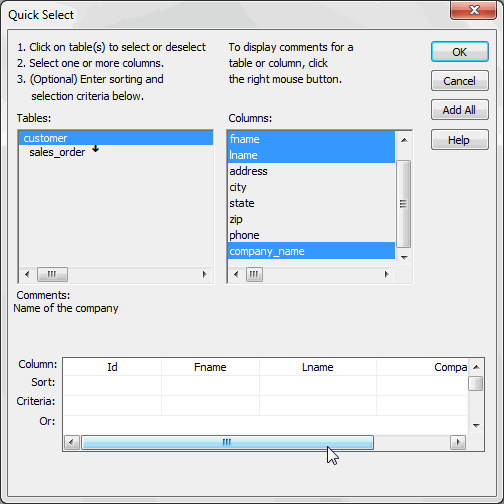
PowerBuilder displays the selected columns in a grid at the
bottom of the Quick Select dialog box.Selection order determines display order
The order in which you select the columns determines their
left-to-right display order in the DataWindow object. If you clicked
a column by mistake, you can click it again to clear the
selection.You can use the grid area at the bottom of the dialog box to
specify sort criteria (for the SQL ORDER BY clause) and selection
criteria (for the SQL WHERE clause). Now you specify sort criteria
only. You sort the id column in ascending order. -
In the grid area of the Quick Select dialog box, click in the
cell next to Sort and below Id.A drop-down list box displays.
-
Choose Ascending from the drop-down list box.
This specifies that the id column is to be sorted in ascending
order.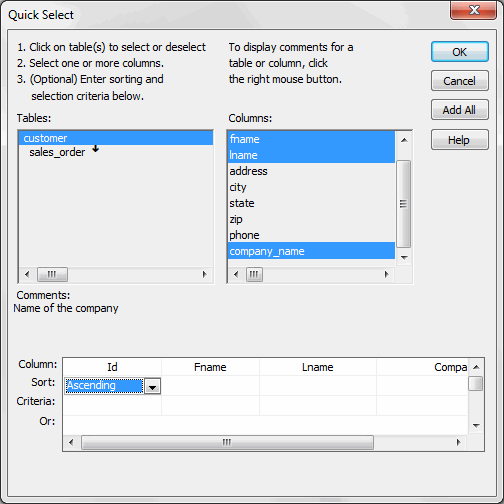
-
Click OK.
The DataWindow wizard asks you to select the colors and borders
for the DataWindow object. By default, there are no borders for text
or columns. -
Click Next.
You accept the border and color defaults. The DataWindow wizard
summarizes your selections. -
Click Finish.
PowerBuilder creates the new DataWindow object and opens the
DataWindow painter.
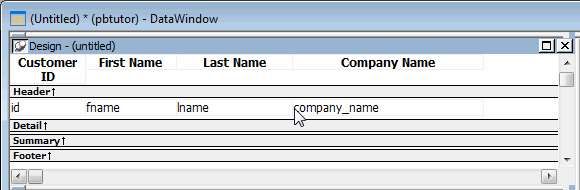
In the Design view, PowerBuilder displays a Header band with default
headings and a Detail band with the columns you selected:
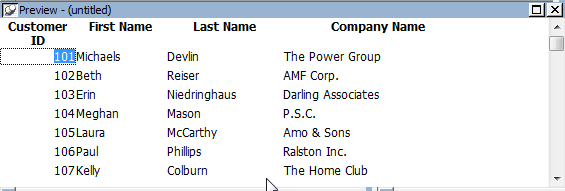
The Preview view displays the DataWindow as it appears during
execution. PowerBuilder displays data for all customers. The data is
sorted in ascending order by customer ID, just as you specified.
Displaying the Preview view
If the Preview view is not displayed, select View>Preview from
the menu bar. If Preview is grayed, it is already displayed and you
cannot select it. You can open only one Preview view at a time.