Create a new window
Where you are
Change the tab order on
the window
Code some Help events
and preview the window
Write the script to
open the window
Now you create a new window for the application. The window you
create is a login window that allows the user to enter a user ID and
password and connect to the database. The login window is a response
window.
About response windows
Response windows are dialog boxes that require information from
the user. Response windows are application modal. When a response window
displays, it is the active window (it has focus) and no other window in
the application is accessible until the user responds. The user can go
to other applications, but when the user returns to the application, the
response window is still active.
-
Click the New button (
 ) in the PowerBar.
 The New dialog box displays.
-
Click the PB Object tab.
-
Select the Window icon and click OK.

The Window painter opens. Notice that you have two new toolbars,
the StyleBar (with character style and text alignment buttons) and
PainterBar3 (with color and border buttons, as well as grayed out
control alignment buttons). -
Make sure that the Layout view and the Properties view display
in the Window painter.You can display these views by selecting them from the View
menu. If they are grayed out in the menu, the views are already
displayed in the painter.The default view layout scheme contains both views.
To retrieve the default painter layout
Select View>Layouts>Default from the workspace menu
bar.The rectangle in the Layout view represents the window you are
building. The default properties in the Properties view indicate that
the window is visible and enabled, and has the Main window type. You
might need to scroll down in the Properties view to see the window
type.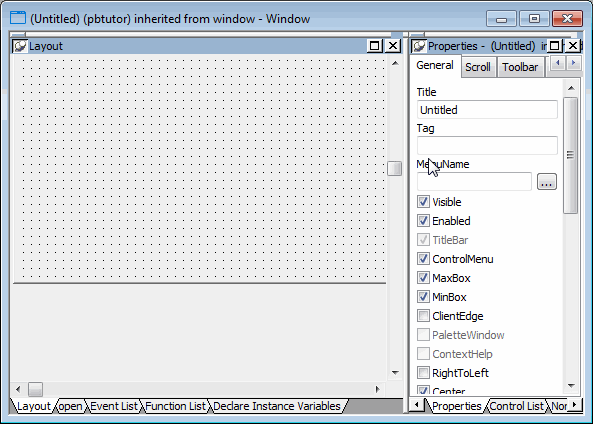
If your window does not have a pegboard look
If the window in your Layout view displays as a solid color,
the Show Grid option has been disabled. To enable it, select
Design>Options from the menu bar. Then select the Show Grid check
box on the General page of the Options dialog box. Click Apply, then
OK to save the change and close the dialog box. -
Type Welcome in the Title text box on the General page of the
Properties view. -
Select response! in the Window Type drop-down list box.
Make sure the TitleBar and ControlMenu check boxes are
selected.Select the ContextHelp check box.
The ContextHelp property adds a question-mark button next to the
(ControlMenu) close button in the login window’s title bar. Users of
your application can click the question-mark button to trigger Help
events for the window controls. You can add a question-mark button to
a response window, but not to a main window. -
Click the Other tab in the Properties view.
Type 2300 in the Width text box and 1000 in the Height text
box.Press the Tab key.
The size of the window rectangle in the Layout view changes. The
values you type are in PowerBuilder Units (PBUs). You might need to
modify these values later, while you are adding controls to the
window.Other methods for entering position properties
You can use the spin controls (
 ) to enter values instead of typing
them.Alternatively, you can change the size of the login window in
the Layout view by moving the pointer to the bottom or right edge of
the window. When it turns into a double-headed arrow, you can drag
the arrow to change the window size. -
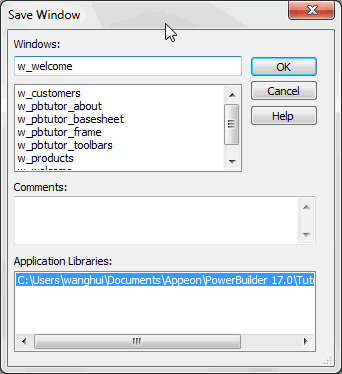
Select File>Save from the menu bar.
The Save Window dialog box displays. The only library in the
Application Libraries text box is pbtutor.pbl, and it is
selected. -
Type w_welcome for the window name.
The prefix w_ is standard for windows.
-
(Optional) Type the following lines in the Comments text
box:1This is the login window. It requires the application user to enter an ID and a password before continuing.These comments are visible in the List view of the Library
painter. -
Click OK.
PowerBuilder saves the new login window. If you expand
MyWorkspace, pbtutor, and pbtutor.pbl in the system tree, you can see
w_welcome listed under it.