Converting the Web APIs to IIS sub-app
After you deploy the two demo applications to the same IIS site,
you will see the following folders generated.
If the folder is not listed under the website, you can refresh the
website first.
Notice that there are two Web APIs (“googlecharts_cloud_API” and
“salesdemo_cloud_API”).

These two Web APIs must be converted to the IIS
sub-application, in order to run in the same web site.
Step 1: Create two application pools in IIS.
If there are multiple Web APIs running in the same IIS web site
using the in-process hosting module, each Web APIs must be assigned with
a separate application pool.
To create an application pool in IIS:
-
Select Application Pools in
the Connections panel and then
click Add Application Pool on the
right panel. -
In the Add Application Pool
dialog box, input a name for the pool and then click OK.
-
Repeat the above steps to create the second application
pool.
Step 2: Convert the Web APIs to sub-application.
You will convert the two Web APIs (“googlecharts_cloud_API” and
“salesdemo_cloud_API”) one by one.
-
Right click the API sub-folder under the IIS website and then
select Convert to
Application.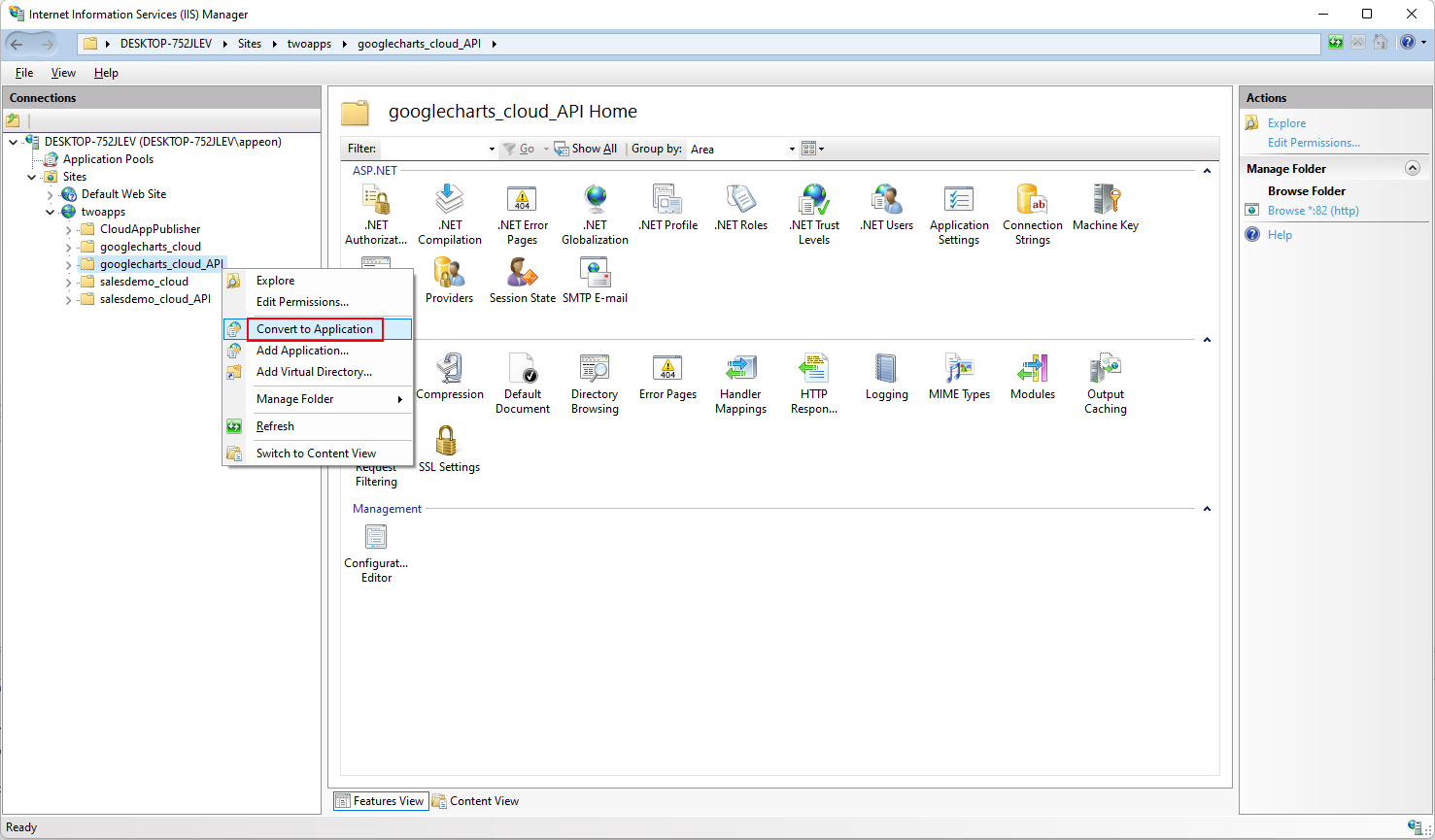
-
In the Add Application dialog
box, click Select to select the
application pool you created in Step 1.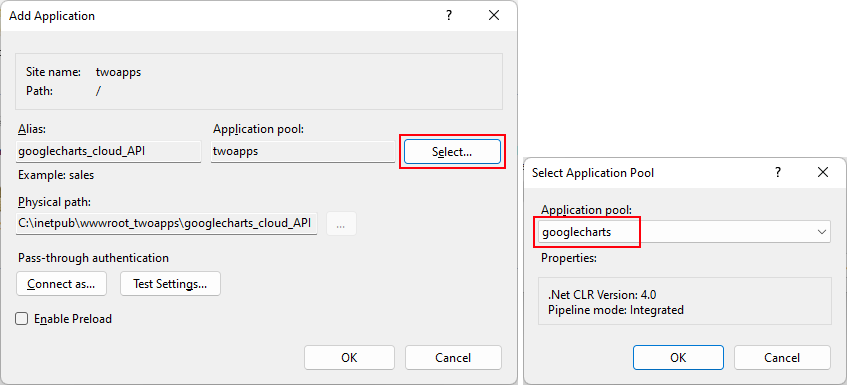
-
Repeat the above steps to convert the second API
folder. -
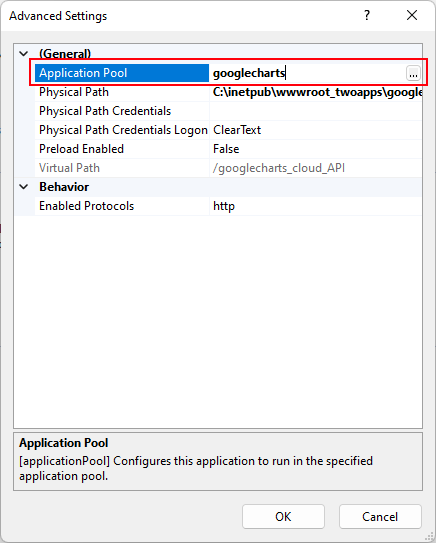
Make sure the two applications use different application
pools. You can double check and modify by right-clicking the
sub-application and then selecting Manage
Application > Advanced
Settings > Application
Pool.