Connection differences
It is important to understand the following connection differences
between PowerBuilder and PowerServer.
Long-running connections vs. short-lived
connections
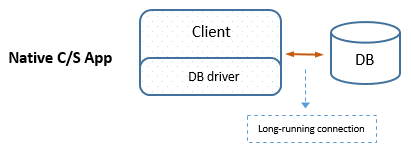
In the PowerBuilder traditional client/server application, a
client connects with the database when CONNECT statement is executed,
and the database connection is kept open and used by that client until
the DISCONNECT statement is executed, which means, the database
connection may stay open through the entire lifespan of the application.
This database connection is called “long-running
connections“.
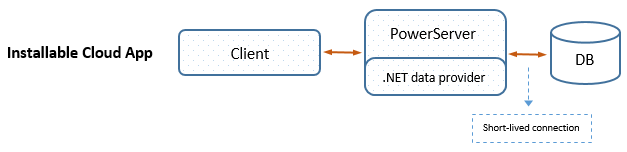
In the installable cloud application, the database connection is
made from PowerServer (not from the client), and the database connection
is ended and returned to the connection pool when the transaction is
completed. This database connection is called “short-lived connections“. This connection
mechanism can support high concurrency and minimize table
deadlocks.
Short-lived connections are more secure and less vulnerable to
network condition compared to long-running connections.
Note
However, a few features will not work properly in short-lived
connections. For example, temporary tables will fail to work in the
short-lived connection. You can take advantage of a parameter called
LongConnection to enable the
installable cloud app to have the same long-running connection as the
PowerBuilder traditional C/S app. For more information, refer to Enabling long
connections.
client-to-server connections vs.
server-to-server connections
The PowerBuilder traditional client/server application directly
connects with the database server from the client (client-to-server
connections). The database driver must be installed on the client. The
database connection information (including user ID, password, DB
connection string, etc.) must be stored at the client and transferred
between the client and the database when the database connection is
created.
The installable cloud application provides a more secure way, in
which the database connection is made from PowerServer to the database
server (server-to-server connections), the database driver is installed
in PowerServer, and the connection information is stored in a cache in PowerServer and transferred
between the PowerServer and the database server. The PowerServer and the
database can reside in the LAN behind the firewall.
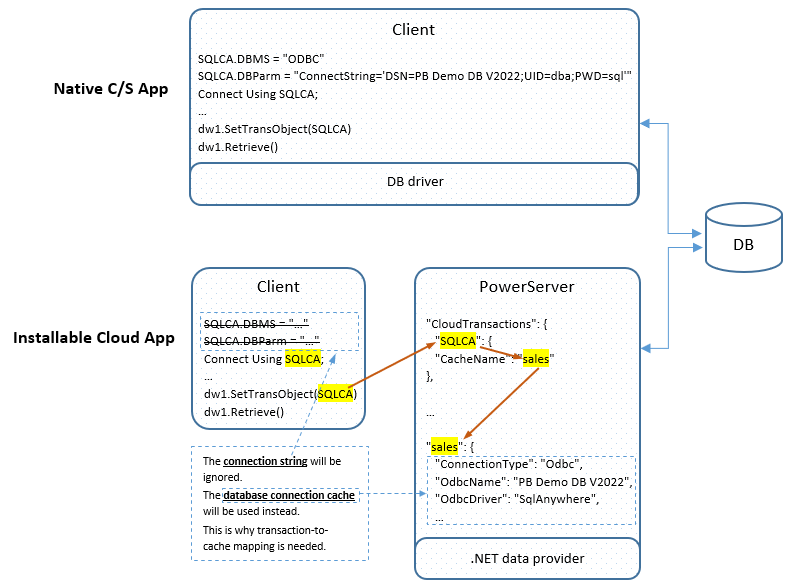
As a result, to implement a server-to-server connection in the
installable cloud app:
(For step-by-step instructions, refer to Tutorial: Connecting to the
Database)
-
A database connection cache must be created.
The cache stores the
database connection information that are required for connecting
with the database. Normally, the cache is created in the IDE and
then used by the IDE to connect with the database and convert the
DataWindows to C# models; after the cache is deployed from the IDE
to PowerServer, it is used by PowerServer to connect with the
database when the application is run.Note
The .NET Core data provider enforces strict validation rules
on the data type and length, therefore, the IDE reads information
about tables, columns, constraints, and indexes from the actual
database in order to generate the C# models correctly. -
The transaction object(s) must be mapped with the
cache.For each transaction object used in the application, it must
be mapped with a cache. The mapping will be used to set up database
connection for the app runtime. -
The .NET Core database provider must be downloaded to
PowerServer.Unlike the traditional client/server app which directly
connects with the database through a local driver, the installable
cloud app relies on the PowerServer Web APIs and the .NET Core
database provider in PowerServer to connect with the
database.You must agree to the license terms of the driver so that the
driver can be downloaded from NuGet whenever required (for example,
when generating the C# models in the development PC, or compiling
the Web APIs in both the development PC and the server). The
download happens automatically once you have agreed to the license
terms of the driver (read
more).