Configuring Apache
This section is to configure Apache as a reverse proxy server
in a Linux machine.
Step 1: Go to the /etc/httpd/conf folder and open the
httpd.conf file in a text editor.
Step 2: Add the following scripts to the end of the httpd.conf
file.
This is to configure Apache as a reverse proxy server which
will redirect requests made to the URL: https://172.16.100.40:8080/
to the PowerServer Web APIs running on Kestrel at
https://172.16.100.35:6000/.
|
1 2 3 4 5 6 7 |
# Listen on port 8080 or any port you choose. Make sure it is not used by any other program. <VirtualHost *:8080> ProxyPreserveHost On # Pass all requests received at the root https://172.16.100.40/8080 to https://172.16.100.35:6000/ (PowerServer Web APIs running on Kestrel server) and in reverse. ProxyPass / https://172.16.100.35:6000/ ProxyPassReverse / https://172.16.100.35:6000/ </VirtualHost> |
Step 3: Locate the following line in the httpd.conf file and
specify the port number: 80 (or any port you choose) is used to
access the static Web files on the Apache HTTP server, 8080 is used
to access Web APIs (according to the reverse proxy setting in step
2, requests made to 8080 will be forwarded to 6000.)
Change
|
1 |
Listen 80 |
To
|
1 2 |
Listen 80 Listen 8080 |
Tip: In CentOS, you can
execute the command “netstat -anp | grep 8080” to check if the port
number is occupied by any other program.
Step 4: Run the following command to add port 8080 to
“http_port_t”:
|
1 |
$ sudo semanage port -a -t http_port_t -p tcp 8080 |
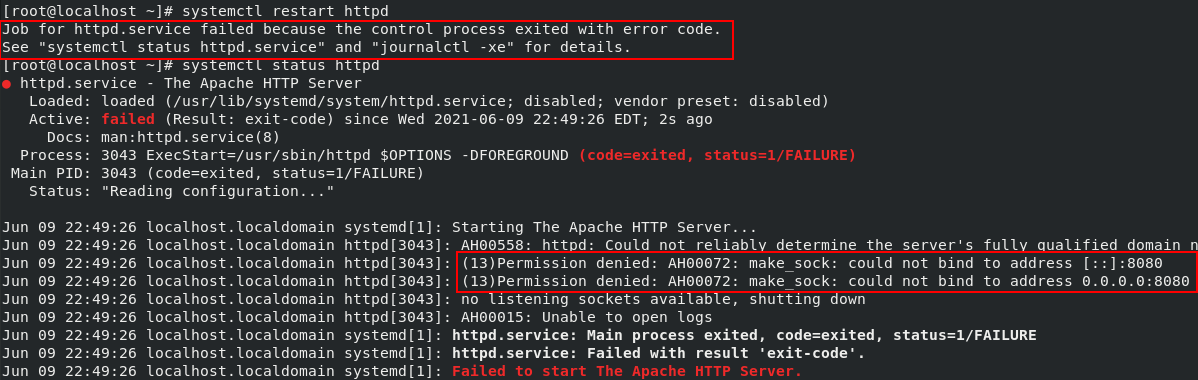
Note
If the port is not properly added, you may see the following
error when you start and check the status of Apache:
Step 5: If you have set up a firewall on the server, run the
following command to permanently enable port 8080:
|
1 |
$ sudo firewall-cmd --permanent --zone=public --add-port=8080/tcp |
and the following command to reload the firewall
service:
|
1 |
$ sudo firewall-cmd --reload |
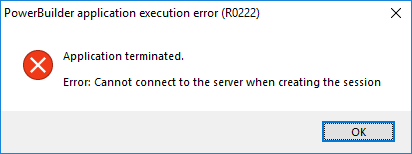
Note
If the firewall blocks the port number, you may have the
following error when running the application.
Step 6: Check if any syntax errors in httpd.conf, and then
restart Apache for the changes to take effect.
|
1 |
$ sudo apachectl configtest |
|
1 |
$ sudo systemctl restart httpd |
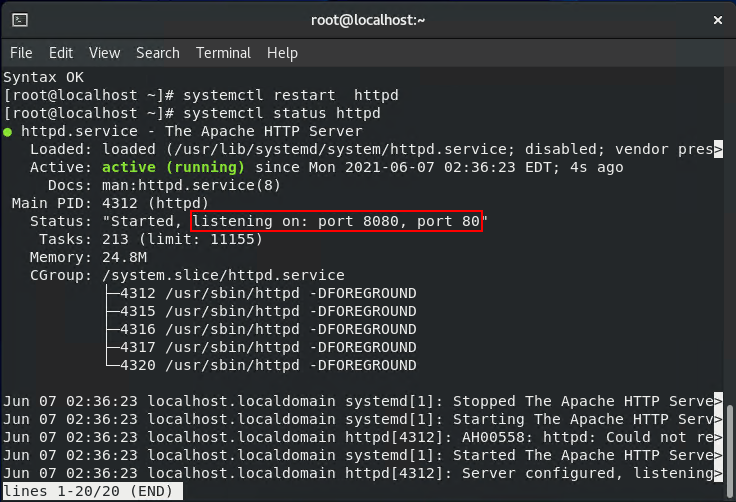
Step 7: Verify that Apache is running.
|
1 |
$ sudo systemctl status httpd |
Step 8: Run the following command to allow Apache to make
outbound connections.
|
1 |
$ sudo /usr/sbin/setsebool -P httpd_can_network_connect 1 |
Note
If Apache is not allowed to make outbound connections, you
may encounter the following error when running the
application,
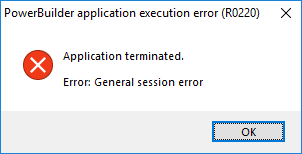
and may have the following errors in the
varloghttpderror_log.log file.
|
1 2 |
[Tue Jun 08 05:21:42.408866 2021] [proxy:error] [pid 4025:tid 140605678085888] (13)Permission denied: AH00957: HTTP: attempt to connect to 172.16.100.35:6000 (172.16.100.35) failed [Tue Jun 08 05:21:42.408952 2021] [proxy_http:error] [pid 4025:tid 140605678085888] [client 172.16.100.35:56187] AH01114: HTTP: failed to make connection to backend: 172.16.100.35 |