Comparing local objects with source control
versions
The PowerBuilder SCC API lets you compare an object in your
local directory with a version of the object in the source control
archive (or project). By default, the comparison is made with the
latest version in the archive, although most source control systems
let you compare your local object to any version in the archive.
Using this feature, you can determine what changes have been made to
an object since it was last checked into source control.
Setting up PBNative for object
comparisons
PBNative does not have its own visual difference utility, but
it does allow you to select one that you have already installed. You
must use only a 32-bit visual difference utility for the object
comparisons. You can select any or all of the following options when
you set up the utility to work with a PBNative repository:
|
Option |
Select this if |
|---|---|
|
Enclose file names in double |
Your visual difference utility does not handle |
|
Refer to local PBL entry as argument |
You do not want the visual difference utility |
|
Generate short (8.3) file names |
Your visual difference utility does not handle |
|
Generate an extra space prior to file |
Your visual difference utility requires an |
To set up PBNative for object comparisons
-
Right-click the Workspace object in the System Tree and
click the Source Control tab in the Workspace Properties dialog
box.PBNative should be your selection for the source control
system, and you must have a project and local root directory
configured. If you are connected already to source control, you
can skip the next step. -
Click Connect.
The Connect button is disabled if you are already
connected to source control. -
Click Advanced.
The PBNative Options dialog box displays.
-
Type the path to a visual difference utility followed by
the argument string required by your utility to perform a diff
(comparison) on two objects.Typically, you would add two %s parameter markers to
indicate where PowerBuilder should perform automatic file name
substitution. The following figure shows a setting used to call
the Microsoft WinDiff utility: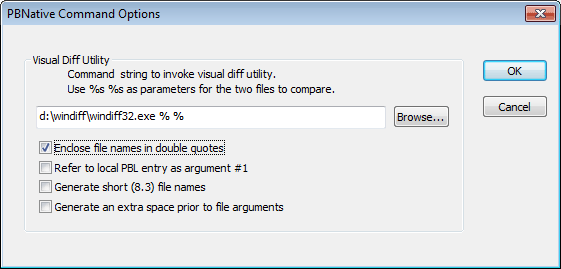
-
(Optional) Select any or all of the check box options in
the PBNative Command Options dialog box for your object
comparisons. -
Click OK twice.
You are now set to use your visual difference utility to
compare objects on the local computer and the server.
Using Show Differences to compare
objects
You can select Show Differences from a pop-up menu or from the
Library painter menu bar. If the object you want to compare has not
been added to the source control project defined for your workspace,
the Show Differences menu item is not available.
To compare a local object with the latest source control
version
-
Right-click the object in the System Tree or in a Library
painter view and select Show Differences from the pop-up
menuor
Select the object in a Library painter view and select
Entry>Source Control>Show Differences from the Library
painter menu bar.A dialog box from your source control system
displays.PBNative connections
Skip the next step if you are using a visual difference
utility with PBNative. The difference utility displays the
files directly or indicates that there are no differences
between the files. -
Select the source control comparison options you want and
click OK.Some source control systems support additional comparison
functions. You may need to run the source control manager for
these functions. See your source control system documentation
for more information.