Changing the window’s tab order
To change the tab order
-
Select Format>Tab Order from the menu bar, or click the
Tab Order button on PainterBar1 (next to the Preview
button).The current tab order displays. If this is the first time
you have used Tab Order for the window, the default tab order
displays.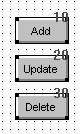
-
Use the mouse or the Tab key to move the pointer to the tab
value you want to change. -
Enter a new tab value from 0 to 9999.
The value 0 removes the control from the tab order. It does
not matter exactly what value you use, other than 0. Only the
relative value is significant. For example, if you want the user
to tab to control B after control A but before control C, set the
tab value for control B so it is between the value for control A
and the value for control C.Tab tips
A tab order value of 0 does not prevent a control from
being selected or activated or from receiving keyboard events.
To prevent a user from activating a control with the mouse,
clear the Enabled check box on its General property page.To permit tabbing in a group box, change the tab value of
the GroupBox control to 0, then assign nonzero tab values to the
controls in the group box. -
Repeat the procedure until you have the tab order you
want. -
Select Format>Tab Order or the Tab Order button
again.PowerBuilder saves the tab order.
Each time you select Tab Order, PowerBuilder renumbers the
tab order values to include any controls that have been added to
the window and to allow space to insert new controls in the tab
order. For example, if the original tab values for controls A, B,
and C were 10, 20, and 30, and you insert control D between A and
B and give it a tab value of 15, when you select tab order again,
the controls A, B, and C will have the tab values 10, 30, and 40,
and control D will have the tab value 20.