Changing the object in an OLE control
PowerBuilder provides several functions for changing the object
in an OLE control. The function you choose depends on whether you want
the user to choose an object and whether the object should be linked
or embedded, as shown in the following table.
|
When you want to |
Choose this function |
|---|---|
|
Let the user choose an object and, if the |
InsertObject |
|
Create a new object for a specified server and |
InsertClass |
|
Embed a copy of an existing object in the |
InsertFile |
|
Link to an existing object in the |
LinkTo |
|
Open an existing object from a file or storage. |
Open |
The following figure illustrates the behavior of the three
functions that do not allow a choice of linking or embedding.
Figure: Functions that do not allow a choice of linking or
embedding
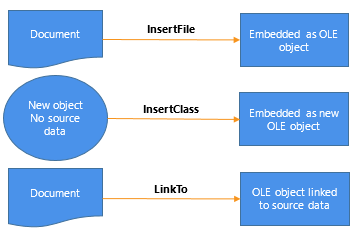
You can also assign OLE object data stored in a blob to the
ObjectData property of the OLE control:
|
1 2 3 |
blob myblob ... // Code to assign OLE data to the blob ole_1.ObjectData = myblob |
The Contents property of the control specifies whether the
control accepts embedded and/or linked objects. It determines whether
the user can choose to link or embed in the InsertObject dialog box.
It also controls what the functions can do. If you call a function
that chooses a method that the Contents property does not allow, the
function will fail.
OLE information in the
Browser
Use the Browser to find out the registered names of the OLE
server applications installed on your system. You can use any of the
names listed in the Browser as the argument for the
InsertClass function, as well as the ConnectToObject and
ConnectToNewObject functions (see Programmable OLE
Objects).
For more information about OLE and the Browser, see OLE information in the
Browser.
Using the clipboard
Using the Cut, Copy, and Paste functions in menu scripts lets
you provide clipboard functionality for your user. Calling Cut or
Copy for the OLE control puts the OLE object it contains on the
clipboard. The user can also choose Cut or Copy in the server
application to place data on the clipboard. (Of course, you can use
these functions in any script, not just those associated with
menus.)
There are several Paste functions that can insert an object in
the OLE control. The difference is whether the pasted object is linked
or embedded.
|
When you want to |
Choose this function |
|---|---|
|
Embed the object on the clipboard in the |
Paste |
|
Paste and link the object on the |
PasteLink |
|
Allow the user to choose whether to embed or link |
PasteSpecial |
If you have a general Paste function, you can use code like the
following to invoke PasteSpecial (or PasteLink) when the target of the
paste operation is the OLE control:
|
1 2 3 4 5 6 7 8 9 10 11 12 13 14 15 16 17 |
graphicobject lg_obj datawindow ldw_dw olecontrol lole_ctl // Get the object with the focus lg_obj = GetFocus() // Insert clipboard data based on object type CHOOSE CASE TypeOf(lg_obj) CASE DataWindow! ldw_dw = lg_obj ldw_dw.Paste() ... CASE OLEControl! lole_ctl = lg_obj lole_ctl.PasteSpecial() END CHOOSE |
Saving an embedded
object
If you embed an OLE object when you are designing a window,
PowerBuilder saves the object in the library with the OLE control.
However, when you embed an object during execution, that object cannot
be saved with the control because the application’s executable and
libraries are read-only. If you need to save the object, you save the
data in a file or in the database.
For example, the following script uses SaveAs to save the object
in a file. It prompts the user for a file name and saves the object in
the control as an OLE data file, not as native data of the server
application. You can also write a script to open the file in the
control in another session:
|
1 2 3 4 5 6 7 |
string myf ilename, mypathname integer result GetFileSaveName("Select File", mypathname, & myfilename, "OLE", & "OLE Files (*.OLE),*.OLE") result = ole_1.SaveAs(myfilename) |
When you save OLE data in a file, you will generally not be able
to open that data directly in the server application. However, you can
open the object in PowerBuilder and activate the server
application.
When you embed an object in a control, the actual data is stored
as a blob in the control’s ObjectData property. If you want to save an
embedded object in a database for later retrieval, you can save it as
a blob. To transfer data between a blob variable and the control,
assign the blob to the control’s ObjectData property or vice
versa:
|
1 2 |
blob myblob myblob = ole_1.ObjectData |
You can use the embedded SQL statement UPDATEBLOB to put the
blob data in the database (see the section called “UPDATEBLOB” in PowerScript Reference).
You can also use SaveAs and Save to store OLE objects in
PowerBuilder’s OLEStorage variables (see Opening and saving
storages).
When the user saves a linked object in the server, the link
information is not affected and you do not need to save the open
object. However, if the user renames the object or affects the range
of a linked item, you need to call the Save function to save the link
information.