Call the connection service manager
You will next call the connection service manager to connect to
the database. Because you eventually need to add user-entry information
from the login window, you add the call to the Clicked event for the OK
button on this window.
An object is considered to be the parent of the controls that are
added to it. The login window is therefore the parent of the OK
button.
When referring to a parent object in a script, it is usually
better practice to use the qualifier parent than to name the object
explicitly. This allows the code to be reused more easily for controls
placed on a different object. In the script for the Clicked event, you
refer to the login window as parent.
Using a single wizard to create the application and
connection
If you had created the connection service user object with the
Template Application wizard, the code you enter in this exercise to
call the connection service manager would have been generated
automatically, but it would have been added to the application Open
event, not to a Clicked event in a login window. It would also have
used a local variable, not a global variable.
-
Double-click w_welcome in the System Tree.
The Window painter opens.
-
Select cb_ok in the first drop-down list box of the Script
viewor
Double-click the OK button in the Layout view.
The Clicked event should be the selected event in the second
drop-down list box. If it is not, select it. The Clicked event
script is empty. -
Type these lines:
12// 1) Instantiate the Transaction object// 2) Close login window if connection successfulThese lines explain the code you add to the Clicked event.
Adding double slash marks at the front of a line turns it into a
comment. -
Type the following assignment statement below the
comments:12gnv_connect = CREATE &n_pbtutor_connectserviceDo not type the ampersand (&) if you combine the lines of
the script into a single line. The ampersand character indicates
that a line of script is continued on the next line.The CREATE statement instantiates the SQLCA Transaction object
with all the values retrieved by the of_GetConnectionInfo function
from the pbtutor.ini file. Because you previously commented out the
lines for the user ID and password, this information is not
retrieved.For ease of reading, you can add blank lines between the
comments and the assignment statement for the global variable
gnv_connect. -
Type the following lines below the CREATE statement:
123IF gnv_connect.of_ConnectDB ( ) = 0 THENClose (parent)END IFThe of_ConnectDB function connects the application to the
database. As you saw earlier in this lesson, if the connection fails
(the SQLCode is not 0), a message box opens and displays the SQL
error text.If of_ConnectDB returns a zero (the SQLCode for a successful
connection), the lines that follow the IF-THEN statement line are
parsed. In this case, the parent window for the cb_ok control
(w_welcome) closes.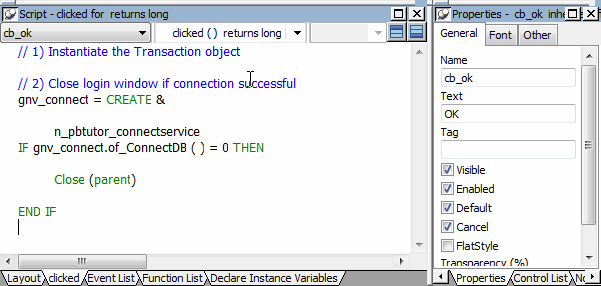
-
Click the Compile button in PainterBar2
or
Right-click inside the Script view and click Compile in the
pop-up menu.The script should compile without error. If you get an error
message, make sure you have typed object and function names
correctly and saved gnv_connect as a global variable.Toggling the Error window of the Script view
You can show or hide the Error window by clicking the icon
at the far right of the Script view just under the title
bar.You still need to code the Clicked event to instantiate the
Transaction object with user-entered connection information.