Building two windows with similar definitions
Assume your application needs two windows with similar
definitions. One window, w_employee, needs:
-
A title (Employee Data)
-
Text that says Select a file:
-
A drop-down list with a list of available employee
files -
An Open button with a script that opens the selected file in
a multiline edit box -
An Exit button with a script that asks the user to confirm
closing the window and then closes the window
The window looks like this:
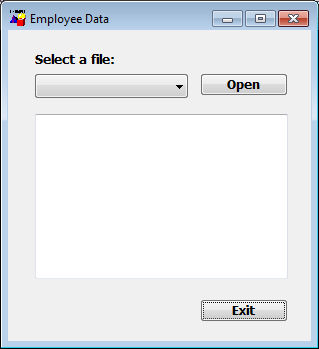
The only differences in the second window, w_customer, are that
the title is Customer Data, the drop-down list displays customer files
instead of employee files, and there is a Delete button so the user
can delete files.
Your choices
To build these windows, you have three choices:
-
Build two new windows from scratch as described in Building a new window.
-
Build one window from scratch and then modify it and save it
under another name -
Use inheritance to build two windows that inherit a
definition from an ancestor window
Using inheritance
To build the two windows using inheritance, follow these
steps:
-
Create an ancestor window, w_ancestor, that contains the
text, drop-down list, and the open and exit buttons, and save and
close it.Note
You cannot inherit a window from an existing window when
the existing window is open, and you cannot open a window when
its ancestor or descendant is open. -
Select File>Inherit, select w_ancestor in the Inherit
From dialog box, and click OK. -
Add the Employee Data title, specify that the
DropDownListBox control displays employee files, and save the
window as w_employee. -
Select File>Inherit, select w_ancestor in the Inherit
From dialog box, and click OK. -
Add the Customer Data title, specify that the
DropDownListBox control displays customer files, add the Delete
button, and save the window as w_customer.