Building a client/server application with commands
Instead of building the Application project from the
PowerBuilder IDE, you can also build the project using the PBAutoBuild210 command. For step-by-step
guidance, refer to Tutorial:
Building your client/server application with commands. The
PBAutoBuild210 command can integrate
with Jenkins to
automate the build process for Application projects. Refer to the
Jenkins user
documentations for how to use Jenkins.
To build the Application project with commands:
-
Export the configurations of the Application project to the
JSON file.-
Click the Export Build
File button ( ) in the toolbar if the Application
project painter opens, or right click the Application project
object (or target or workspace) and then select Export Build File. -
In the Export Build
File dialog box, specify where to save the exported
file and how to overwrite the settings if the file already
exists. Click Export.If you right click the workspace and then select
Export Build File, you can
select one or more targets to export the build file for, and
then select one or more project types to export if there are
more than one type of project objects in the selected
target(s). If you select more than one project type, the
corresponding project objects will be exported to the build
file > “Projects” > [project object name]. If the
selected targets contain project objects with the same name,
only the object listed last will be added to the build
file.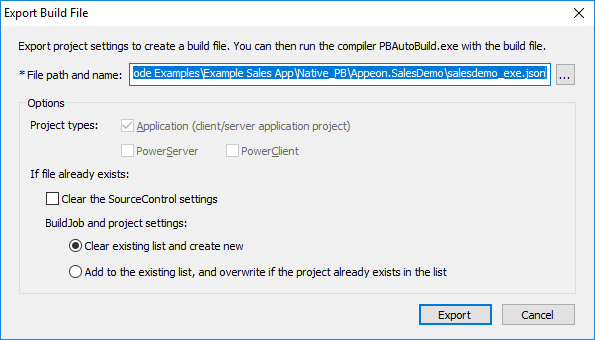
The exported JSON file includes every single setting that is
required for building the Application project, just to name a few,
for example,-
Project settings such as project type, platform (32-bit
or 64-bit), build options, code type (Pcode or Machine code)
etc. -
Library list
-
Version information
-
Run options
-
…
You can find a complete list of settings under the
“Projects” block in the exported file.The exported file also contains a “BuildPlan” block which
provides additional configurations:-
Settings for downloading and merging source code from
the source control server (including SVN, Git, and/or
VSS).Locate the “SourceControl” section to configure the
settings.The following example shows how to download source code
from Git:123456789"BuildPlan": {"SourceControl": {"PreCommand": "","SVN": [{"SrcPath": "","User": "","Password": "","DestPath": "","Proxy": {"Ip": "","Port": 0,"Username": "","Password": ""}}],"Git": [<span><strong> </strong></span><span><strong>{"SrcPath": "https://github.com/Appeon/PowerBuilder-AutoBuild-Sales-SourceCode", "User": "tester@appeon.com", "Password": "YGRrYjc6OzU=", "DestPath": ".\Build", "Proxy": {"Ip": "","Port": 0,"Username": "","Password": ""}}</strong></span>],The following example shows how to download source code
from VSS:123456789101112"BuildPlan": {"SourceControl": {"PreCommand": "","SVN": [{"SrcPath": "","User": "","Password": "","DestPath": "","Proxy": {"Ip": "","Port": 0,"Username": "","Password": ""}}],"Git": [{"SrcPath": "","User": "","Password": "","DestPath": "","Proxy": {"Ip": "","Port": 0,"Username": "","Password": ""}}],"VSS": [<span><strong> {"SrcPath": "\\192.168.0.100\Project_VSS\"$/Salesdemo/native_pb/appeon.salesdemo", YYOAAAAA","User": "tester","Password": "","DestPath": ".\Build"}</strong></span>],Note:
1) The password for VSS is not supported. The VSS login
window will be displayed for you to input the password before
downloading the source code.2) The password for SVN or Git must be an encrypted
value which is generated from the original password by
executing “PBAutoBuild210.exe /p”, as shown below.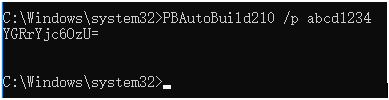
If the source code downloaded from SVN, Git, or VSS is
not the PBL file but objects in ws_objects, then you will need
to merge the objects to the PBL file. Locate the “Merging”
section in the exported build file and then configure as
below:123"Merging": [{"Target": ".\Build\salesdemo.pbt", "LocalProjectPath": ".\Build", "RefreshPbl": false}],Setting “RefreshPbl” to true if you want to refresh the
PBL files by deleting and then generating the PBL files
again.Merging will not only merge the source code but also
upgrade the source code to the current version. However, it
will not check or upgrade the PBD files used in the library
list (you will need to replace the PBD files with the
corresponding version).At the same time, make sure to double check the target
location is set correctly in the “Projects” section, for
example,1234567"BuildJob": {"PreCommand": "","Projects": [<span><strong> </strong></span><span><strong>{"Target": ".\Build\salesdemo.pbt", "Name": "salesdemo_pbnative"}</strong></span>],"PostCommand1": ""} -
In the “SourceControl” and “BuildJob” sections, you
could also specify commands that can be executed before and/or
after that particular section is executed.Locate the “PreCommand” and “PostCommand” keywords to
specify the commands or command file, for example,123456"BuildPlan": {"SourceControl": {"PreCommand": <span><strong>"Command_DeleteFolder.bat",</strong></span>"SVN": [...],The commands in “PreCommand” and “PostCommand” can be
executed in synchronous (default) or asynchronous mode, and
the command window can be visible or invisible (default). For
example,1"PostCommand": "postcmd.bat /show /async"
Note: The relative path
specified in the file is relative to the path of the JSON
file. -
-
Execute the PBAutoBuild210.exe file and the JSON file
in a command line to automatically build the project. For
example,1PBAutoBuild210.exe /f "D:PB2021SalesDemosalesdemo_exe.json" /l Log_PBBuild.log /le Log_PBError.logThe PBAutoBuild210.exe file
supports the following parameters:-
/f — specify the configuration file. The configuration
file (in JSON format) can be directly exported from the
PowerBuilder IDE, as described in step 1.1PBAutoBuild210 /f D:PB2021SalesDemosalesdemo_exe.json -
/l — write the logging information to a file.
-
/le — write the error information to a file. For
example,1PBAutoBuild210 /f D:PB2021SalesDemosalesdemo_exe.json /l Log_PBBuild.log /le Log_PBError.logThe relative path specified in the parameter is relative
to the path of the configuration file. In the above example,
the log files will be generated under the same path as the
configuration file. -
/p — specify the password for logging into SVN or Git.
This will generate an encrypted value based on the password.
If the password contains the double quotation mark (“), use
the escape character ” to replace “.1PBAutoBuild210 /p abcd1234 -
/h or /? — display the help information. For
example,1PBAutoBuild210 /h
-
Note
The handling of PB.INI is the same in PBAutoBuild and
OrcaScript:
If the application relies on a property in PB.INI to run, for
example, [RichText] PageSizeAsControlSize=1, the user needs to copy
the PB.INI file to the directory where the application executable
resides.
If the compilation of PBAutoBuild or OrcaScript relies on a
property in PB.INI, for example, [PB] DashInIdentifiers=0, the user
needs to copy the PB.INI file to the directory where
PBAutoBuild210.exe or pbc210.exe resides.