Brush.Hatch
Description
Setting for the fill pattern of a graphic control.
In the painter
Brush Hatch on the General page in the Properties view.
Value
A number that specifies the pattern that fills the control.
Values are:
-
0—Horizontal
-
1—Bdiagonal (lines from lower left to upper right)
-
2—Vertical
-
3—Cross
-
4—Fdiagonal (lines from upper left to lower right)
-
5—DiagCross
-
6—Solid
-
7—Transparent
-
8—Background (use the values on the Background tab)
Example
In this example, statements check the employee’s start date to
see if the month is the current month or the month following the
current month. Properties of a rectangle control placed behind the row
of data are changed to highlight employees with months of hire that
match the current month or the month following the current
month.
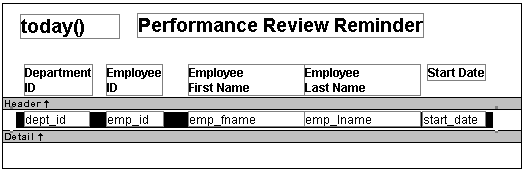
The Design view includes columns of data and a rectangle behind
the data. The rectangle has been changed to black in the following
picture to make it stand out:
The following statement is for the Brush.Color property of the
rectangle. If the month of the start date matches the current month or
the next one, Brush.Color is set to light gray. If not, it is set to
white, which means it will not show:
|
1 2 3 4 |
If(month( start_date ) = month(today()) or month( start_date ) = month(today())+1 or (month(today()) = 12 and month(start_date)=1), 12632256, 16777215) |
The following statement is for the Brush.Hatch property of the
rectangle. If the month of the start date matches the current month or
the next one, Brush.Hatch is set to Bdiagonal. If not, it is set to
Transparent, which means it will not show:
|
1 2 3 4 |
If(month( start_date ) = month(today()) or month( start_date ) = month(today())+1 or (month(today()) = 12 and month(start_date)=1), 1, 7) |
Expressions are also provided for Pen.Color and
Pen.Style.
For more about these properties and a picture, see Pen.Style.