Auxiliary objects for MobiLink synchronization
If you create an instance of MLSync by PowerScript code or from
the New dialog box, you should also consider using auxiliary objects
that are generated automatically by the wizard that you can customize in
the PowerBuilder Window painter.
Using an existing synchronization progress
window
After you instantiate an MLSync object and call SetParm to enable
an end user to set authentication properties at runtime, you can call a
Response! type window to document the progress of a database
synchronization. You open the progress window with an OpenWithParm call,
using the window name and the MLSync object name as arguments. By
default, the wizard generates a progress window named
w_appname_syncprogress and adds the OpenWithParm call for you.
In the Properties view for an MLSync object, you can select a
customized progress window to document the progress of a synchronization
call. If you customize a wizard-generated progress window — typically
to hide some of the fields on its tab pages, or even to hide one or two
of the tab pages — you can select the customized progress window for
all of your MobiLink applications.
Changing the connection arguments at
runtime
To allow a user to override authentication parameters at runtime,
you can call a customized options window or the synchronization options
window generated by the wizard. The options window can, in turn, call an
instance of the SyncParm object that can be initialized with
authentication values from a highly secure persistent store, such as a
remote database table. You can choose to make some or all of the
authentication values writable, allowing the end user to override them
at runtime.
Maintaining property settings in the MLSync object
Normally when you call SetParm(SyncParm) from an MLSync object,
you automatically override any authentication values
(AuthenticationParms, DBUser, DBPass, EncryptionKey, MLUser, and
MLPass) that you set for properties of the MLSync object even when the
value of a particular SyncParm property is an empty string. However,
if you call SetNull to set a particular property of the SyncParm
object to NULL before you call SetParm, the property value in the
MLSync object will be used instead.
The default synchronization options window,
w_appname_sync_options, returns a SyncParm structure to its caller
through the PowerObjectParm property of the Message object. This allows
the caller to save the highly sensitive authentication property values
in a secure location. It also sets the SyncParm ReturnCode property with
an integer value that indicates whether to proceed with the actual
synchronization.
Default tab pages of the options
window
The default synchronization options window has four tab pages:
Subscriptions, SQL Anywhere, MobiLink Server, and Settings.
Subscriptions page
When you used the MobiLink wizard, you selected one or more
publications from the list of available publications. The selected
publications display on the Subscriptions page, but cannot be edited at
runtime.
Each remote user can supply a MobiLink synchronization user name
on this page. The name must be associated in a subscription with the
publications displayed on the page. If the application is always used by
the same MobiLink user, this information never needs to be supplied
again. The name is saved in the registry and used by default every time
synchronization is launched from the application on this device.
The MobiLink password and authentication parameters are never
saved to the user’s registry. They can either be entered each time by
the user or provided from a secure database.
SQL Anywhere page
Remote users can supply a DSN file name on this page to pass all
the arguments needed to connect to a remote database.
If a DSN file is not used, or if the DSN file does not include a
user name and password, each remote user can supply a remote database
user name. The name is saved in the registry and used by default every
time synchronization is launched from the application on this
device.
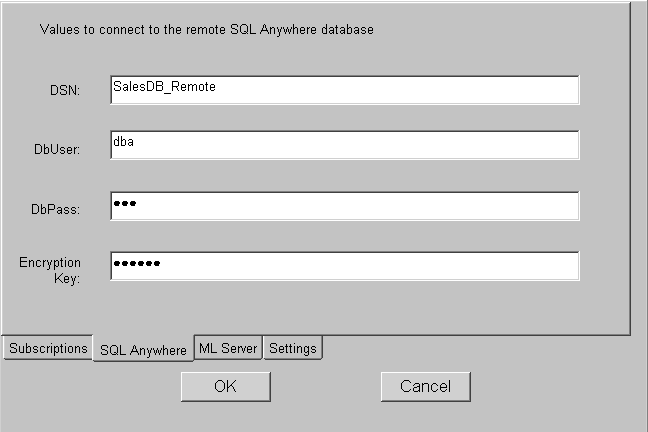
The following figure displays the options window SQL Anywhere tab
page with DSN, DBUser, DBPass, and Encryption Key fields. The database
password and encryption key are never saved in the registry.
Figure: Synchronization options window
MobiLink Server page
When you create a subscription, you specify a protocol, host,
port, and other connection options. For ease of testing, the default
protocol is TCP/IP and the default host is localhost. The default port
is 2439 for TCP/IP, 80 for HTTP, and 443 for HTTPS.
You might need to change these defaults when you are testing, and
your users might need to change them when your application is in use if
the server is moved to another host or the port changes. If you did not
enter values for the host and port at design time, and the user does not
make any changes on this page, dbmlsync uses the values in the
subscription.
For more information about subscriptions, see Adding subscriptions.
Settings page
The Settings page displays logging options, and any other dbmlsync
options you specified at design time and lets the user change any of
these options at runtime. It also gives the user a choice of displaying
or not displaying a synchronization progress window.
Extended options
Extended options are added to the dbmlsync command line with the
-e switch. You do not need to type the -e switch in the text
box.