Attach the
DataWindow object to the master DataWindow control
Where you are
> Attach the DataWindow
object to the master DataWindow control
Attach the DataWindow
object to the detail DataWindow control
Attach DataWindow
objects to the Product window
Now you attach the DataWindow object to a DataWindow control in the
w_customers window.
-
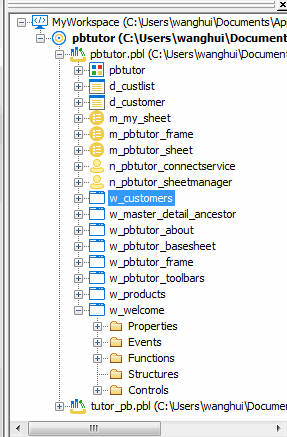
Expand the pbtutor.pbl branch in the System Tree.
-
Right-click w_customers and select Edit from the pop-up
menuor
Double-click w_customers in the System Tree.
The Window painter displays the w_customers window.
-
Right-click the top DataWindow control (dw_master) in the Layout
view.If the Properties view is not displayed, select Properties from
the pop-up menu.Click the ellipsis button next to the DataObject box in the
Properties view.The Select Object dialog box displays.
-
Select d_custlist in the DataWindows list box and click
OK.PowerBuilder associates the d_custlist DataWindow object with
the dw_master DataWindow control.The Layout view now shows the d_custlist DataWindow headings
inside the dw_master control, but you do not see any data yet. The
DataWindow does not execute its SELECT statement until you run the
application.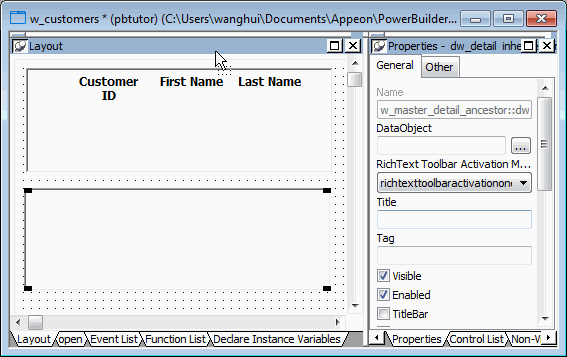
Adding DataWindow objects to the window using drag and
drop
In this tutorial, you use a custom DataWindow control that has
built-in error handling. If you want to use the standard DataWindow
control, you do not need to add the control to the window and then
attach a DataWindow object to it as you did in this lesson. You can
simply select the DataWindow object you want from the System Tree and
drag it onto the window in the Layout view. PowerBuilder creates the
DataWindow control for you.